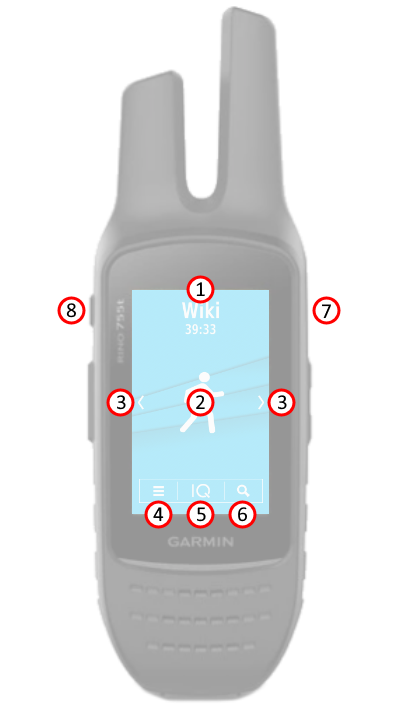
Activity Mode


Home Screen

  1. Swipe down from top of screen to open Status Widget.
     
  2. Press Activity Icon to view Data Screens.
     
  3. Press or Swipe to cycle through available Activity Profiles.
     
  4. Press to open Setup Menu.
     
  5. Press to view Connect IQ applications.
     
  6. Press to open Where To? application.
     
  7. Press to open/close Application Drawer.
     
  8. Press to cycle through available Data Screens.


Activities

     
Climb   Fish   Geocache   Hike


Hunt   Mountain Bike   Recreational   Tour Cycle


Data Screens


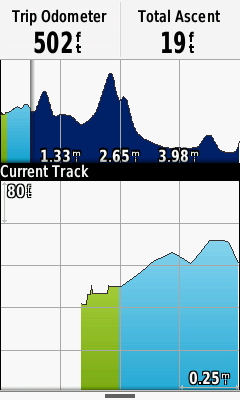
Altimeter

 
Activity Mode App Altimeter 01
  • Press and Hold Left or Right Data Field to configure from available Data Fields.
  • Press Lower Pane to enable Altimeter Plot Controls.
  • Swipe Left or Right to sweep plot.
  • Select any position along the plot to view detailed information.
  • Press to zoom in.
  • Press to zoom out.
  • Select vertical scale to adjust Y Axis.
  • Select horizontal scale to adjust X Axis.
  • Select to exit Altimeter Plot Controls.
  • Select in Status Menu to access Altimeter settings.
  • See Altimeter application for more information.
   

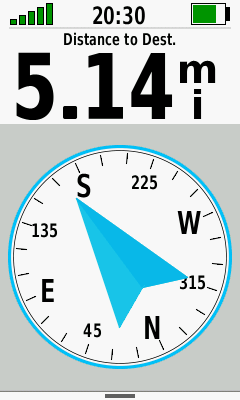
Compass

 
Activity Mode App Compass 01
  • Press and Hold Dashboard to configure from available Dashboards.
  • Select in Status Menu to access Compass settings.
  • See Compass application for more information.


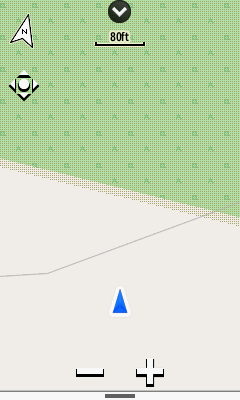
Map

 
Activity Mode App Map 01
  • Select to open configured Dashboard.
  • Select to close configured Dashboard.
  • Press and Hold Dashboard to configure from available Dashboards.
  • Select to cycle between North Up and Track Up map orientations.
  • Press to enable Map Panning.
  • Press to zoom in.
  • Press to zoom out.
  • Select to exit Map Panning.
  • Select in Status Menu to access Map settings.
  • See Map application for more information.


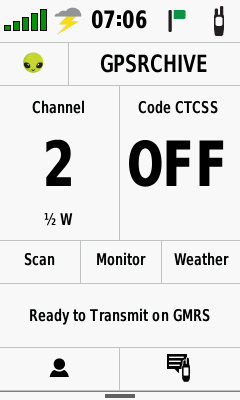
Radio

 
  • Select user icon to edit.
  • Select user name to edit.
  • Press Channel to select desired radio channel
  • Press Squelch to select desired squelch code
  • Select Scan to scan enabled channels
  • Select Monitor to listen to selected radio channel
  • Select Weather to enable weather radio
  • Press to view Contacts
  • Press to view Notes
  • Select in Status Menu to access Radio settings.
  • See Radio application for more information.


Trip Computer

 
Activity Mode App Trip Computer 01
  • Press and Hold Dashboard to configure from available Dashboards.
  • Press and Hold individual Data Fields to configure from available Data Fields.
  • Swipe Left/Right to cycle through all Trip Computer Pages.
  • Select in Status Menu to access Trip Computer settings.
  • See Trip Computer application for more information.


VIRB Remote

 
Activity Mode App VIRB Remote 01
  • Slide Record lever Up to begin recording.
  • Slide Record lever down to stop recording.
  • Press to capture a still image.
  • Select in Status Menu to access VIRB Remote settings.
  • See VIRB Remote application for more information.


Status Menu

Track Log
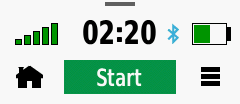
Not Recording


Press [Start] to Begin
Track Log Recording


Track Log
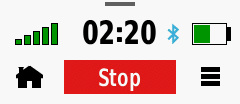
Currently Recording


Press [Stop] to Pause and/or Save
Track Log Recording


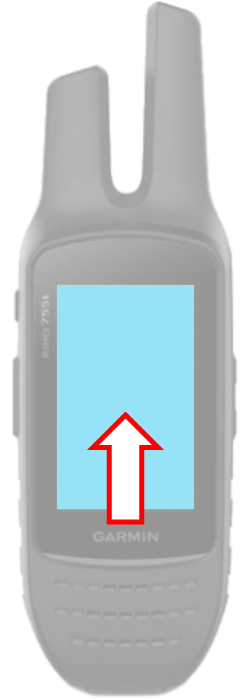
Swipe up from bottom of
screen to open Status Menu
Press to return to
the Home Screen
Press to open Settings Menu
for Current Data Screen


Application Drawer

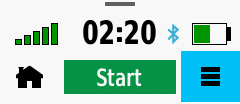
  • Press to open Application Drawer
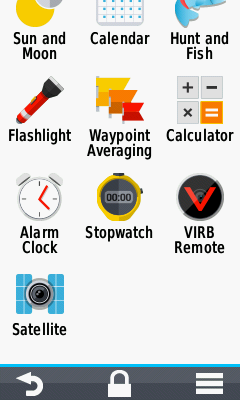
  • The Application Drawer provides access to device applications and shortcuts.
  • View current GPS Signal Strength, Time for current location, Bluetooth Connection Status, and Battery Level.
  • Swipe Up/Down to view all applications and shortcuts.
  • Select to exit the Application Drawer.
  • Press to lock the device screen.
  • Press to unlock the device screen.
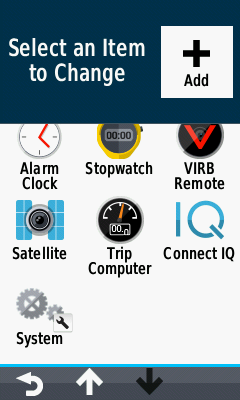
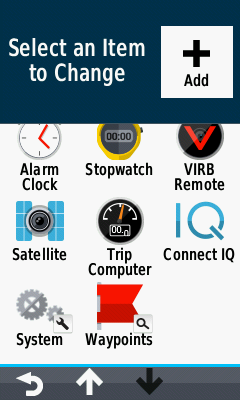
  • Select to configure the Application Drawer.


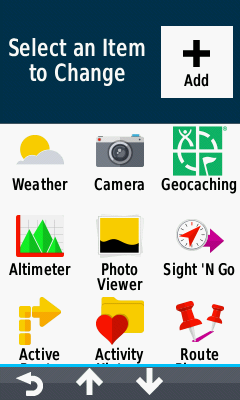
Configure Application Drawer


Setup Drawer

Open Application Drawer Drawer Menu Select [Setup Drawer]


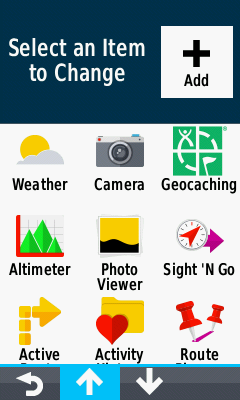
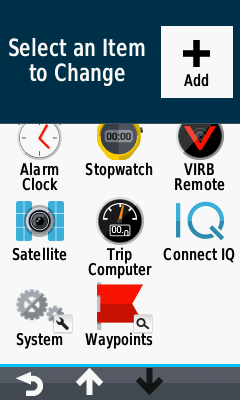
Scroll Icons

or Swipe Up... ...to scroll down or Swipe Down... ...to scroll up


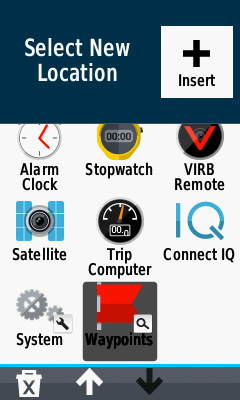
Swap Icons

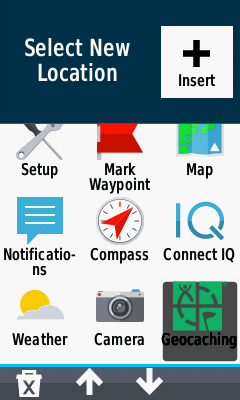
Open Drawer Setup Select First Icon Select Second Icon Icons Swap Positions


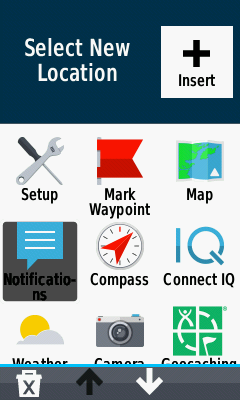
Add Icon

 
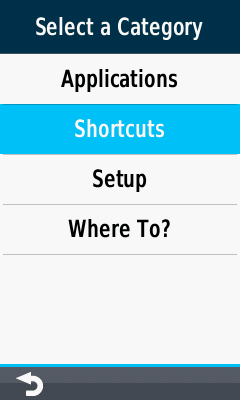
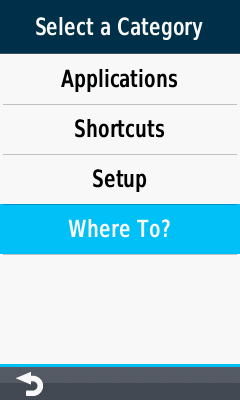
Open Drawer Setup Select [ Add] Choose Desired Category  


Add Application

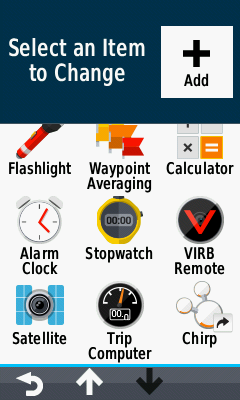
Open Add Icon Menu Select [Applications] Choose Desired Application Application Icon is Added


Add Shortcut

Open Add Icon Menu Select [Shortcuts] Choose Desired Shortcut Shortcut Icon is Added


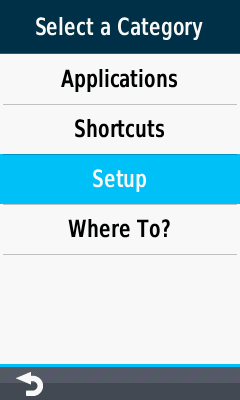
Add Setup

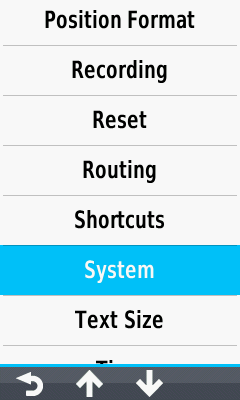
Open Add Icon Menu Select [Setup] Choose Desired Setup Setup Icon is Added


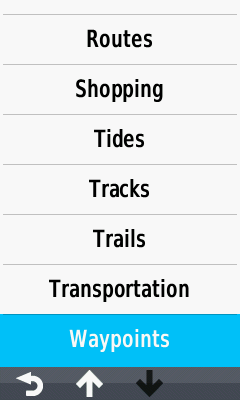
Add Where To?

Open Add Icon Menu Select [Where To?] Choose Desired Category Where To? Icon is Added


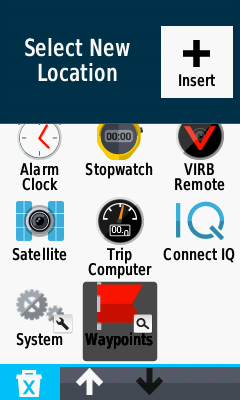
Remove Icon

Open Drawer Setup Select Desired Icon Icon is Removed