Maps
Visit the Garmin Custom Maps Tutorial page for information about Garmin Custom Maps.
Visit the Garmin BirdsEye Tutorial page for details on BirdsEye satellite and aerial imagery.
Tip: Read An Introduction to using Garmin GPSr with paper maps for land navigation to learn more.
Images
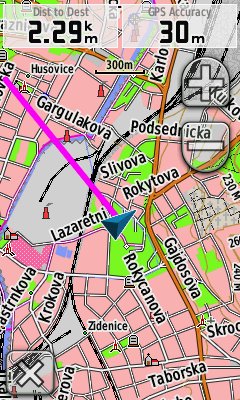 |
|
Map |
FAQ
M1.) Can I change North Up / Track Up orientation directly from the map page?
Yes, temporarily. If you are in track up mode the compass rose will be visible in the upper left of the map page. Tap the rose to change to north up mode temporarily. You can exit north up mode by hitting "x" and the map page will return to track up mode.
M2.) I'm having a hard time reading the maps on my Garmin Oregon 400t. Is there anything I do to make it easier to see?
Yes. You can turn off the relief shading by going to Setup>Map>Advanced Map Setup>Shaded Relief>Do Not Show. The map screen will be mostly white with the relief shading turned off make it easier to read the screen under bright sunlight.
M3.) Are the topographic maps on the US Garmin Oregon 400t the same as Topo2008?
They are very similar but not exactly the same. Topo 2008 is packaged differently on the Oregon to get around the space and performance issues of loading several thousand map segments. The maps on the Oregon 400t have 429 segments (vs. 6633 for standard Topo 2008). It also appears that the version of Topo 2008 on the 400t is slightly different, it is called v2. There are a number of POI's related to marinas, boat launch ramps and campsites in the DVD version which aren't part of the preloaded v2.
Verify: Text above taken from Colorado FAQ assuming that the Oregon is the same.
M4.) How do the basemaps compare on the different US Garmin Oregon models?
The basemap for the 400t contains the following:
- Worldwide map that contains borders of countries and some large cities, also contains some DEM.
- Americas basemap with major highways and interstates, also contains DEM info.
- The basemap is not autorouting.
The basemap for the 400i contains the following:
- Worldwide map that contains low resolution satellite imagery for the entire world, no DEM
- Americas basemap with major highways and interstates, with medium resolution imagery for the Americas visible down to the 5m zoom level, no DEM
- The basemap is not autorouting.
The basemap for the 300 contains the following:
- Worldwide map that contains borders of countries and some large cities, also contains some DEM.
- Americas, Pacific, and Atlantic basemaps with major highways and interstates and DEM.
- The basemap is autorouting but for some reason the autorouting data cannot be used by the Oregon (it can be used by a Nuvi).
- An America's Weather map which contains US county and coastal polygon data (not sure if this is visible to the 300 user).
Verify: Taken from Colorado FAQ and need 400c data, but probably similar/same as the 400i.
M5.) Are the preinstalled maps on the US Oregon 400i the same as US Inland Lakes g2 Vision charts?
The maps on the 400i are based on the g2 Vision charts however the Oregon does not support the advanced features of these charts such as fish eye view, mariner's eye view, fishing charts, and auto guidance which makes them roughly equivalent to the maps on the US Inland Lakes DVD when used on the Oregon. The aerial images and DEM for the 300 lakes that have this information are supported on the Oregon.
Verify: Text above taken from Colorado FAQ assuming that the Oregon is the same.
M6.) Are the preinstalled maps on the US 400c the same as BlueChart g2 Vision Coastal charts?
The maps on the 400c are based on the BlueChart g2 Vision charts with coverage for US East Coast, Gulf Coast, West Coast and Great Lakes. However the Oregon does not support the advanced features of the Vision charts such as fish eye view, mariner's eye view, fishing charts, and auto guidance which makes them roughly equivalent to the g2 charts when displayed on the Oregon.
Verify: Text above taken from Colorado FAQ assuming that the Oregon is the same.
M7.) Does the Garmin Oregon support the g2 Vision charts?
The Oregon can be used with g2 Vision cards but does not support the fish eye view, mariner's eye view, fishing charts or auto guidance features. The basic chart data will display but none of the enhanced features will display.
Verify: Text above taken from Colorado FAQ assuming that the Oregon is the same.
M8.) Can I load Bluecharts or US Inland Lakes maps from DVD/CD-ROM onto my Garmin Oregon?
The 300 and 400t support the Bluechart and Inland Lakes maps on DVD/CD-ROM, but because the 400i and 400c come preloaded with g2 Vision maps you cannot use the Bluechart and US Inland Lakes maps from DVD/CD-ROM on these units.
Verify: Text above taken from Colorado FAQ assuming that the Oregon is the same.
M9.) What DEM data is included on the US Oregon 300, what about the US Oregon 400t? What is the resolution of the DEM data provided?
contributed by rwsmith123
The 300 and 400t basemaps contain course DEM data.
The 400t contains US Topo 2008 which contains detailed DEM data.
The Oregon will use the most detailed info it can when there is multiple data for the same area (when zoomed in all the way).
I don't know what the resolution of the DEM data is but this will give some insight:
- The total size of the Worldwide map is 88kB, the approx size of the DEM data it contains is 19kB.
- The total size of the Americas basemap is 47MB, approx size of the DEM data it contains is 14MB.
- The total size of US Topo 2008 is 2.7GB, approx size of the DEM data it contains is 1.6GB.
Verify: Need DEM resolutions (at least for Topo2008)
Verify: Text above taken from Colorado FAQ assuming that the Oregon is the same.
M10.) Can other maps take advantage of the 400t's DEM data to provide relief shading on the map page and the 3D View?
Yes. Custom maps and Garmin maps like City Navigator will take advantage of the DEM data to provide relief shading. The raster imagery used in the 400i and 400c maps does not make use of the DEM data.
M11.) How do custom transparent maps look on top of Topo 2008?
Like other maps you can see the DEM relief shading. However, since the maps are transparent you can also see the vector data (roads, contour lines, etc) from Topo 2008 as well. This causes certain maps, particularly custom transparent topographic maps, to look very "busy" because you can see contour lines from both maps.
If you have City Navigator, one nice trick is to enable both Topo 2008 and City Navigator. If you enable transparent maps in this situation you can see the relief shading but since City Navigator is not transparent and is layered over Topo 2008 the vector data from the Topo 2008 maps is hidden. As a result you get a very clean view of the transparent maps over City Navigator with DEM shading provided by Topo2008.
M12.) Can I use the preloaded maps on my Garmin Oregon 400t in Mapsource?
Garmin does not officially support this feature but there is an easy way to accomplish this if you have access to a copy of Garmin's Trip & Waypoint Manager software and about 3GB of disk space on your computer. T&W comes with many Garmin units including the Colorado, however it does not ship with the Oregon. Trip and Waypoint Manager
 can be purchased for about $25-$30 which is cheaper than buying the US Topo maps if you want to view your maps in Mapsource but don't have a T&W CD.
This procedure has been verified with Mapsource versions 6.13.7 and 6.14.1 and T&W versions 3 and 4. Simply stated what you are doing is replacing the T&W default map (an nearly useless basemap) with the Topo map from your Oregon. Here are the steps assuming T&W is installed in C:\Garmin\TRIPWPT4. If you have a different version of T&W or have installed it to a different directory replace the names below with those that apply to your version:
- If you haven't already, install T&W. Once you have completed the installation verify that the directory C:\Garmin\TRIPWPT4 exists and contains a file called TRIPWPT4.img.
- Rename TRIPWPT4.img to TRIPWPT4.old since you won't be using this map file any longer. You can always rename the file to restore the original T&W maps.
- Connect your Oregon to your computer and copy the Topo map file from [OR drive]:\Garmin\gmapprom.img to the C:\Garmin\TRIPWPT4\ directory. This file is very large and will take an hour or two to copy to your computer for the first time.
- Rename C:\Garmin\TRIPWPT4\gmapprom.img to C:\Garmin\TRIPWPT4\TRIPWPT4.img (if the name of your .img file in step 1 was different then use that name)
- Start Mapsource and in the drop down menu in the upper left corner select "Trips and Waypoints v4"
- You should be viewing your Topo maps in Mapsource.
You may notice that Mapsource is a little slow when you select the Trips and Waypoints map in part 6, probably because Mapsource is loading the entire Topo map file. I've also seen some strange behavior at some map layers where some map segments don't always display. Zooming in or out a layer seems to resolve the issue.
This procedure does not seem to work with the 400i internal maps.
Many thanks to samckernan for suggesting this simple procedure.
M13.) Where are the preloaded map files on my Garmin Oregon 400i,c,t?
There is a file called [OR drive]:\Garmin\gmapprom.img which contains all of the preloaded map data.
M14.) Can I make my Garmin Oregon 400i,c,t load with no maps like a 300?
Yes. Simply rename (I would strongly suggest backing the file up to your computer first) the file called [drive]:\Garmin\gmapprom.img to gmapprom.xxx and the Oregon will start with no maps. This saves some startup time, but no maps will be loaded including the basemap unless you have other map files loaded.
M15.) How do I use Mapsource to load additional maps onto my Garmin Oregon?
The best place to start is the Mapsource manual in the section called Loading Maps to Your Garmin GPS Unit. The basic operations required to send maps to the Oregon are:
- Connect the Oregon to your computer
- Select a number of map regions in Mapsource called a map set that you want on your Oregon
- Use Mapsource to build the map set and transfer it to your Oregon or the Oregon's SD card
Mapsource transfers the map set to the Oregon as single file called gmapsupp.img which is stored in [OR drive]:\Garmin or [OR SD drive]:\Garmin . Every time you repeat the process above you delete the previous map set and replace it with a new map set. Maps cannot be added or removed incrementally using Mapsource.
This implies that if you are trying to load maps from multiple Mapsource products (i.e. Topo2008 and City Navigator) that you will need to include map regions from both products in the same map set. Mapsource supports this by allowing you to select the first Mapsource product via a drop down menu in the upper left corner, pick map regions from this product using the Map tool, select a second product and pick map regions from this product before compiling the map set and transferring to the Oregon.
M16.) What map filenames are supported by the Garmin Oregon?
Beta software 2.99 and later included support for multiple map files on the Oregon, not just the three files below. The restrictions below only apply to earlier versions of software and are left here as a reference. As of beta software 2.99 you may store as many .img files as you want into [drive]:\Garmin and the unit will load them. This applies both the internal memory and SD card slot. The 4000 segment limit discussed below still applies.
The Oregon recognizes three predefined map files in internal memory and one file on the SD card. Map sets with the following filenames in internal memory under [drive]:\Garmin will be loaded by the Oregon:
- gmapbmap.img (typically the preloaded 300 base map)
- gmapprom.img (typically the preloaded 400 maps)
- gmapsupp.img (typically created by Mapsource)
In addition a file called gmapsupp.img can be loaded on the SD card under [SD drive]:\Garmin and will work simultaneously with the img files in internal memory.
The Oregon contains another map file called gmaptz.img. This file contains the time zone data that allows the unit to do automatic time zone setting and switching.
M17.) How do I use multiple map (.img) files to help me better manage maps on my Garmin Oregon?
Even though Mapsource and MapInstall always save maps sets as [drive]:\Garmin\gmapsupp.img this file can be renamed once it is on the Oregon to any name (as of beta software 2.99) as long as the .img extension is preserved. This is very helpful if you want to manage multiple maps sets, say one for your home area that would change infrequently and one for a travel destination(s) that you might change frequently. The steps for doing this are:
- Follow the procedure in M15 to create and download your home map set
- Using a file explorer on your computer locate [drive]:\Garmin\gmapsupp.img and rename the file to [drive]:\Garmin\myhomemaps.img
- Follow the procedure in M15 to create and download your travel map set
When you are done with your travel map set this file can be deleted and replaced with a new map set for your next destination without having to rebuild and transfer your home map set.
This technique can also be used to fully use microSD cards larger than 4GB. Perform steps 1 to 3 to create multiple img files on your microSD card. This allows you to have multiple img-map-files of up to 4GB each. All maps will be detected by the Oregon. You can select the maps you want to use in your Oregon profile like usual.
M18.) If I'm using an microSD card how can better manage maps on my Garmin Oregon?
You can use the same technique described in M17 however there is no need to rename the first map set. Instead transfer the home map set to your Oregon, this will cause it to be loaded into internal memory in [drive]:\Garmin\gmapsupp.img. The travel map set can be transferred to the SD card in Mapsource where it will be saved as [SD drive]:\Garmin\gmapsupp.img. Replacing the SD map set when you travel will achieve the same results as described in M17.
M19.) What is the maximum number of map segments supported by the Garmin Oregon?
Garmin officially lists the limit on the Oregon to be 4000 segments. Based on testing the Oregon can handle somewhere between 4000 and 4229 map segments. This limit applies to the sum total of segments contained in all .img files loaded on the Oregon including the built in maps, it is not a per file limit. The 60CSx supports a maximum of 2025 map segments by comparison.
Verify: Still would like an exact number, I wouldn't be surprised if the limit is 4k (4196).
M20.) What is the maximum map file size supported by the Garmin Oregon?
Mapsource and the FAT32 file system both impose a 4GB limit on img file sizes. The Oregon has been tested to work with a 3.8GB img files, so it appears that the upper limit is 4GB.
M21.) Can I load georeferenced raster map data onto the Garmin Oregon?
There are several third party tools which may allow you to load raster map data onto the Oregon. Moagu supports the 60/76csx handhelds but does not currently work on the Oregon. Mapwel also seems to support the Oregon.
See this Garmin Custom Maps Tutorial.
M22.) How come my automobile track is frequently off by several hundred feet relative to the roads on my Garmin Oregon 400t Topo maps?
This is not a problem with GPS receiver accuracy, the issue is with the accuracy of road data in Garmin's US Topo 2008 maps which come preinstalled on the Oregon. Many roads, especially secondary roads are off by 200'-500' because of the inaccuracies in the data which Garmin used to build the maps. The location accuracy of geographic features in the preinstalled maps is more reliable.
M23.) What data fields can I view on the Map page?
See this FAQ.
Issues
Bugs
- Disable all vector maps from Setup>Map>Map Information. Return to the map page and notice that all waypoints, POIs and tracklogs are no longer visible (3.41) (2.71)
- [x50] Photo thumbnails don't show up in the map page multi-object selector list. Select a point on the map page that includes multiple objects where at least one is a photo. Use the multi-object selection tool on the top right of the map page and note that the photo does not have a thumbnail like other list views. (2.10)
-
If the user temporarily changes the map orientation on the map page and powers the unit off when the unit is powered back on the Map Orientation setting is now set to the temporary setting. Temporary map orientation changes should never be saved unless the user explicitly changes the setting. (2.97)
To reproduce:
- Goto Setup>Map>Orientation and set to Automotive Mode (or just enter the Automotive Profile)
- Goto the Map page
- Tap on the map so that the map exits Automotive orientation and goes to Track Up orientation (this is supposed to be temporary change)
- Turn off the Oregon
- Turn on the Oregon
- Goto the Map page and observe that the map is now in Track Up orientation
- Goto Setup>Map>Orientation and observe that this setting is now Track Up
Similarly:
- Goto Setup>Map>Orientation and set to Automotive Mode (or just enter the Automotive Profile)
- Goto the Map page
- Tap on the map so that the map exits Automotive orientation and goes to Track up (this is supposed to be temporary change)
- Top on the Compass Rose symbol in the upper left corner to enter North Up mode (this is supposed to be temporary change)
- Turn off the Oregon
- Turn on the Oregon
- Goto the Map page and observe that the map is now in North Up orientation
- Goto Setup>Map>Orientation and observe that this setting is now North Up - Panning the map sometimes results in the screen being only partially drawn. If during a map pan the user's finger touches the information bar at the top of the map screen the map is panned but part of the map page is not redrawn (areas which are not redrawn are white) (3.2) (x50: 2.3)
- (Crash) Using Mapsource load the same maps from City Navigator NT NA 2009 onto the internal memory and on the SD card. The Oregon will fail to boot and resets during the initialization process (2.5)
- Any waypoint, geocache, POI, map point, etc selected as a navigation destination from the Map Tool does not get added the Recent Finds list. (3.2) (x50: 2.3)
- Land cover zoom settings do not work with City Navigator NA NT 2009. Land cover is always visible at the 8mi zoom level and below. Setting the land cover zoom settings to anything other than Auto (Off, 20ft, etc.) does not have any impact on the visibility of the land cover. Land cover zoom setting does seem to work with Topo 2008 maps. (2.94)
Missing features
- Auto zoom does not work in off-road modes (60csx) (2.97)
- When using products like Topo v3 which have a lot of map segments the map screen gets very cluttered when zoomed way out (>120m) because of all the map boarders. Oregon should have a declutter option to get rid of these boards (60csx) (2.97)
- Accuracy rings are not supported on the map page (60csx) (2.97)
- User to should be able to select the map page zoom level where track up orientation switches between north up and track up. Currently this is fixed at 50mi (north up) / 20mi (track up) (60csx) (2.97)
- Map options and setup (e.g. select maps to display) should be available directly from the map page without having to exit and go to Setup>Maps (CO/60csx) (2.97)
New feature requests
- Allow the user to change the triangular cursor indicating current location. Provide a crosshair cursor so the map detail of the current location is not obstructed when using Discoverer GB maps. The triangle can easily obstruct a map area of 180m x 120m on a 1:50k map which makes navigation in the immediate area of the cursor impossible.
- Topo maps on the 400t must be available on DVD to allow trip planning on a computer and to allow the user to customize the size of the map image load.
- Users should have the option of having the map always orient "North Up" when panning in map mode. Panning on the map currently does not change the map orientation when in "Track up" or "North up" mode. Some users like the map to jump to "North up" mode once they start to pan (regardless of the map setting) others like it to say as is. "Panning Orientation" should be added as a configuration option with two options 1) North up or 2) Use Map Orientation.
- Map should have the option of setting the data fields and navigation bar to transparent (completely, not just partially transparent like they are now).
- Landscape view for automotive mode.
- Custom raster image map support.
Needs Investigation
Resolved
- (x50: 2.3) Fixed issue where multiple GB Discoverer maps would not draw
- (x50: 2.3) Fixed possible shutdown due to deleting a waypoint while panning on the map page
- (2.99) Fixed elevation errors when reviewing a point other than a waypoint. Elevation readings based on the DEM in the 400t topo maps are not working properly. Go to the map page and select a location in between two contour lines where there is no other waypoint, POI, etc. You should see a set of coordinates in the "status bar" at the top. Select the status bar and note the elevation at the top of the next page. This reading should be close to the contour lines on the map, but it is not. Example: N 42 29.401, W 071 53.312, contour lines indicate 1960' elevation, DEM shows 358'. (2.97)
- (2.99) Added ability to load maps from any img file in the Garmin directory
- (2.96) Added option to display four configurable data fields on the map. Add the option of having more than 2 data fields to the map (4 would be sufficient) (60csx) (2.94)
- (2.95) Fixed shutdown on the map. (Crash) While driving set the unit to automotive profile and enter the map screen. Tap the map screen to exit Automotive orientation and hit the return arrow in the lower left corner to return. The unit will shutoff. There are other variations of this crash introduced in 2.94 which cause the unit to shutoff. (2.94)
- (2.94) Improved render quality of GB Discoverer maps and maps with satellite imagery
- (2.94) Added ability to see a list of points from the map when several points are at the same location. If there are two or more features, POIs, waypoints, etc at the same location on the map page it is only possible to select one with the cursor, if the user selects the set they should be given a pick list of available objects to select. (60csx) (2.93)
- (2.93) Fixed GB Discoverer map not displaying while zooming (introduced in 2.86 beta)
- (2.93) Fixed roads not showing on maps with satellite imagery (introduced in 2.86 beta)
- (2.93) Fixed map with no DEM data drawing with a gray background (introduced in 2.86 beta)
- (2.93) No Garmin specific release note. Panning the map sometimes results in the screen being only partially drawn. If during a map pan the user's finger touches the zoom controls the map is panned but part of the map page is not redrawn (areas which are not redrawn are white). (2.86)
- (2.86) Improved map panning and zooming when shaded relief is turned on
- (2.85) Fixed airport points not displaying on the map
- (2.85) Fixed roads being shown on top of Garmin GB Discoverer maps
- (2.85) Improved map zooming. Map zooming is a little more visually appealing, when a zoom change is made the current level is interpolated and then the new level is drawn once it is rendered.
- (2.85) Improved raster map appearance. Improvements seen on GB Discoverer, images are more clear than with previous releases.
- (2.85) Improved map draw speed. May be slight faster but not a big improvement.
- (2.85) No Garmin specific release note. Probably fixed with the changes in zoom display and zooming When the Map Tool is in Automotive mode and zoomed into the 300-500' level quickly panning map will leave you with a blank or partially drawn map screen. To reproduce this load City Navigator 2009 NA NT and zoom in on the Map Tool while in automotive mode to get the perspective view. Quickly pan the map (do not tap to drop the red pin, just perform a very short drag). The map view transitions to track up but sometimes the map (ie. roads, waypoints, etc) do not get drawn leaving the screen blank except for the location cursor. Sometimes the features get partially drawn (ie. back roads but not interstate highways). (2.6)
- (2.8) Added setting to change land cover text size
- (2.8) Fixed shaded relief being set to 'Do Not Show'. Setting Relief Shading to "Show if Available" works but the setting is not retained across power cycles. After power cycling the GPS all profiles will have this setting set to "Do not Show" (2.7)
- (2.7) No Garmin specific release note. Zoom level settings are global and not stored per profile. In Profile A and Profile B got Setup>Map>Advanced Map Set>Zoom Levels and set all zoom level settings to Auto. In Profile A switch one of the settings, like Map Points, to 20'. Switch to Profile B and back to Profile A. Note that Profile A is set back to Auto. (2.6)
- (2.7) Added support for Garmin GB Discoverer maps
- (2.7) Fixed a potential shutdown that can occur when panning the map that is showing satellite imagery
- (2.?) No Garmin specific release note, closing since I have not seen this issue for several weeks. Panning the map screen sometimes results in the map page not being completely redrawn. Many times there are white spaces left around the boarders of the screen after panning, the only work around is to zoom in/out to refresh the display (2.2)
-
(2.3) Added option to search near a point on the map in Where To?. When a waypoint is selected the map screen the Oregon does not allow you to search from that selected waypoint. Workaround: You can search from a selected waypoint, just not from the map page, WhereTo?>Search From (target button)>A Waypoint>[find waypoint] (2.2)
- WhereTo?>[O]>Use Map Point will provide the user with a way to select a waypoint from the map to use as a search center.
- (2.3) Improved map drawing performance in some situations. Not clear what the improvements were. (2.2)
- (2.3) Improved display of intermittent water areas. Ephemeral bodies of water don't display as blue crosshatch in Topo2008 on the Colorado (like they do on other Garmin handhelds). They display as a light yellow area which is hard to see and it is not obviously a body of water because of the color. Thread with example for Colorado, displays the same on the Oregon. (2.2)
- (2.3) No specific Garmin release note. When you pan the map and drop the red pin the Oregon gives a distance and bearing to the selected location. The distance provided should be more precise, currently it only supports distances to tenths of a mile/km, it should support hundredths of a mile/km (60csx) (2.2)
- (2.3) Fixed waypoint and geocache symbols not updating on the map after being changed. Pan to a waypoint/geocache on the map screen, select it, change the symbol of the waypoint, return to the map page. The new symbol does not appear on the map page (old symbol is still visible). Workaround: Scroll the waypoint off the map page and back on again, the waypoint is displayed with the new symbol or power cycle (2.2)
- (2.3) Fixed issue where left map data field could get stuck on depth (2.2)
-
(2.3) Fixed city coloring with CityNav 2009 (2.2)
- This seems to have changed more than just city coloring. The background color of the City Nav maps seems to be white (easier to read).
- (2.3) Fixed map getting stuck in north up mode after panning. Sometimes while panning the map in Automotive view the Map Tool can get stuck in north up mode. It is not easy to reproduce. The only way to get back to Automotive view is toggle the Map settings from automotive to track up and back to automotive. City Navigator NA NT 2009 maps being used. (2.2)
