|
|
|
|
|
Map |
|
|
|
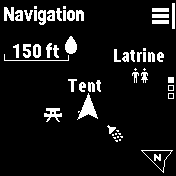
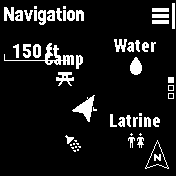
No Destination |
 |
 |
 |
 |
|
Map displayed |
Map displayed |
 |
|
|
'Track Up' |
'North Up' |
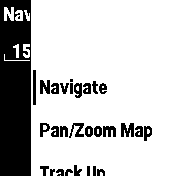
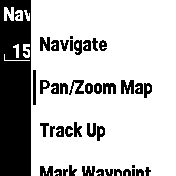
'Navigate' |
'Pan/Zoom
Map' |
|
|
 |
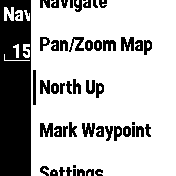 |
 |
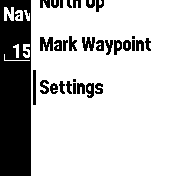 |
|
|
|
|
|
|
'Track
Up' |
'North
Up' |
'Mark
Waypoint' |
'Settings' |
|
|
|
|
|
With Destination |
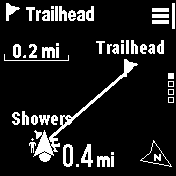 |
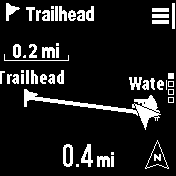 |
 |
 |
|
Map displayed |
Map displayed |
|
|
|
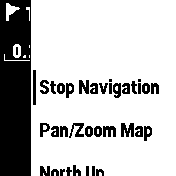
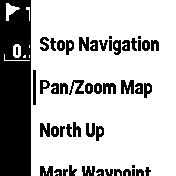
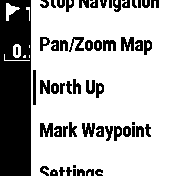
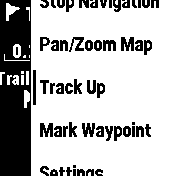
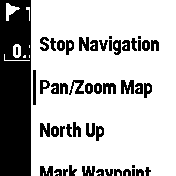
'Track Up' |
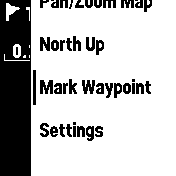
'North Up' |
'Stop
Navigation' |
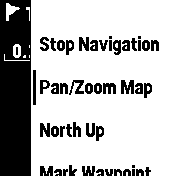
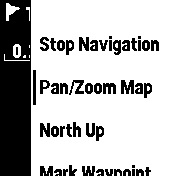
'Pan/Zoom
Map' |
|
|
 |
 |
 |
 |
|
|
|
|
|
|
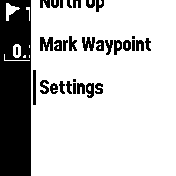
'North
Up' |
'Track
Up' |
'Mark
Waypoint' |
'Settings' |
|
|
|
|
|
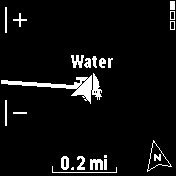
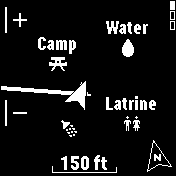
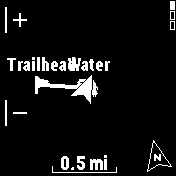
Pan/Zoom Map |
 |
 |
 |
 |
|
|
|
 |
 |
|
 |
 |
|
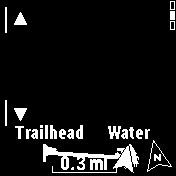
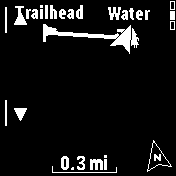
'Pan/Zoom Map' |
'Zoom In' |
'Zoom Out' |
|
|
 |
 |
 |
 |
|
|
|
|
 |
|
 |
 |
|
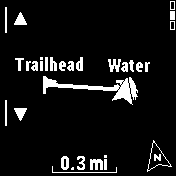
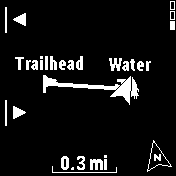
'Pan/Zoom Map' |
'Pan Up' |
'Pan Down' |
|
|
 |
 |
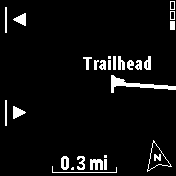 |
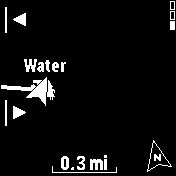 |
|
|
|
|
 |
|
 |
 |
|
'Pan/Zoom Map' |
'Pan Left' |
'Pan Right' |
|
|
|
|
|
Orientation |
|
|
|
|
|
|
|
Map is displayed |
|
Map is displayed |
|
'North Up' |
'North Up' |
'Track Up' |
'Track Up' |
|
|
|
|
|
Mark Waypoint |
 |
 |
 |
 |
|
|
Waypoint details are displayed |
Select 'Done' to save |
Select 'Delete' to cancel |
|
'Mark Waypoint' |
|
|
|
|
|
 |
 |
 |
 |
|
Select 'Edit Details' to modify |
Edit Waypoint Name |
Edit Waypoint Icon |
Edit Waypoint Position |
|
|
|
|
|
|
|
|
|
|
|
|
Destination |
|
|
|
Available only while navigating to a destination |
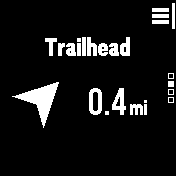 |
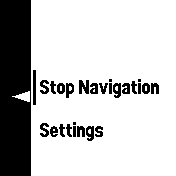 |
 |
|
|
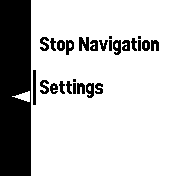
Destination name, direction |
|
|
|
|
and distance are displayed |
'Stop
Navigation' |
'Settings' |
|
|
|
|
|
|
|
|
Compass |
|
|
|
No Destination |
 |
 |
 |
 |
|
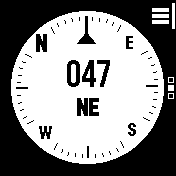
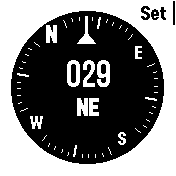
Device heading and |
|
|
|
|
compass rose displayed |
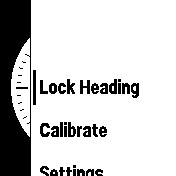
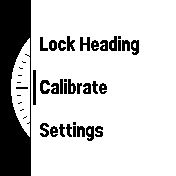
'Lock
Heading' |
'Calibrate' |
'Settings' |
|
|
|
|
|
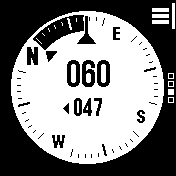
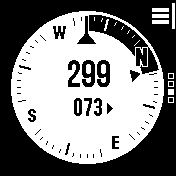
With Destination |
 |
 |
 |
 |
|
'Off Course' |
'Off Course' |
|
|
|
Rotate 47° left to correct |
Rotate 73° right to correct |
'Calibrate' |
'Settings' |
|
|
|
|
|
Lock Heading |
|
|
 |
 |
 |
|
|
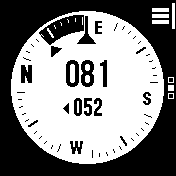
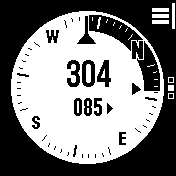
Rotate to desired heading |
'Off Course' |
'Off Course' |
|
'Lock Heading' |
|
Rotate 52° left to correct |
Rotate 85° right to correct |
|
|
 |
 |
 |
 |
|
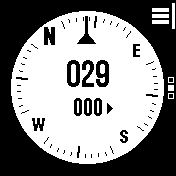
'On Course' |
|
|
|
|
No correction necessary |
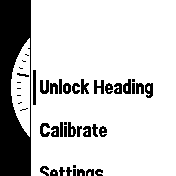
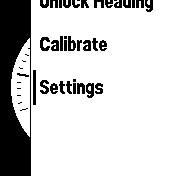
'Unlock
Heading' |
'Calibrate' |
'Settings' |
|
|
|
|
|
|
|
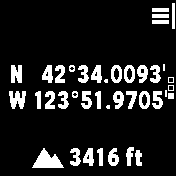
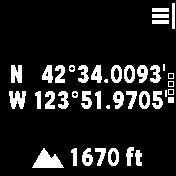
Location |
|
|
 |
 |
 |
 |
|
GPS
coordinates and |
|
|
|
|
elevation are displayed |
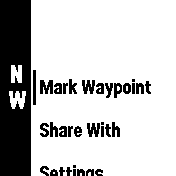
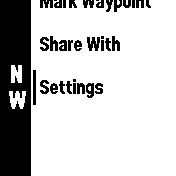
'Mark Waypoint' |
'Share With' |
'Settings' |
|
|
|
|
|
|
|
TracBack |
- TracBack will
be available even if tracking was not started at the
beginning of an activity.
- The
inReach Mini 2 automatically records its location every 10
minutes to create a hidden trip log.
- This hidden trip log is a useful backup option for
navigation when tracking has not been enabled.
- Only the most recent 24 hours of tracking data is saved,
and older tracking data is automatically discarded.
|
Start
TracBack
Follow
Path
Straight
Line
|
|
|
|
Start TracBack |
 |
 |
 |
 |
|
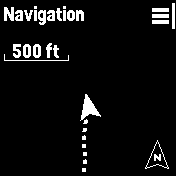
Open Navigation page |
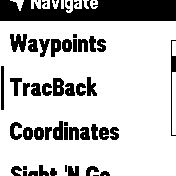
Select 'Navigate' |
Select 'TracBack' |
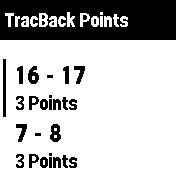
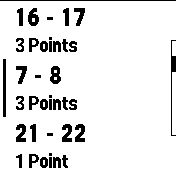
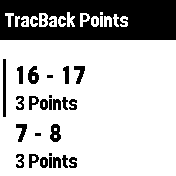
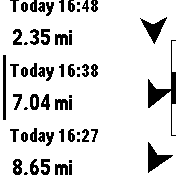
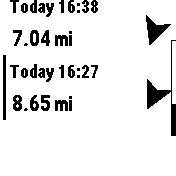
Available TracBack Points |
|
|
|
|
are displayed |
|
|
 |
 |
 |
 |

 |
Select desired time slot |
|
Select desired location |
|
Scroll available time slots |
|
Scroll available locations |
|
|
|
|
|
|
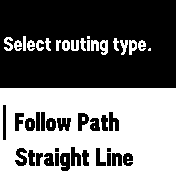
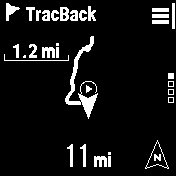
Follow Path (follow
recorded trackpoints in reverse sequence to the selected trackpoint) |
 |
 |
 |
 |
|
Select 'Follow Path' |
|
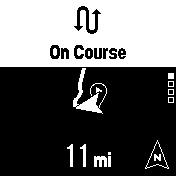
'On Course' Confirmation |
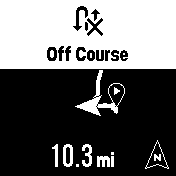
'Off Course' Warning |
|
|
Navigate |
|
|
|
|
 |
 |
 |
 |
|
|
|
|
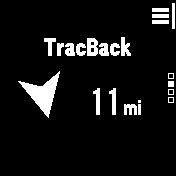
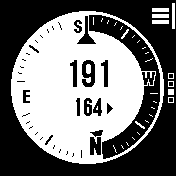
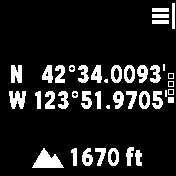
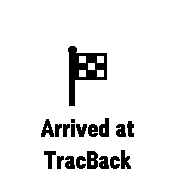
'TracBack' |
|
Distance |
Compass |
Location |
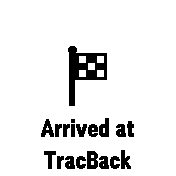
arrival notification |
|
|
|
|
|
Straight Line
(navigate directly to the selected trackpoint) |
 |
 |
 |
 |
|
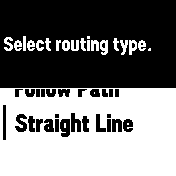
Select 'Straight Line' |
|
|
|
|
|
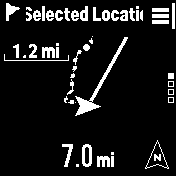
Navigate |
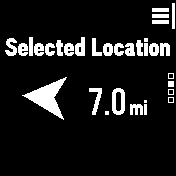
Distance |
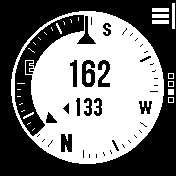
Compass |
|
|
 |
 |
|
|
|
|
'TracBack' |
|
|
|
Location |
arrival notification |
|
|
|
|
|
|
|
|


