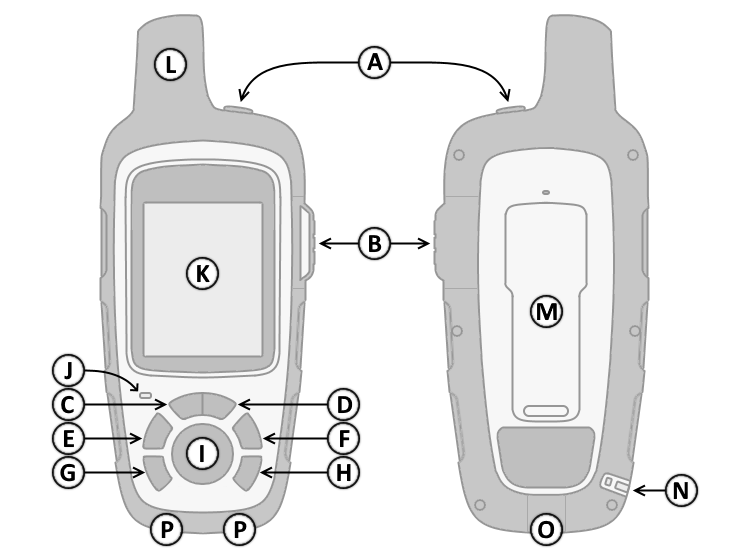
Function


Controls

A. Power
B. SOS (Under Cover)
C. Zoom Out
D. Zoom In
E. Shortcut Menu
F. Menu
G. Cancel
H. Enter
I. D-Pad
J. Status LED
K. Color Display
L. GPS Antenna
M. Accessory Spine Mount
N. Lanyard Attachment
O. USB Connector (Under Cover)
P. External Charging Contacts

Button Operation

A. Power   F. Menu
     1. Press and hold to turn unit on/off.        1. Press to open Page menu.
     1. Press then or to adjust backlight brightness.        2. Press to open the Home Page.
B. SOS   G. Cancel
     1. Lift Protective Cover.        1. Press to cancel or return to the previous page.
     2. Press and hold to initiate or cancel an SOS Rescue.   H. Enter
C. Zoom Out        1. Press to make menu selections and/or acknowledge
     1. Press to zoom out on the map.           notifications and messages.
D. Zoom In   I. D-PAD
     1. Press to zoom in on the map.        1. Press   to navigate menu options or move
E. Shortcut Menu           the map cursor.
     1. Press to open the Shortcut menu.    


Special Key Functions
  • Soft Reset
    • If the device stops responding, you may need to reset it.
    • This 'Soft Reset' does not erase any of your data or settings.
    • Press and Hold the (Cancel) + (Power) buttons until the device turns off.
    • Press and Hold the (Power) button to restart the device.
    • Connect the inReach device to a computer.
    • Run inReach Sync and test to confirm that any issues have been resolved.
       
  • Factory Reset
    • This will erase all user data and restore factory default settings.
    • Press and Hold the (Power) button to power off the device.
    • Press and Hold the (Down) + (Cancel) + (Power) buttons simultaneously.
    • The device should power on in Firmware Update Mode.
    • Only while the device is in Firmware Update Mode, Press and Hold the (SOS) button for >5 seconds.
    • Once the Status LED starts flashing Green > Red, release the (SOS) button.
    • Press and Hold the (Power) button to power off the device.
    • Once powered off, Press and Release the (Power) button to restart the device.
       
  • Firmware Update Mode
    • Disconnect and power off the the inReach device.
    • Press and Hold the (Down) + (Cancel) + (Power) buttons simultaneously.
    • The device will power on in Firmware Update Mode.
    • Connect the inReach device to a computer.
    • Run inReach Sync and test to confirm that any issues have been resolved.
    • When inReach Sync recognizes your device the app may display a message that the firmware on the device is corrupt.
      • Click Yes to proceed with the firmware update and Sync.
         
  • Bootloader Mode
    • Disconnect and power off the the inReach device.
    • Press and Hold the (Up) + (Cancel) + (Power) buttons simultaneously.
    • The device will power on into a 'Bootloader Mode'.
    • Connect the inReach device to a computer.
    • Run inReach Sync and test to confirm that any issues have been resolved.
    • When inReach Sync recognizes your device the app may display a message that the firmware on the device is corrupt.
      • Click Yes to proceed with the firmware update and Sync.
     
  • Test Mode
    • Power off the the inReach device.
    • Press and Hold the (Enter) + (Power) buttons simultaneously.
    • The device will power on into a 'Test Mode'.
    • Select desired option:
      • Device Information
      • Display
      • Sounds
      • Iridium Transmission Test
      • Map Checksum
      • Format File System


Status LED
 

  Unread message notification
  Device does not have a clear view of the sky or Battery power is below 10%
  SOS Rescue is Active
  SOS Rescue is being Canceled


Status Bar Icons
 

  3D GPS signal acquired
  2D GPS signal acquired
  Searching for GPS signal
  Sending and receiving data
  Unable to send and receive data
  Unread messages
  Tracking enabled
  Bluetooth connection status
  Charging battery
  Charging complete