
Ever get tired of backing all the way out of the current application to find the setup menu, having to search for the setting you want to change, and then trying to find your way back where you were when you realized you needed to change the setting?
Do you wish you could have easy one touch access to just the menu items and setup options you need, without all those tedious key presses?
Have you ever needed to work through multiple setup items just to make your GPSr behave the way you want it too? Wouldn't it be great if you could activate multi-function macros with a single touch?
With the Rino 75x there is no need to dig several layers deep into complex setup menu structures.
Rino 75x users can create simple one function shortcuts or complex multi-function macros for quick and easy access from any main menu, drawer or dashboard!
View Shortcuts
Access available shortcuts on your Rino 75x
 |
 |
 |
 |
|||||
|---|---|---|---|---|---|---|---|---|
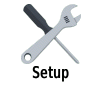
| Select [Setup] |
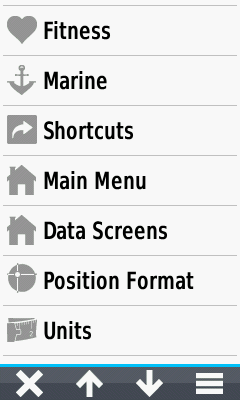
Scroll menu to [Shortcuts] |
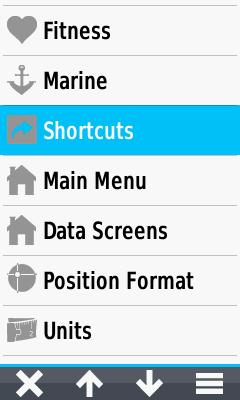
Select [Shortcuts] |
Shortcut Menu |
Set Home Location
Assign a waypoint to the [Go Home] shortcut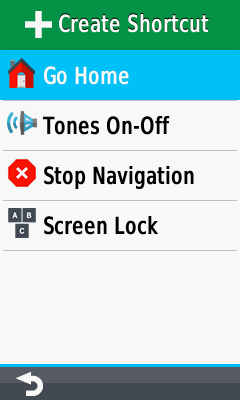 |
 |
 |
 |
|||||
|---|---|---|---|---|---|---|---|---|
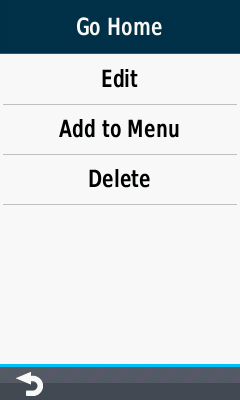
| Access Shortcut Menu Select [Go Home] |
[Go Home] shortcut menu |
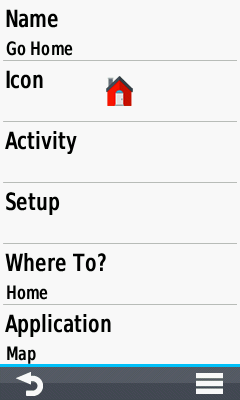
Select [Edit] |
[Go Home] editing menu |
|||||
 |
 |
 |
 |
|||||
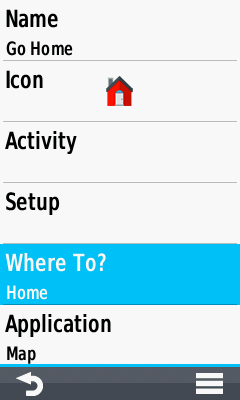
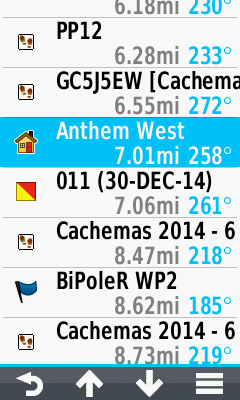
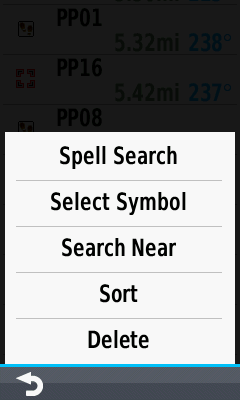
| Select [Where To?] |
Waypoint menu |
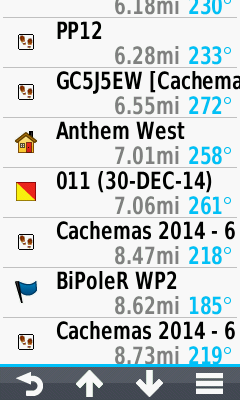
Select desired waypoint |
Waypoint menu options |
Create New Shortcut
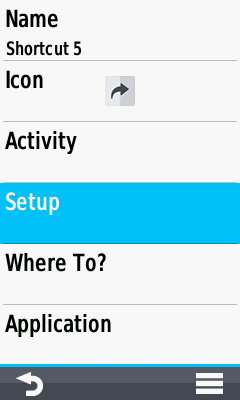
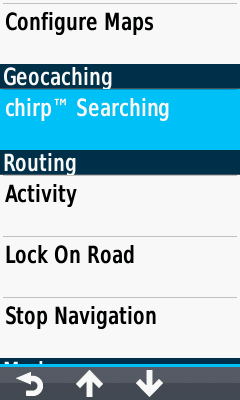
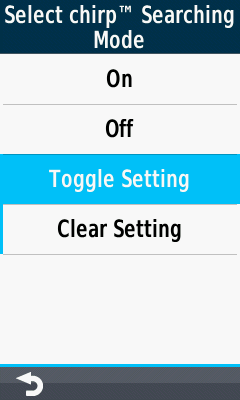
This example creates a shortcut to enable chirp™ searching and open the Geocaching application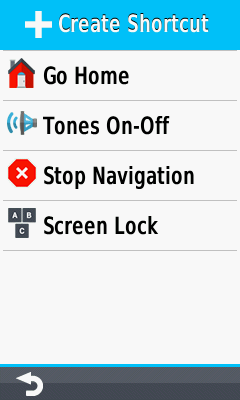 |
 |
 |
 |
|||||
|---|---|---|---|---|---|---|---|---|
| Select [Create Shortcut] |
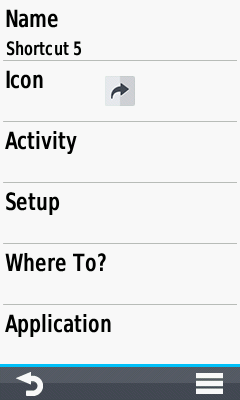
New Shortcut menu |
Select [Setup] |
Select [chirp™ Searching] |
|||||
 |
 |
 |
 |
|||||
| Select [On] |
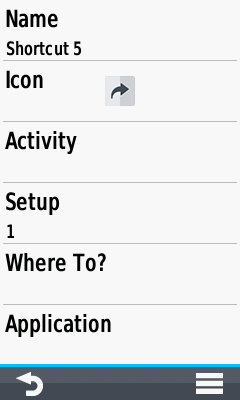
chirp™ Searching status updated to reflect selection |
Setup count is adjusted |
Select [Application] |
|||||
 |
 |
 |
 |
|||||
| Choose [Geocaching] Application |
Application status is updated |
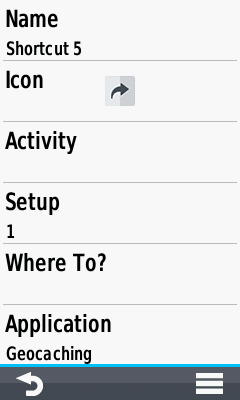
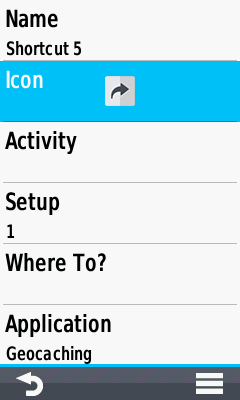
Select [Icon] |
Choose desired icon |
|||||
 |
 |
 |
 |
|||||
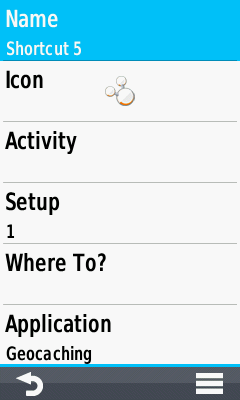
| Icon status is updated |
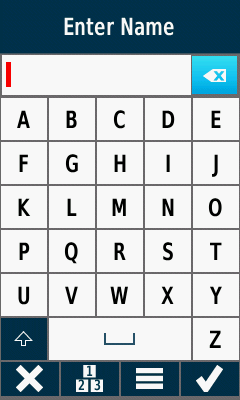
Select [Name] |
Current name displayed |
Hold  to clear name to clear name |
|||||
 |
 |
 |
 |
|||||
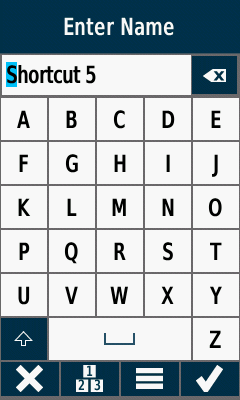
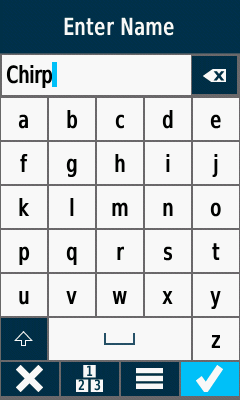
Enter desired name |
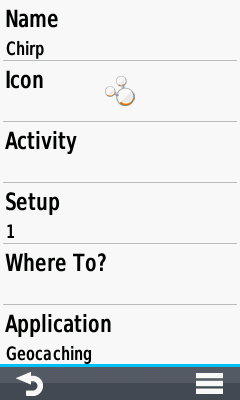
Shortcut name is updated |
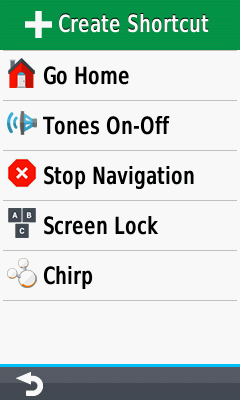
New shortcut is complete |
 Use this option to clear all setup items and start over |
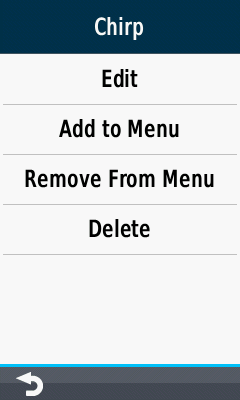
Manage Shortcut
Edit, delete, add or remove existing shortcuts from available menus |
 |
 |
 |
|||||
|---|---|---|---|---|---|---|---|---|
| Access Shortcut Menu |
Select desired shortcut |
Shortcut management menu |
Select [Edit] |
|||||
 |
 |
 |
 |
|||||
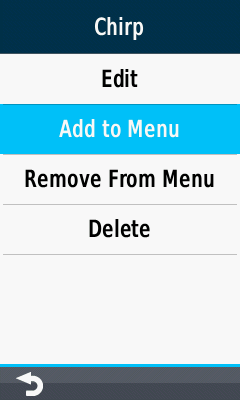
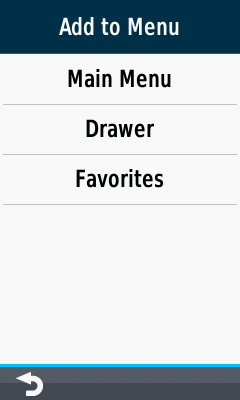
| Select [Add To Menu] |
Choose from available menus |
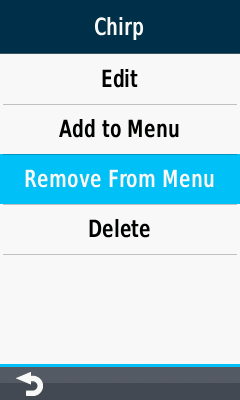
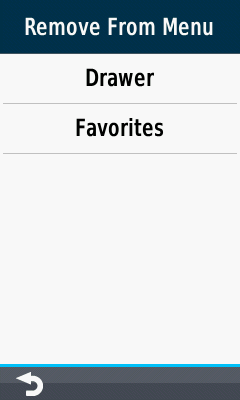
Select [Remove From Menu] |
Choose from available menus |
|||||
 |
 |
 |
 |
|||||
| Select [Delete] |
Are you sure? |
[Delete] to proceed |
[Cancel] to abort |
Edit Shortcut Name
Create a title for the selected shortcut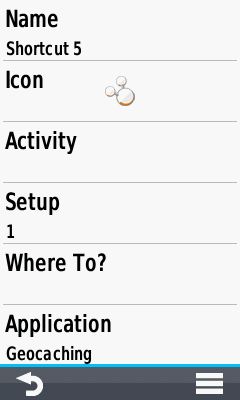 |
 |
 |
 |
|||||
|---|---|---|---|---|---|---|---|---|
| Access Shortcut Edit Menu |
Select [Name] |
Current name displayed |
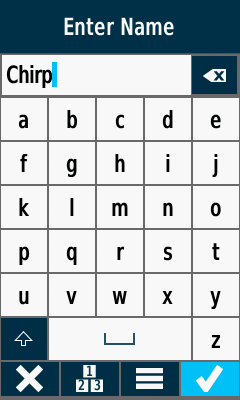
Hold to clear name |
|||||
 |
 |
|||||||
| Enter desired name |
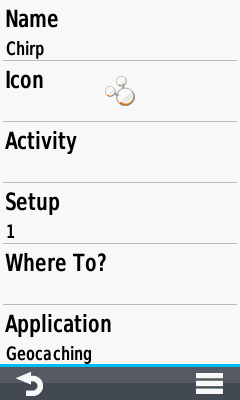
Shortcut name is updated |
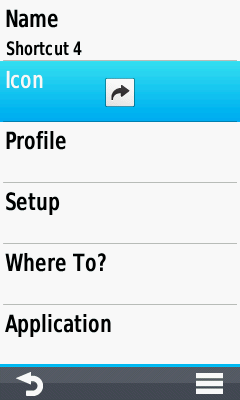
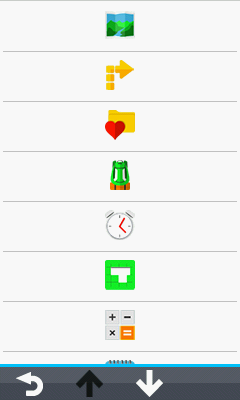
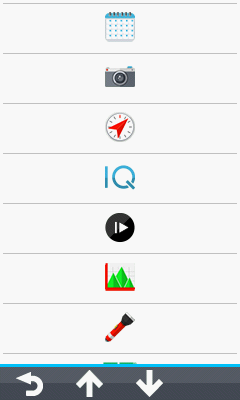
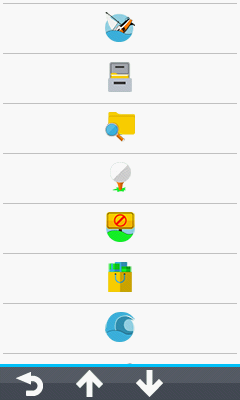
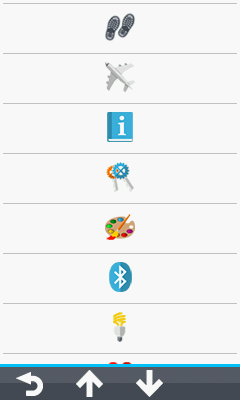
Edit Shortcut Icon
Select an icon to represent the selected shortcut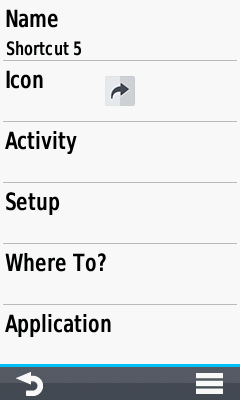 |
 |
 |
 |
|||||
|---|---|---|---|---|---|---|---|---|
| Access Shortcut Edit Menu |
Select [Icon] |
Choose from available icons |
Choose from available icons |
|||||
 |
 |
 |
 |
|||||
| Choose from available icons |
Choose from available icons |
Choose from available icons |
Choose from available icons |
|||||
 |
 |
 |
 |
|||||
| Choose from available icons |
Choose from available icons |
Choose from available icons |
Choose from available icons |
|||||
 |
 |
|||||||
| Choose from available icons |
Choose from available icons |
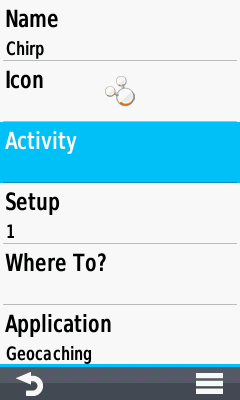
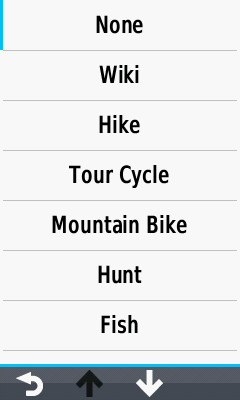
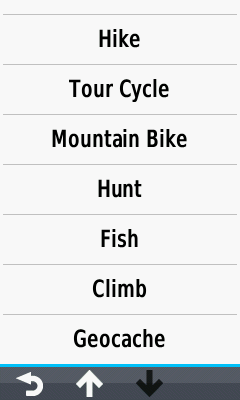
Edit Shortcut Activity
Choose an activity to activate when the shortcut is selected |
 |
 |
 |
|||||
|---|---|---|---|---|---|---|---|---|
| Access Shortcut Edit Menu |
Select [Activity] |
Choose from available activities |
Choose from available activities |
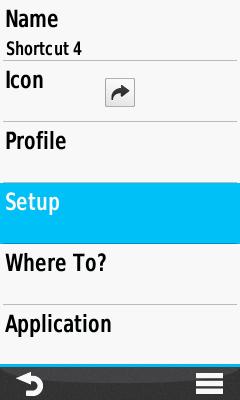
Setup Menu
Change commonly used system settings and enable/disable installed maps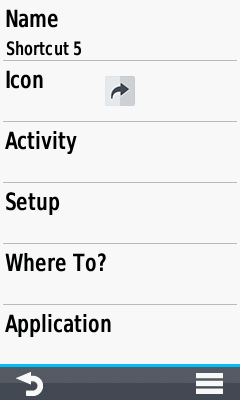 |
 |
 |
 |
|||||
|---|---|---|---|---|---|---|---|---|
| Access Shortcut Edit Menu |
Select [Setup] |
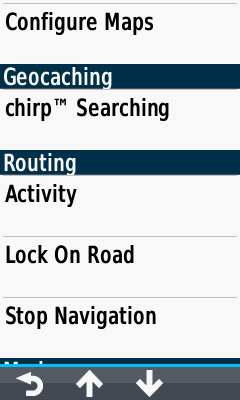
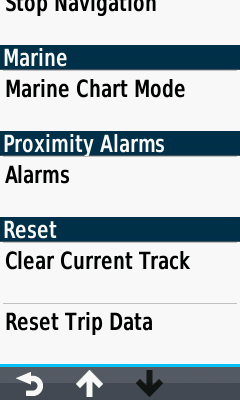
Choose from available Setup categories |
Choose from available Setup categories |
|||||
 |
 |
|||||||
| Choose from available Setup categories |
Choose from available Setup categories |
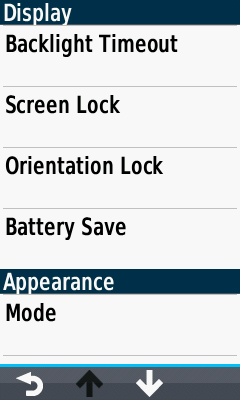
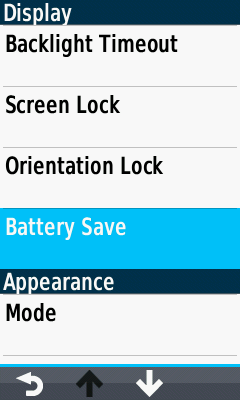
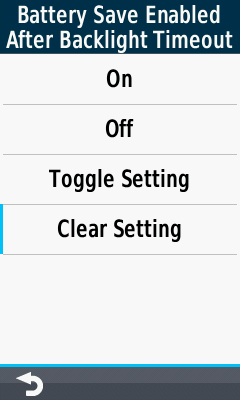
Display
Manage display preferences |
 |
 |
 |
|||||
|---|---|---|---|---|---|---|---|---|
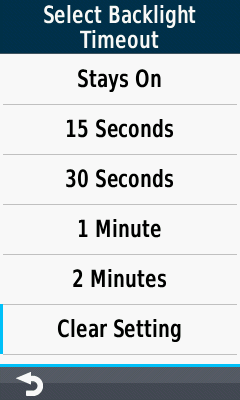
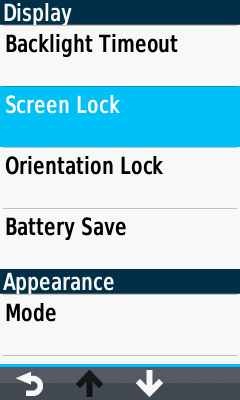
| Access Setup Menu [Backlight Timeout] selected |
Backlight Timeout options |
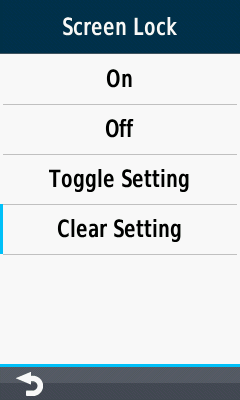
[Screen Lock] selected |
Screen Lock options |
|||||
 |
 |
 |
 |
|||||
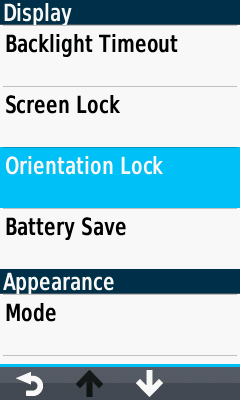
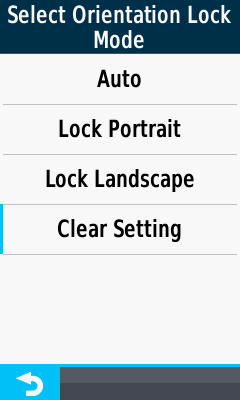
| [Orientation Lock] selected |
Orientation Lock options |
[Battery Save] selected |
Battery Save options |
Appearance
Adjust Mode and Landscape options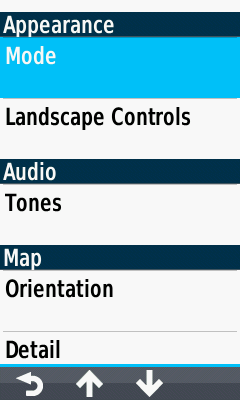 |
 |
 |
 |
|||||
|---|---|---|---|---|---|---|---|---|
| Access Setup Menu [Mode] selected |
Mode options |
[Landscape Controls] selected |
Landscape Controls options |
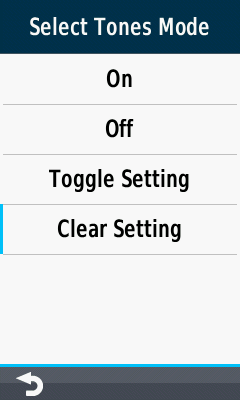
Audio
Enable/disable tones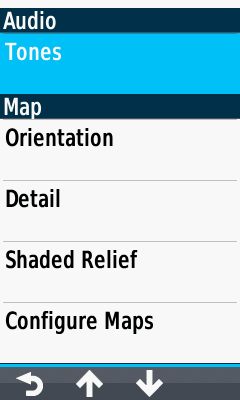 |
 |
|||||||
|---|---|---|---|---|---|---|---|---|
| Access Setup Menu [Tones] selected |
Tones options |
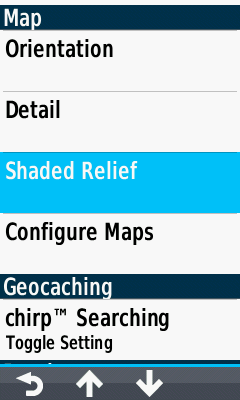
Map
Enable/disable installed maps and adjust map display preferences |
 |
 |
 |
|||||
|---|---|---|---|---|---|---|---|---|
| Access Setup Menu [Orientation] selected |
Orientation options |
[Detail] selected |
Detail options |
|||||
 |
 |
 |
 |
|||||
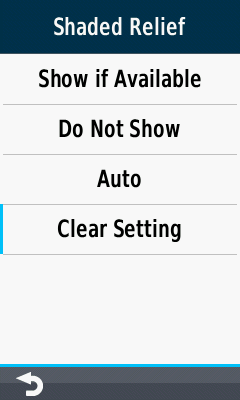
| [Shaded Relief] selected |
Shaded Relief options |
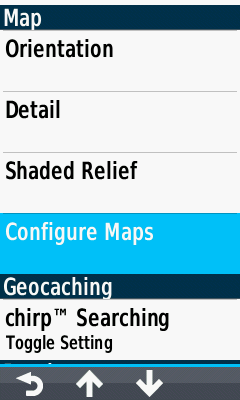
[Configure Maps] selected |
Configure Maps menu |
|||||
 |
 |
 |
 |
|||||
| Select map to configure |
Choose from available map configuration options |
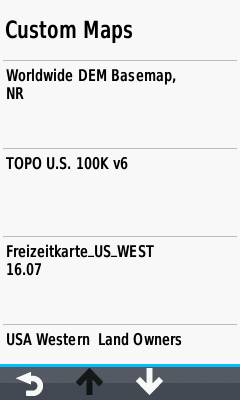
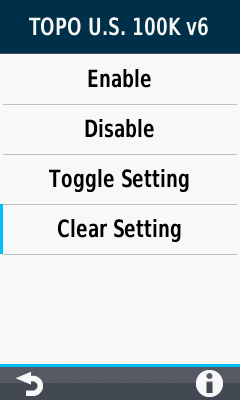
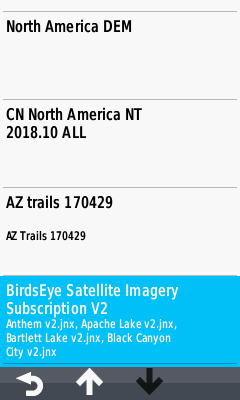
[Custom Maps] selected |
Custom Maps options |
|||||
 |
 |
|||||||
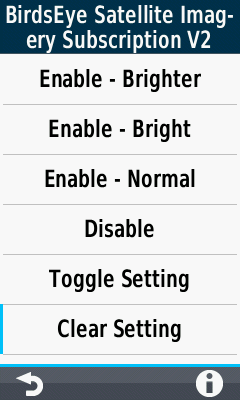
| [BirdsEye] selected |
BirdsEye options |
Geocaching
Enable/disable chirp™ searching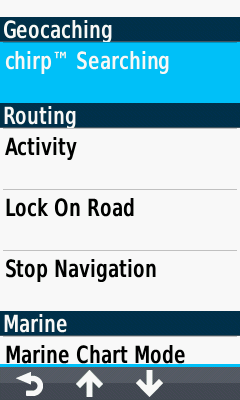 |
 |
|||||||
|---|---|---|---|---|---|---|---|---|
| Access Setup Menu [chirp™ Searching] selected |
chirp™ Searching options |
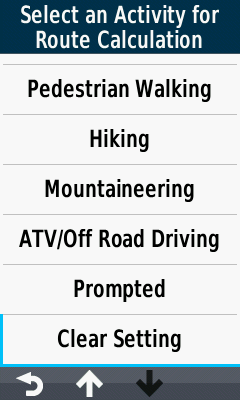
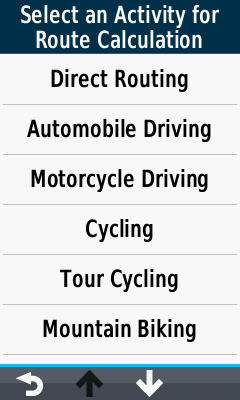
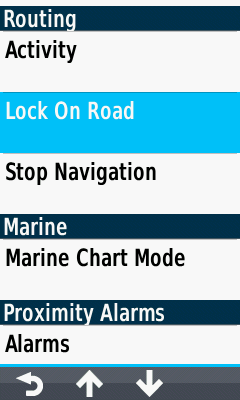
Routing
Select desired routing options |
 |
 |
 |
|||||
|---|---|---|---|---|---|---|---|---|
| Access Setup Menu [Activity] selected |
Activity options |
Activity options |
Activity options |
|||||
 |
 |
 |
 |
|||||
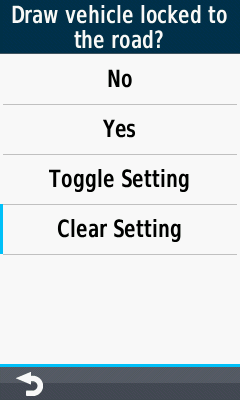
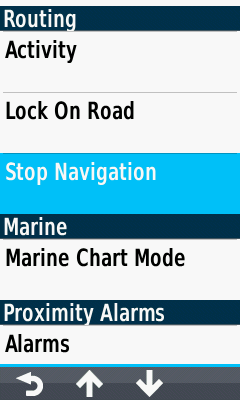
| [Lock On Road] selected |
Lock On Road options |
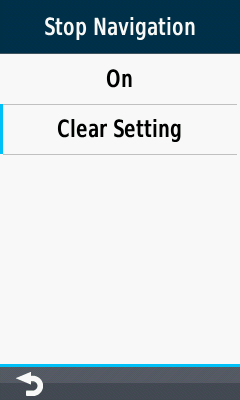
[Stop Navigation] selected |
Stop Navigation options |
Marine
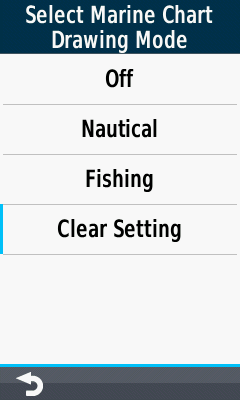
Choose desired Marine Chart Mode |
 |
|||||||
|---|---|---|---|---|---|---|---|---|
| Access Setup Menu [Marine Chart Mode] selected |
Marine Chart Mode options |
Proximity Alarms
Enable/disable proximity alarms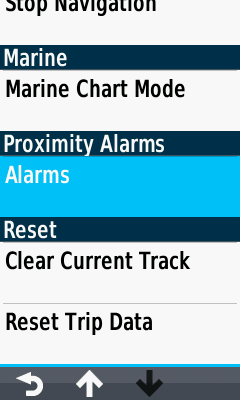 |
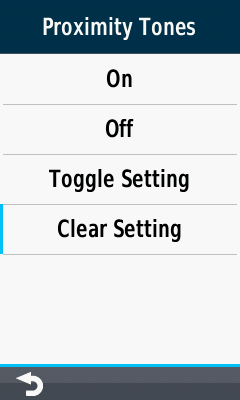 |
|||||||
|---|---|---|---|---|---|---|---|---|
| Access Setup Menu [Alarms] selected |
Alarms options |
Reset
Clear current track and trip data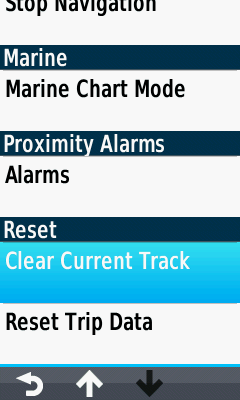 |
 |
 |
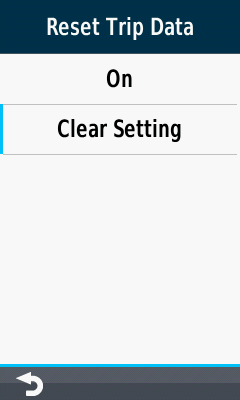 |
|||||
|---|---|---|---|---|---|---|---|---|
| Access Setup Menu [Clear Current Track] selected |
Clear Current Track options |
[Reset Trip Data] selected |
Reset Trip Data options |
Where To?
Choose a destination to begin navigation toward when the shortcut is activated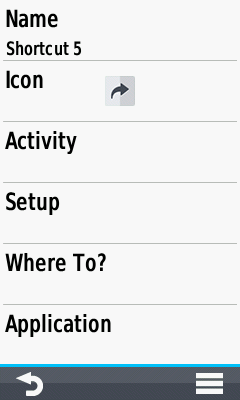 |
 |
 |
 |
|||||
|---|---|---|---|---|---|---|---|---|
| Access Shortcut Edit Menu |
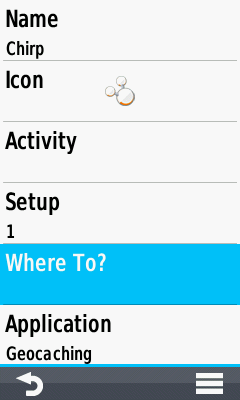
Select [Where To?] |
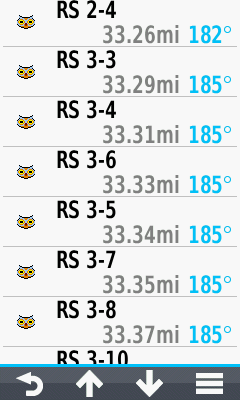
Choose from available waypoints |
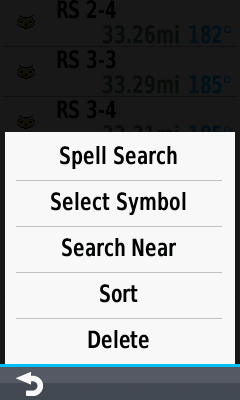
Waypoint selection options |
Application
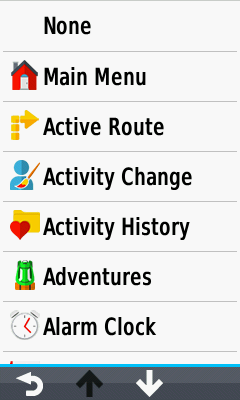
Launch the specified application when activating the shortcut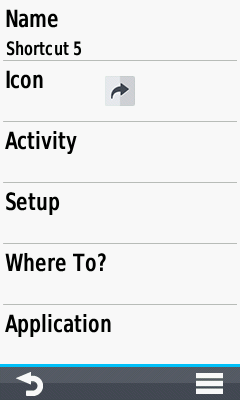 |
 |
 |
 |
|||||
|---|---|---|---|---|---|---|---|---|
| Access Shortcut Edit Menu |
Select [Application] |
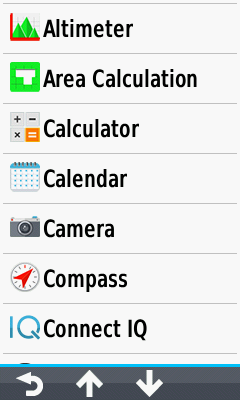
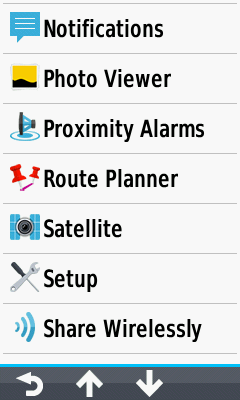
Choose from available options |
Choose from available options |
|||||
 |
 |
 |
 |
|||||
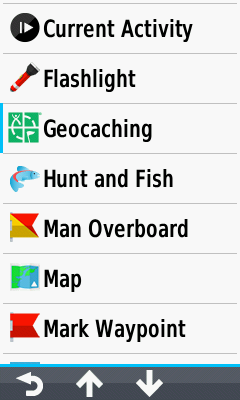
| Choose from available options |
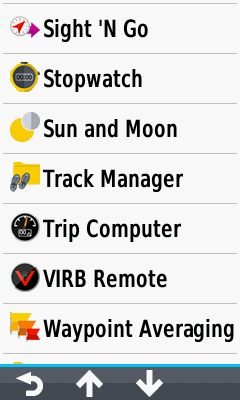
Choose from available options |
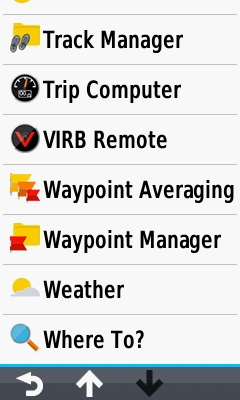
Choose from available options |
Choose from available options |
