Geocaching
FAQ
General information and issues with waypoints, POIs and geocache handling can be found on the Waypoints & POI page.
GC1.) What does the Garmin Oregon's paperless geocaching mode do for me?
Geocaching mode allows you to download a gpx file such as a Groundspeak pocket query (aka PQ) containing geocaches onto the Oregon and access information about the cache in the field. The information available includes the geocache name, GCID, coordinates, type, difficulty, terrain, owner, description, trackables, logs, child waypoints, and hint. You cannot see cache attributes, images on the cache page and corrected coordinates which are part of logs.
In addition you can mark caches as found, not found or in need of maintenance while in the field. Once you return to your computer you can upload your find data (i.e. the caches, dates and type of log) to Groundspeak using the Field Note support which streamlines the process of logging your finds.
The Oregon maintains two lists of caches, the Unfound List and the Found List. Caches that get loaded into the Oregon from a gpx file are put into the appropriate list depending on their found status. The Unfound cache list is the default list you will see when selecting Main Menu>Geocaches. Once a cache is marked as found it is removed from this list and put on the Found List. The Found List is visible by selecting Main Menu>Geocaches>Show Found.
For more details on how paperless Geocache works on the Garmin Oregon see the How To section below.
GC2.) How do I download geocaches into my Garmin Oregon?
There are three ways to download geocaches directly from geocaching.com. You need to be a premium member to use 2) and 3) below. Non-premium members can use option 1) but get only limited information downloaded to the Oregon.
Connect your Oregon to your computer and do one of the following:
- Goto the cache page you would like to download to your Oregon and select the "Send to GPS" button. Select the Oregon as the device and click Write. This only allows you to download one cache at a time to your Oregon . You will need to have Communicator installed in order for this to work.
- Goto the cache page and click the "GPX eXchange file" button and select "download file" in your browser. Once the gpx file is downloaded to your computer copy it to [OR drive]:\Garmin\GPX . This method only allows you to download one cache at a time.
- Create and run a Pocket Query. Once you receive the pocket query via email, save the attachment, unzip the file and copy both gpx files to [OR drive]:\Garmin\GPX. Geocaches will show up on the Found and/or Unfound List and child waypoints will show up as waypoints on the Oregon. This works for up to 500 geocaches (the limit of the pocket query).
After completing one of the three steps above, disconnect, power on the Oregon and the caches will be visible in Main Menu>Geocaches.
GC3.) Can I use GSAK to download geocaches to my Oregon?
Yes. Gpx files exported from GSAK work just the same as Groundspeak's PQ gpx files. There is also a very useful Garmin Export GSAK macro that will automatically locate the Oregon and create the GPX file in the proper location in the device. It includes a form to allow the user to control which caches are exported.
Note that versions of GSAK prior to 7.5 do not support direct transfer with the Oregon. Version 7.5 of GSAK added native support for USB mass storage devices like the Oregon so that the GPS>Send Waypoints and GPS>Receive Waypoints function will work if you have properly configured the GPS device.
GC4.) How many geocaches can I load onto my Garmin Oregon?
The Oregon 300 and 400 support up to a maximum of 2000 geocaches (in addition to the 1000 waypoint limit). The Oregon 450 and 550 support up to 5000 geocaches. All Oregons support a maximum of 200 gpx files. If you exceed either the geocache limit or the file limit the Oregon will warn you. If you exceed either limit, caches will be omitted from your Geocache list and it is not predicable as to which caches will be dropped.
GC5.) Can the Garmin Oregon load geocaches from multiple gpx files? Is there a limit?
Yes, but there is a limit of 200 gpx files. If the gpx files are overlapping (i.e. contain the same cache) then only one instance of the cache will show up on the Oregon.
Note: If you use "Send to GPS", each time you click "Send to GPS" this downloads one gpx file to the Oregon. Over time these files can accumulate and result in caches not being loaded if you exceed the 200 file limit. You should periodically delete gpx files in [OR drive]:\Garmin\GPX that are no longer needed and/or use Pocket Queries as described above.
GC6.) Does the Garmin Oregon have a gpx file size limit?
Yes. If the total size of all gpx files exceeds 8MB-10MB the Oregon may fail to display some or all of the geocaches that these files contain. The exact limit has not been characterized yet. Typically, if you use PQs this limit will never become a factor because PQs only contain 5 logs per cache keeping the file sizes smaller. However, if you use GSAK and do not limit the number of logs to 5 you can end up with very large gpx files that will cause this problem.
Verify: Needs verification -- I've heard reports of people using much larger files on the x50.
GC7.) How do I mark a Geocache as "found" or "did not find"?
After you have a selected a geocache to navigate to go back to Main Menu>Geocaches. You can mark the cache as "found" or "did not find by selecting Log Attempt. In either case the symbol of the cache will change to an open treasure chest. If you mark a cache as "found" it will also be moved from the Unfound List to the Found List and your total cache find count will increment by one.
If your "found" count does not match your actual geocaching found count, Go to Main Menu>Setup>Geocaches>Found Geocaches and enter the correct find count. Press the Green check to accept your new count. This setting applies to all profiles.
GC8.) What if I mark a cache "found" by mistake? Is there a way to correct this?
Yes. Goto Main Menu>Geocaches>Show Found>[select geocache]>Log Attempt->Unattempted. This will put the cache back on the Unfound List and it will decrement the total find count by one.
GC9.) Can I delete Geocaches from the Oregon user interface?
No. You cannot delete geocaches on the Oregon itself. The only way to remove geocaches from the Oregon is to connect the unit to your computer and either delete the gpx files containing the geocache(s) or download new gpx files that don't contain the caches (i.e. found caches) that you want removed.
Note: There has been significant debate over whether this is a feature or a bug. Personally I feel like this is a feature and should be left as is for two reasons 1) it makes management of geocaches easier since the only source of geocaches is gpx files and 2) you can't inadvertently modify or delete a geocache in the field.
GC10.) Can I modify (or add) a Geocache from the Oregon user interface?
No. You cannot modify or add a Geocache on the Oregon itself. If you are doing a multi-cache, for example, and want to enter the coordinates for the next stage you'll need to mark a waypoint. You cannot navigate to this waypoint in geocaching mode. You can save a geocache as a waypoint and modify the waypoint. To do this select a geocache and press the flag button at the bottom of the screen.
GC11.) Now that I've found some caches how do I use field notes to log my caches?
Connect your Oregon to your computer and navigate to this link. The instructions on this page will tell you how to upload your fieldnote file in order to streamline the process of logging your found caches. Fieldnotes automate the process of logging caches you have found by bringing you directly to the log page for each found cache. The log date and log type are pre-filled based on the note you made in the field on your Oregon.
Fieldnotes are saved on the Oregon in a file called [OR drive]:\Garmin\geocache_visits.txt . This file contains all of your fieldnotes; one line per cache and each line contains the GCID of the cache, date and timestamp of your attempt, the type of fieldnote (e.g. found, did not find, needs maintenance, or unattempted) and an optional text comment. As part of the process of logging your cache you will upload this file to Groundspeak to automate the process of logging your caches. This file will grow as you log caches and it is recommended that you purge this file once you have uploaded the notes to Groundspeak. There is no known file size limit, but several users have reported issues going past 1000 fieldnotes.
Currently there are several issues with the way Groundspeak handles fieldnotes. Most of these issues revolve around problems with how logs are dated based on timestamps in the fieldnotes. The issues are documented in this thread.
GC12.) Can I enter text on my Garmin Oregon as part of the log entry and have that text show up as part of my fieldnotes?
Yes. The Oregon log attempt interface allows the user to add text logs to the field note. After you "Log Attempt" on a geocache you will be asked if you would like to "Add Comment" for that field note.
GC13.) Does the Garmin Oregon timestamp my finds? Can I get the timestamp to show up in my logs when I use fieldnotes?
Yes, the file that is uploaded from the Oregon called geocache_visits.txt has a complete date and timestamp for when you marked the cache. There is a Field Notes Import GSAK macro which converts the timestamp data so that the timestamp will show up in your GSAK logs. There currently isn't a way to automatically have the timestamp added to your log at geocaching.com.
GC14.) How are child waypoints handled?
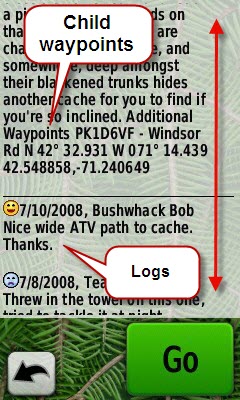
Any waypoints in a gpx file are loaded as waypoints on the Oregon, including child waypoints. Child waypoints have no special association with the parent Geocache on the Oregon other than the part of the GCID which is embedded in the name of the child waypoint and geocache. Child waypoints of a geocache are listed at the end of the cache description.
GC15.) Can I load geocaches into the Oregon as POIs instead of Geocaches? How do I do it?
Yes. See the Colorado POIs (P2) for instructions on how to create custom POI databases containing geocaches.
GC16.) Can I load geocaches into the Oregon as Waypoints instead of Geocaches? How do I do it?
Yes. The easiest way to do this is to load the gpx file of geocaches into Mapsource and download them to the Oregon as waypoints. This can also be done with GSAK using this macro .
GC17.) Are Terracaching's or Opencaching's gpx files supported?
By default the Oregon will load terracaches from TC gpx files as Waypoints not Geocaches.
If you would like to have terracaches on your Oregon as Geocaches you can import the TC gpx file into GSAK, run this macro (discussion thread and beta) on the database which contains your terracaches, and export a gpx file from GSAK to the Oregon.
Opencaching.org.uk and Opencaching.us files are supported as long as you use the "GPX GC" mode to generate the GPX file. The file can be copied directly to [OR drive]:\Garmin\GPX .
Detailed Notes: The Oregon uses the "id" field in the gpx file to index geocaches. It expects this field to be a unique integer id. By default all Terracaches get exported from GSAK with id=1 so only one terracache will show up on the Oregon if you export without running the above macro. The macro above will give each terracache in your database a unique integer id which should not overlap with the Groundspeak id space. Opencaching GPX files use unique cache id's however the cache id space overlaps with Groundspeak's so it is possible to have collisions on the Oregon which will prevent one cache from displaying.
GC18.) Can I autoroute to a Geocache?
Yes. First make sure you have autorouting maps like City Navigator installed and enabled and that you have the Guidance Method under Routing set to On Road. Normally switching to the Automotive profile will accomplish the later. Selecting the geocache as a destination from Main Menu>Geocaches>[select geocache]>Go will autoroute to that cache.
GC20.) How come I cannot get my fieldnotes to upload properly to geocaching.com (and I use GSAK)?
When you export your geocaches in GSAK (Ctrl-G) make sure that the "Waypoint Name" field is set to %code. Setting this to anything else will break the fieldnote function.
GC21.) I've deleted the gpx files on my Oregon that contain my geocaches but they are still showing up in the Geocache List. Why?
See this FAQ. This issue has been resolved in Software version 2.6. If you are seeing this problem update to the latest software.
GC22.) After I've entered a fieldnote for a geocache how to I go back and edit or view the fieldnote?
You cannot view or edit previously entered fieldnotes on the Oregon. The only way to view this information is connect to your computer and read the [OR drive]:\Garmin\geocache_visits.txt file with a text editor.
GC23.) Does the Garmin Oregon truncate cache descriptions longer than a certain length? If so, what is the limit?
Yes. The Oregon truncates cache long description to about 8192 characters (based on 3.4 firmware). Unfortunately it does this without warning.
Truncation of short descriptions seems to happen at 512 characters, of waypoint descriptions at 49 characters. No warning is issued in either case.
GC24.) Why do the geocache descriptions on the Oregon contain garbled html characters?
If you download caches to your Oregon using SendToGPS (Garmin Communicator) some caches which have a lot of html tables and formatting in their descriptions do not display well on the Oregon. Downloading and copying the GPX file directly to the unit or using a Pocket Query avoids the issue.
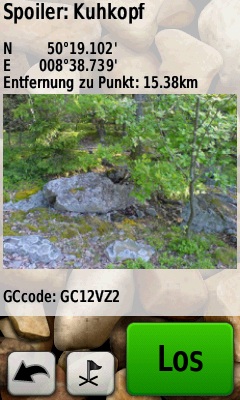
GC25.) How do I access spoiler photos for a geocache?
Oregon x50, Dakota, Montana, GPSMap 62/78 and eTrex 20,30 now support the inclusion of spoiler and other photos in a geocache listing.
Photos need to be placed in subfolders of the folder /Garmin/GeocachePhotos/ on the device (not the microSD card) as described in this Garmin Press Release upon which a "Show Photos" button will show up in the listing and options of the concerned geocaches.
Tools exists to do this automatically:
- Spoilertool for Windows
- gc_get_spoiler_pics.py of gctools for Linux
For other devices or older firmwares, there is no automatic inclusion of photos in a geocache listing. A way to resolve this issue is to create custom POIs that contain spoiler photos in their description. Currently there are several ways to create such "Spoiler-POIs":
 |
| Spoiler POI |
- A combination of a GSAK-macro called Spoiler2POI and the program Spoilersync . See detailed description here
- A export from the latest nightly build of the program Cachewolf. Description can be found here, nightly builds are available here
- A combination of the PocketQuery postprocessor GPX Convertor and Spoilersync
If you own a Oregon 450 or 550, there is another way: These two feature the "PhotoViewer" instead of the "Image Viewer" app and can deal with geotagged images. Thus if you geotagg your spoilerpics and copy them to the unit (Folder: /garmin/JPEG) they will be displayed automatically at the cache location. You can also search for Images near your current or any location using the PhotoViewer.
For Windows users, a small tool called GPSAdd (available here) will geotagg the spoiler photos downloaded by spoilersync. For Linux there are several scripts around (like gctools) that will take gpx files and download & geotagg the matching spoilerpics.
GC26.) How do I search my Garmin Oregon for geocaches by name? Are there any limitations?
Under Geocaches>Find a Geocache you will be presented with the geocaches that are closest to your current location however you can also use the spell search facility using the "ABC" button to locate caches in the device that are not displayed in the list. Please note that only the first 23 characters of the geocache name are searched . If you search for something that is located from the 24th character onwards then it won't be found using spell search.
GC27.) When I enter Next Stage coordinates and I navigate to the geocaching why do I still navigate to the original coordinates instead of the Next Stage coordinates I just entered?
You probably have exceeded the maximum number of geocaches supported by your GPS (x00: 2000, x50: 5000). Entering a next stage requires there to be at least one free geocache.
How To
Loading Geocaches onto Your GPS
The first step to Geocaching with your Oregon, Dakota or Colorado involves loading geocache data onto your GPS. There are several ways to do this and we will describe two of the easiest methods that will get most people started.
Using Send To GPS
The most simple method of downloading geocaches is to use the SendToGPS button on geocaching.com which allows you to send geocaches to your GPS one at a time. To use this procedure follow these steps:
- Connect your GPS to your computer using your USB cable. Ensure that it goes to USB mass storage mode. If you are using a Windows PC the GPS will show up as a driver letter on your PC once the unit displays the computer connected to GPS graphic.
- Download and install Garmin Communicator. Once the installation is complete you may need to restart your browser.
- Login to geocaching.com and search of a geocache you would like to find.
- From the geocache page click the SendToGPS button which will open up a new window.
- Verify under the Devices drop down menu that your device is listed. If not, select Find Devices and pick your device from the menu.
- Click on the Write button.
- This should transfer the geocaching information your device and you should see a message at the top of the window "Geocache saved successfully".
Using Pocket Queries
The second way to load geocaches onto your unit is to use Pocket Queries. This mechanism is a little more complicated and requires a premium membership at geocaching.com but it is the fastest and easiest way to transfer a large number of geocaches to your unit. The Oregon x00, Colorado and Dakota GPSs support up to 2000 unique geocaches. The Oregon x50 supports up to 5000 geocaches. Each Pocket Query can contain up to 500 geocaches.
To download geocaches into your GPS using a Pocket Query we'll walk through an example of loading the closest 500 unfound geocahes to your home location. Pocket Queries are a very flexible tool and more information on howto use Pocket Queries can be found here.
- First, you'll need to make sure that you have a premium membership at geocaching.com. Check here and subscribe if you don't already have a membership
- Next, login and verify that you have your Home Coordinates set here.
- Navigate to your Pocket Query page. Select Create a New Query
- Under Query Name give your PQ a name like "Closest Unfound to Home"
- Verify that Show me X Caches has 500 caches (this is the maximum).
- Under "That (and)" check, That I haven't Found and I don't own.
- Under "From Origin" select "My Home Coordinates"
- You may want to add additional filters at the time but the settings above will generate a PQ that contains the 500 closest caches to your home coordinates that you haven't found and you don't own.
- Select Submit Information
- Select Preview Query and verify that the caches on the list look the ones you would expect. If not you may need to return the PQ page and modify your settings.
- Once you are happy go back to your Pocket Query page and check the current day of the week.
- Now wait! Usually in a few minutes, if the servers are not too busy, you should receive an email at the email account registered with geocaching.com. Once that mail arrives you can continue to the next step. If you don't get an email verify your email account in your profile and check the message boards to make sure pocket queries aren't down. If you are still having problems check the pocket query page to see if your PQ has been deliver (you may need to refresh). If it has but you still haven't received an email check to see if you Spam filter may have filtered the email.
- The pocket query email contains a .zip file with a name like 3790862.zip. Unzip using a Tool like WinZip or Window that file to your Desktop and extract two .gpx files.
- Connect your GPS to your computer using your USB cable. Ensure that it goes to USB mass storage mode. If you are using a Windows PC the GPS will show up as a driver letter on your PC once the unit displays the computer connected to GPS graphic.
- Copy both .gpx files from your Desktop the following folder on your GPS: [GPS drive]:/Garmin/GPX
- Disconnect your GPS and power on
- From the Main Menu select Geocaches and verify that you can see the geocaches on your GPS device
- Now you are ready to go hunting!
Geocaching Setup on the Dakota and Oregon
Before you go caching the first time there are two configuration options on your GPS you should be aware of first.
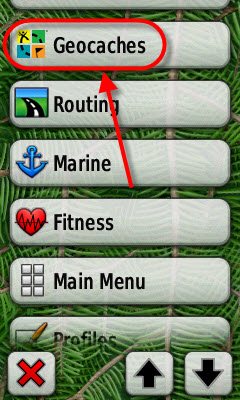
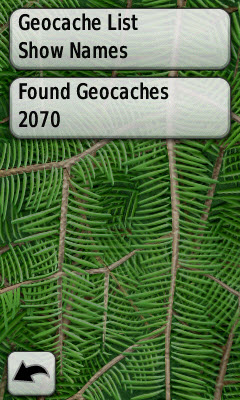
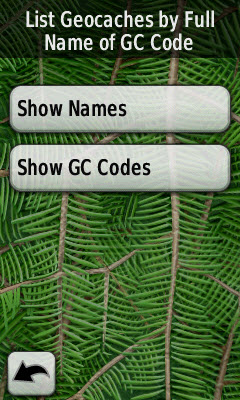
Under Setup>Geocaching you can set your find count using the Found Geocaches option so you can display the count on the odometer dashboard (shown below). The Geocache List option determine whether you will see GCID's (ie. GCGAE9), select Show GC Codes, or geocache names, (select Show Names) when you look at various lists on the GPS. You can switch this at any time.
|
|
||||
|
|
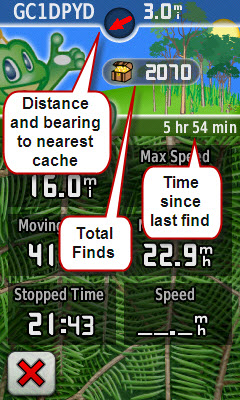
Finding a Geocache Using the Oregon or Dakota
Planning your Hunt
Now that you have geocaches loaded onto your GPS you'll want to go find one! First, a little information on how to find your way around the Geocaching menus so you can plan your hunt.
From the Main Menu you select the Geocaches Tool, this brings you to a page where you can either select a cache from the unfound list, Find a Geocache, or show the found list, Show Found. Select Find a Geocache to continue.
|
|
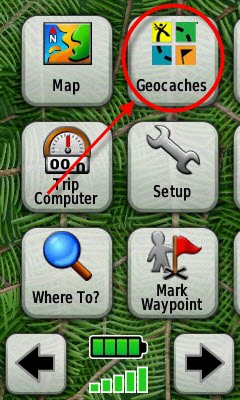
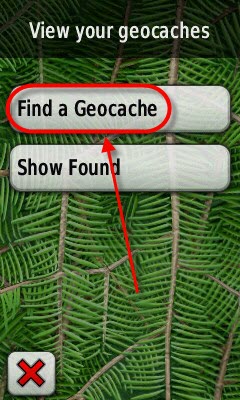
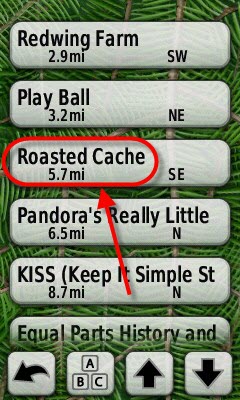
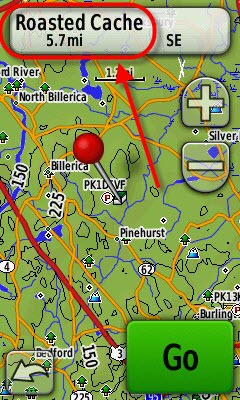
Once you are on the unfound geocache list page you have the option to spell-search the cache name using the A,B,C button or scroll and select a geocache directly from the list. Selecting a cache from the list brings you a page that displays the cache on the map. This map page can be panned and zoomed which lets you select nearby child waypoints, which is helpful if you are looking for parking. Selecting the button on the top brings you the cache description page.
|
|
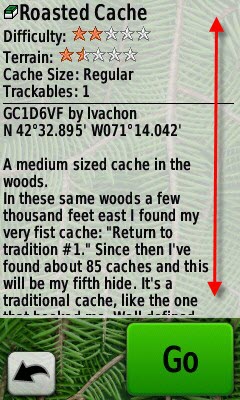
The cache description page combines the description and the logs similar to what you would see on geocaching.com. At this point you have the following information about the cache:
- Cache name
- Cache type (symbol)
- Difficulty rating
- Terrain rating
- Cache size
- Number of trackables
- GCID
- Owner
- Coordinates
- Short and long description
- Child waypoints
- Logs (Pocket Queries include the last 5 logs)
You cannot read the hint at this point - you have to navigate to the cache first, but we'll get to that in a minute. There aren't any scroll buttons on the cache page so you need to "pull" page up and down with your finger to see the entire page and all of the logs.
|
|
At any point during this process you can hit the big green Go button to start navigation. This will put you back on the map page with the familiar magenta goto line. If you quit the map ("X" in lower left corner), you'll end up back on Main Menu where you can select all of the tools (i.e. Compass, Altimeter, etc) that are available to you when you navigate to a waypoint or POI.
|
|
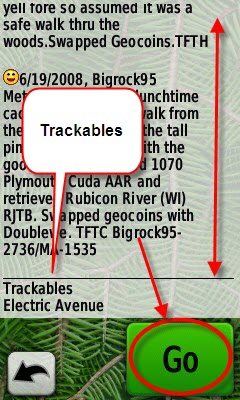
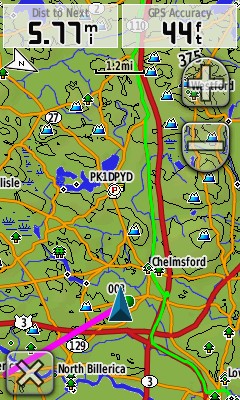
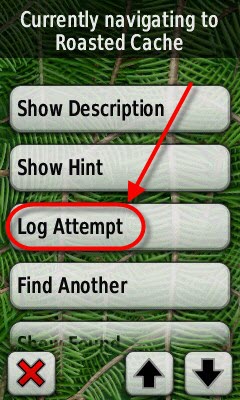
You might be asking, "How do I go back and read the description, log the cache, etc"? Simply go back to Main Menu and hit the Geocaches Tool again. Selecting the Geocaches Tool with an active navigation gives you a different set of menu options:
- Show Description (works the same as above)
- Show Hint: Displays the hint for the cache if there is one
- Show Logs: Displays just the cache logs (helpful if the cache description is very long)
- Log Attempt: Logs the cache as found, not found, unattempted or needs repair (we'll discuss this in the next section)
- Find Another: View the unfound list
- Show Found: View the found list.
|
|
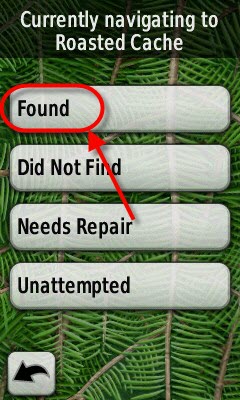
Navigating to a Geocache and Logging Your Attempts (Field Notes)
You are finally ready to use the paperless geocaching feature of your GPS! Using the menus above start navigating to a geocache:
- From the Main Menu select Geocaches.
- Select Find Geocache
- Scoll or spell search (A, B, C button) to find the cache you want to search
- Select the geocache from the list so that you see the map page
- Press Go
- Use the Map or Compass page to navigate to the geocache.
Tip: Make sure Dist to Next is one of the visible data fields on your Map or Compass page.
Logging your Finds
Issues
Bugs
- (Crash) Certain html tags in logs cause the unit to hang when displaying geocache logs. GC1AZXZ logs can be used to reproduce the problem if the gpx file contains the Loch Cache log from 8/7/09. This log contains an html comment and white html font tag. Viewing this logs for this cache after either downloading the gpx file or performing "SendToGPS" results in a hang of the Oregon (both x00 and x50 behave the same way). SendToGPS (GPX) Native GPX (GPX) (3.13/2.10)
- Oregon does not properly interpret GPX V1.1 files. Garmin's implementation is non-standard and the Oregon doesn't recognize a 1.1 GPX Geocache file as Geocaches. Instead it loads Geocaches as Waypoints. Garmin's GPX 1.1 implementation of the Groundspeak <extensions> is non-standard. The problem is the groundpeak: extension tag qualifiers - they should be there in every extension tag and are correctly recognized in V1.0 files. However Garmin units won't recognize the extensions in 1.1 files and thus see the point as a Geocache unless all the groundspeak: qualifiers are removed. (3.13/2.10)
-
[x50] Some caches don't display properly on the map preview page (the first page you see after selecting a cache from a list view) when loading 5000 geocaches. The unit appears to load all 5000 caches however many caches seem to be located at some bogus coordinates on the map preview page (near N 00 E 00) even though the coordinates for the cache in the description look correct, the distance to the cache looks correct in list view and the cache is visible on the map page. There seem to be the roughly the 900-1000 are the last caches in the file which have the problem. A smaller number of these caches show up on the map preview page near the center of all the caches in the file (i.e. my home coordinates). GSAK export with 5000 caches and 5 logs. The caches are exported as one 26.6MB file. (2.10)
- Attached zipped archive of the GPX file which caused the issues described above. The cache Sasquatch exhibits one problem where the cache previews on the map in a location which is not the location of the cache. Similarly the Halibut Point EarthCache previews at the bogus coordinates above. geocachesHOME.zip
- I've seen a similar problem with a gpx file of around 1400 files. As above, the problematic geocache shows up on the list unfound geocache list normally and I can select it and read the description, but when I preview the cache on the map it appears as if it is 100's or 1000's of miles away. If I goto the cache the navigation never starts, I cannot access the logs, hints, etc that you see that you normally can after navigate to a cache.
- If the user loads a gpx file with a newer version of a geocache that what is currently loaded the old version of the geocache will continue to be visible. The Oregon should always load the most current version (based on gpx file timestamp) of the cache available if the cache shows up in multiple files. (2.97)
- Selecting the geocache on the map page which is the current off-road destination results in a blank page with just a "Go" and "return" button. The Go button doesn't appear to have any function although the return button still works. (2.97)
- The Oregon allows the user to enter double quotes (") as part of the field note log text. Since this is the same character used to delimit field note text the site cannot parse the field note and drops it. Not clear if this is a problem with the unit or the site. (2.5)
- If a cache that was marked found is then marked unattempted the last found time on the Geocaching Dashboard does not readjust (assuming that the cache was the most recent cache found). Note the find count does decrement properly. (2.85)
- Earthcache/APE/Maze Event/Mega Event icons show as Traditional caches. All geocache icons should be supported. (2.97)
- "Needs repair" log attempt on a geocache should not increment the geocache find count and should not add a geocache to the found list. "Needs repair" should have the same semantics as groundspeak's "Needs Maintenance" log. It should be a separate note which has no impact of found statistics. It should also have the same name. (2.97)
- Navigate to a Geocache. Stop Navigation. Navigate to a normal Waypoint. The Geocaching Dashboard will continue to show the direction and distance to the last Geocache while Compass/Map point towards the newly selected Waypoint. A possible solution would be to extend the Custom Dashboard Options in Setup, so that different Dashboards can be setup depending on wether one navigates to a geocache or waypoint. (4.20)
Missing features
- Add geocache log attempts to calendar (e.g. finds, DNFs) (60csx) (2.93)
- Filter waypoints by Symbol (60csx) (4.20)
New feature requests
- Display the geocache "placed on" date on the detailed geocache view. gpx files encode the placed on date in the <date> tag of the geocache waypoint.
- Add the ability to enable/disable the display of geocaches on the map page. Currently the user cannot disable the display of geocaches on the map page without impacting custom POIs and waypoints. Visibility of custom POIs, waypoints and geocaches are controlled by the Zoom Level for "User Waypoints". Each of these types should have their own independent Zoom Level control, particularly geocaches which could be disabled outside of the Geocaching profile.
- The Oregon does not display corrected coordinates which are part of geocache logs. Specifically the optional tag which is not displayed as part of the log is <groundspeak:log_wpt lat="xx.xxxx" lon="xx.xxxx" />
- The only time you can edit or view field notes on a geocache is when you log a find. A feature should be added to allow the user to edit and view fieldnotes made as part of any log. When selecting a Geocache from the Found or Unfound list there should be an "Edit Fieldnotes" option which displays the fieldnote, if any, and allows the user to modify them.
- Handling of multi-cache waypoints need to be improved in geocaching mode. A geocache should be allowed to have multiple (waypoint) destinations which can be added in the field and be marked as found. This would help with Mystery/Unknown caches as well as offset and Multi-caches.
- Oregon should support the ability to add a "Note" log to a geocache at any time. The entry would be time stamped and generate a field note which is a groundspeak "note" on the cache logged.
- When the Oregon truncates a geocache description (or any field) the user should get warned after the gpx file is downloaded (see geocache summary page feature request below).
- Geocaches marked Found or Did not Find should automatically be saved as waypoints in the current.gpx file so that they can be archived along with the current tracklog.
- Geocache type icon should be visible in the geocache list views. Difficulty, terrain and size would be helpful in the list view as well. (workaround german language)
- Add icons for disabled/archived caches (e.g. red "X" through the standard icon) so that caches in the disabled/archived state are easy to recognize. Alternately provide some indication in the description to indicate that the cache is in a disabled (or archived) state.
- Add icon for "write note" geocaching logs. Currently "write note" logs have no icon in the log list.
- Geocaching mode should have a summary page (and extension of the geocaching dashboard) which shows the total number of geocaches loaded and from which files. Other stats would be helpful as well like total number of DNFs, size of the unfound list, truncated cache descriptions, etc.
- Add special symbol for "Did not Find" geocaches. Suggestion: Use same cache icons with red background or red hash through the symbol.
- Add handling for child waypoints of geocaches. Child waypoints should be associated with a geocache so that they can be found quickly. Removing a gpx file with child waypoints should also result in these waypoints being deleted (like geocaches). Child waypoints could be made into special non-editable waypoints or custom POIs. Current child waypoint names are available in the text it would be nice if each cache had a Show Child Waypoints button that listed the waypoints associated with the cache.
- Suggest improvements to geocaching mode (there are many) but being able to select next geocache (don't assume it is always the closest) or parking would be helpful for example. When you complete a geocache you should be given the option to goto the WhereTo? menu, not just Done and Find Next Closest Geocache. Many times my next step is to go (back) to parking.
Resolved
- (2.96) Added the ability to view geocache logs separate from the description. Logs should separate from the descriptions because it takes too long to scroll to the logs of caches with long descriptions. A "Show Logs" button should be added at the same level as "Show Description" and "Show Hints" (CO) (2.93)
- (2.95) Added 'search near' option to Geocaches search. Currently you cannot search for geocaches from a different location because they are not listed in the WhereTo? menu which is available after centering a new search. Geocaches should be listed on the WhereTo? menu just like the Colorado (CO) (2.93)
- (?.?) Not sure if cache owner changed pages to work with Oregon or if they were really fixed. Either way these caches below now work on the Oregon. (Crash) Reading certain cache descriptions causes the Oregon to freeze. Download the gpx file for GC1F974 and copy it to [OR drive]:\Garmin\GPX. Select the cache from the Geocaching list and press the information bar at the top of the screen to display the description. The Oregon will freeze. Note "Send To GPS" works, although a lot of raw html is displayed. This failure only happens if you download the gpx file or load the cache from a pocket query directly from geocaching.com. GC18DFE, GC1H3JQ and GC1E4PK cause similar problems. (2.85)
- (2.4) Fixed text writing on top of itself in some geocaches descriptions. Description of certain geocaches are corrupted (text is written over other text) GCTF1Y. GPX file downloaded from Groundspeak on (8/21/08) is provided here. (2.3)
- (2.4) (Crash) Fixed freeze when loading some geocaches descriptions. Showing the description of certain geocaches will cause the Oregon to freeze. Download the GPX file for this cache or use this GPX file, GCRBM8.gpx (which was downloaded directly from Groundspeak on 8/18/08). Copy this file onto the Oregon. Goto Main Menu>Geocaches>find and select GCRBM8>select Tigger's Quest at the top of the screen. The unit will freeze. Fails similarly on the Colorado. (2.3)
- (2.4) No specific Garmin release note. Geocaching find count increments incorrectly when aborting log creation. Navigate to a geocache and then select Main Menu>Geocaches>Log Attempt>Found. If at this point you tap "back", "back" and "x" to abort the found log the geocaching counter still gets incremented (incorrect) even though the found fieldnote does not get created (correct). (2.3)
- (2.3) No specific Garmin release note. If a cache that was previously marked found is later marked unattempted the found count on the Geocaching odometer dashboard does not adjust. (2.2)
- (2.3) Added option to save a geocaches as a waypoint (2.2)
- (2.3) Added error message when the maximum number of geocaches is exceeded (2000) (2.2)
- (2.3) Added error message when the maximum number of gpx files is exceeded (200) (2.2)
-
(2.3) Added support for downloading geocaches written using Groundspeak v1.1 extensions (2.2)
- Preparation for a new cache schema
- (2.3) Fixed geocaches without names not being in the geocaches list (2.2)
- (2.3) No specific Garmin release note. If a cache that was previously marked found is later marked unattempted the found count on the Geocaching odometer dashboard does not decrement. (2.2)
