|
|
|
|
|
Map List |
|
|
|
View Map |
|
|
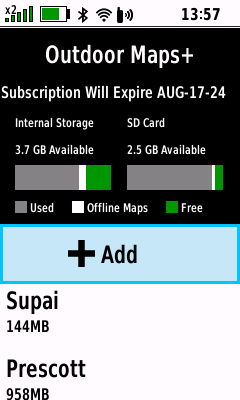 |
 |
 |
 |

 |
Select Desired Map |
Pan
and Zoom Map |
Raster Topo |
|
View Available Maps |
(Enter) |
to View Map Details |
and PLSS |
|
|
 |
 |
 |
 |
|
Satellite Imagery |
Contours, Hydro |
Public Lands |
Parcel |
|
|
and Outdoor POI |
and PLSS |
|
|
|
|
|
|
|
|
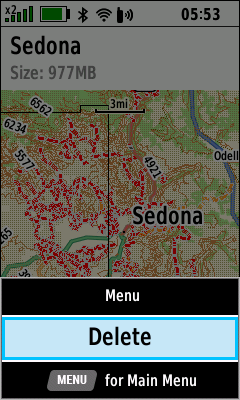
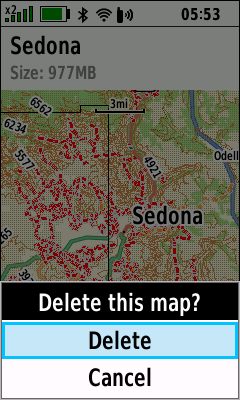
Delete Map |
- All map layers for the selected Map will be permanently
deleted
|
 |
 |
 |
 |
|
Select Desired Map |
(Menu) |
[Delete] |
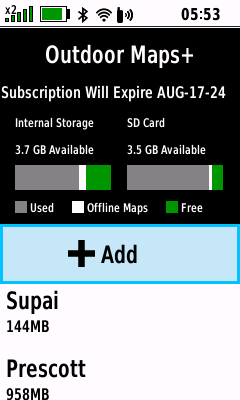
Selected Map is |
|
(Enter) |
[Delete] |
(Enter) |
Removed from Device |
|
|
|
|
|
|
|
Rename Map |
|
|
 |
 |
 |
 |
|
Select Desired Map |
[Edit] |
[Name] |
Edit Map Name |
|
(Enter) |
(Enter) |
(Enter) |
|
|
|
 |
 |
 |
 |
|
[Done] |
(Quit) |
(Quit) |
Selected Map |
|
(Enter) |
|
|
Name is Updated |
|
|
|
|
|
|
|
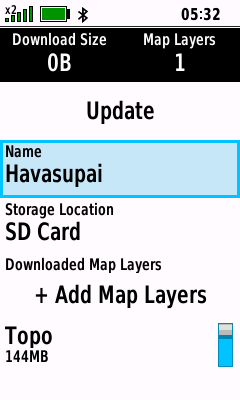
Edit Map |
|
|
 |
 |
 |
 |
|
Select Desired Map |
[Edit] |
Edit Map
Name |
[+ Add Map Layers] |
|
(Enter) |
(Enter) |
as Desired |
(Enter) |
|
|
 |
 |
 |
 |
|
Toggle Map Layers |
[Update] |
Map Data is Loaded to Device |
Map Download is Complete |
|
as Desired |
(Enter) |
|
|
|
|
|
|
|
|
|
|
|
Check Subscription |
- Verify Outdoor Maps+ subscription status
(Wi-Fi must be enabled)
|
 |
 |
 |
 |
|
[Check Subscription] |
Checking... |
Valid Subscription Found |
Subscription Not Available |
|
|
|
|
|
|
|
|
|
|
|
|
Add Maps |
|
|
|
With Subscription |
- Download available Outdoor Maps+ subscription map data
and subscription-free satellite imagery
(Wi-Fi must be enabled)
|
 |
 |
 |
 |
|
[+Add] |
Choose a Category and |
Pan
and Zoom Map |
[Download] |
|
|
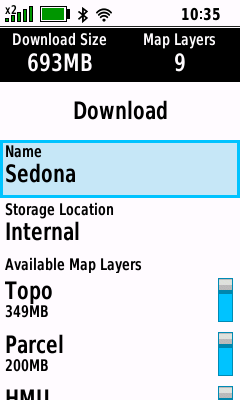
Select Desired Location |
as Desired |
or Edit Map Details |
|
|
 |
 |
 |
 |
|
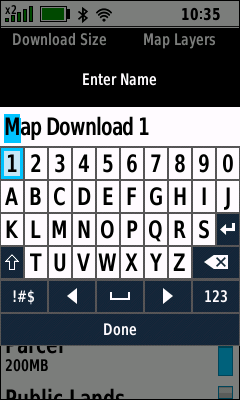
Select Map Name |
Edit Map Name |
[Done] |
Map Name is Updated |
|
|
|
|
|
|
|
 |
 |
 |
 |
|
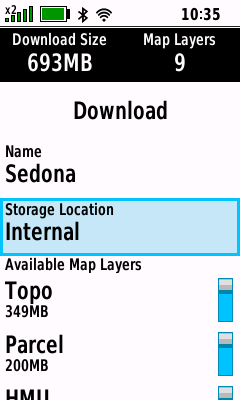
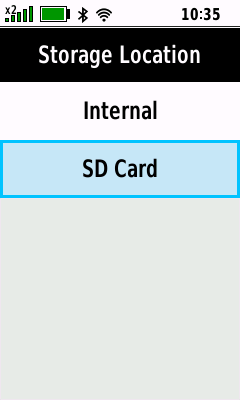
Select Storage Location |
Select Desired Location |
Storage Location is Updated |
View Available Map Layers |
|
|
|
|
|
|
|
 |
 |
 |
 |
|
Select Desired Layer |
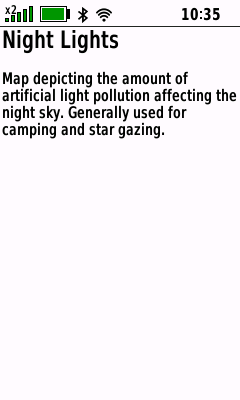
[Layer Info] |
View Layer Information |
View Available Map Layers |
|
(Menu) |
(Enter) |
(Quit) |
|
|
|
 |
 |
 |
 |
|
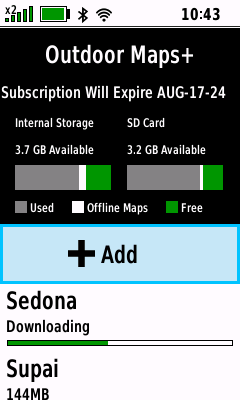
Toggle Map Layers as Desired |
[Download] |
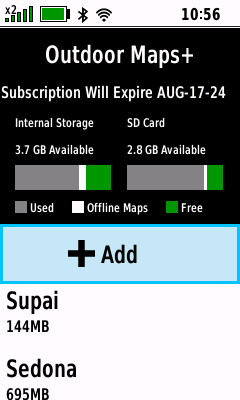
Map Data is Loaded to Device |
Map Download is Complete |
|
|
|
|
|
|
|
|
|
|
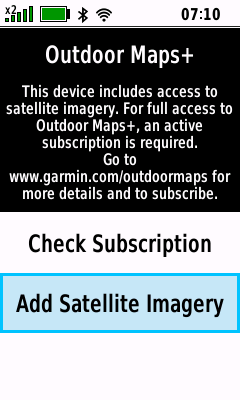
Without Subscription |
- Download subscription-free satellite imagery
(Wi-Fi must be enabled)
|
 |
 |
 |
 |
|
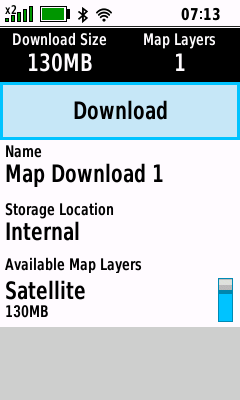
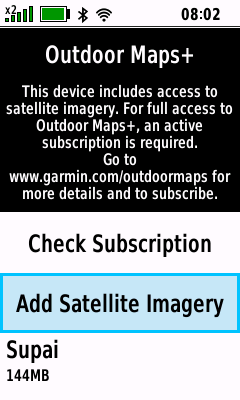
[Add Satellite Imagery] |
Choose a Category and |
Pan
and Zoom Map |
[Download] |
|
|
Select Desired Location |
as Desired |
or Edit Map Details |
|
|
 |
 |
 |
 |
|
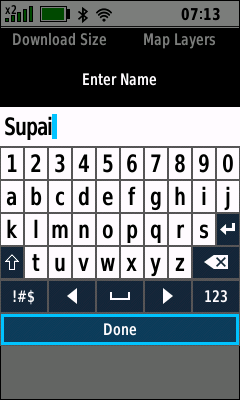
Select Map Name |
Edit Map Name |
[Done] |
Map Name is Updated |
|
|
|
|
|
|
|
 |
 |
 |
 |
|
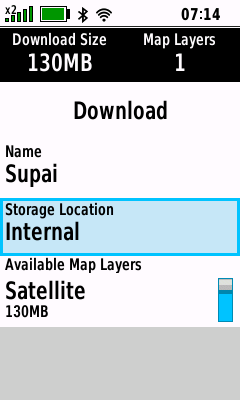
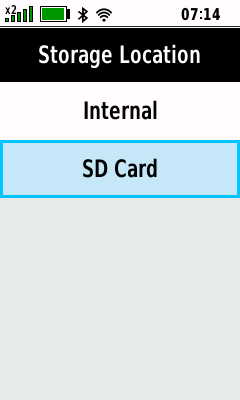
Select Storage Location |
Select Desired Location |
Storage Location is Updated |
[Download] |
|
|
|
|
|
|
|
 |
 |
 |
 |
|
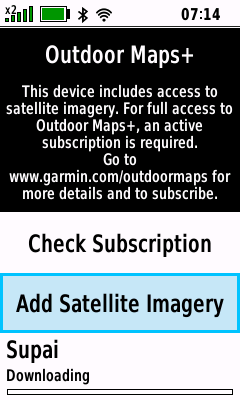
Download Process Begins |
Map Data is Loaded to Device |
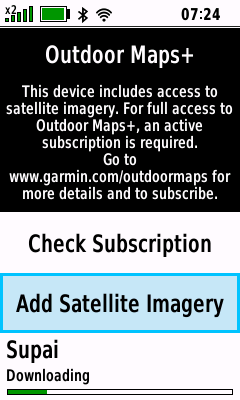
Map Download Continues |
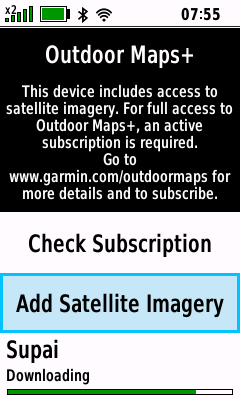
Map Download is Complete |
|
|
|
|
|
|
|
|
|
|
|
|
Option Menu |
- Access additional Outdoor Maps+ functions
|
 |
 |
 |
|
|
(Menu) |
(Menu) |
(Menu) |
|
|
[Layer
Information] |
[Configure
Maps] |
[Deactivate
Device] |
|
|
|
|
|
|
|
|
|
|
Layer Information |
|
|
 |
 |
 |
 |
|
(Menu) |
|
|
|
|
[Layer Information] |
View Layer Details |
View Layer Details |
View Layer Details |
|
|
 |
 |
 |
 |
|
|
|
|
|
|
View Layer Details |
View Layer Details |
View Layer Details |
View Layer Details |
|
|
 |
 |
 |
 |
|
|
|
|
|
|
View Layer Details |
View Layer Details |
View Layer Details |
View Layer Details |
|
|
 |
 |
 |
 |
|
|
|
|
|
|
View Layer Details |
View Layer Details |
View Layer Details |
View Layer Details |
|
|
 |
 |
 |
 |
|
|
|
|
|
|
View Layer Details |
View Layer Details |
View Layer Details |
View Layer Details |
|
|
 |
 |
 |
 |
|
|
|
|
|
|
View Layer Details |
View Layer Details |
View Layer Details |
View Layer Details |
|
|
 |
 |
 |
 |
|
|
|
|
|
|
View Layer Details |
View Layer Details |
View Layer Details |
View Layer Details |
|
|
 |
 |
 |
 |
|
|
|
|
|
|
View Layer Details |
View Layer Details |
View Layer Details |
View Layer Details |
|
|
|
|
|
|
|
|
|
Configure Raster Maps |
|
|
|
Map List |
- View available Outdoor Maps+ Raster Maps
|
 |
 |
 |
 |
|
(Menu) |
|
|
|
|
[Configure Raster Maps] |
View Raster Maps |
View Raster Maps |
View Raster Maps |
|
|
|
|
|
|
|
Enable Map |
- Enabled Raster Maps are displayed on the Map page
- Satellite Imagery can also be enabled directly from the
Map Page
- Additional Outdoor Maps+ Map Layers can be enabled directly from the
Map Page
|
 |
 |
 |
 |
|
(Menu) |
Select Disabled Raster Map |
Select Desired Map Brightness |
Raster Map is Enabled |
|
[Configure Raster Maps] |
(Enter) |
(Enter) |
|
|
|
|
|
|
|
|
Disable Map |
- Disabled Raster Maps are not displayed on the Map page
- Satellite Imagery can also be disabled directly from the
Map Page
- Additional Outdoor Maps+ Map Layers can be disabled directly from the
Map Page
|
 |
 |
 |
 |
|
(Menu) |
Select Enabled Raster Map |
Select [Disable] |
Raster Map is Disabled |
|
[Configure Raster Maps] |
(Enter) |
(Enter) |
|
|
|
|
|
|
|
|
Raster Map Brightness |
- Configure desired Map page display brightness for
selected Raster Map
|
 |
 |
 |
 |
|
(Menu) |
Select Desired Raster Map |
[Enable - Bright] |
Selected Raster Map |
|
[Configure Raster Maps] |
(Enter) |
(Enter) |
Displayed 'Bright' |
|
|
 |
 |
 |
 |
|
[Enable - Brighter] |
Selected Raster Map |
[Enable - Normal] |
Selected Raster Map |
|
(Enter) |
Displayed 'Brighter' |
(Enter) |
Displayed 'Normal' |
|
|
|
|
|
|
|
|
|
Deactivate Device |
- Deactivate Outdoor Maps+ subscription
(Wi-Fi must be enabled)
|
 |
 |
 |
 |
|
(Menu) |
[No] |
[Yes] |
Subscription Free |
|
[Deactivate Device] |
All Subscription Maps |
All Subscription Maps are |
Satellite Imagery Maps |
|
(Enter) |
Remain on the Device |
Removed from the Device |
Remain on the Device |
|
|
|
|

