Have you ever needed to make a quick change or update a database on your GPSr while traveling? Were you able to find a host computer but unable to load the necessary software? Wouldn't it be nice if you always had a core group of your favorite software applications available to you while away from home?
Utilizing your Garmin GPSr high speed USB data connection, and treating the GPSr as an external flash drive, you can run some of your favorite applications on a host machine directly from the
device.
Keep in mind that while portable software applications are designed to be run from an external storage device, software not specifically written for this purpose may or may not run on some, or any, host machines. The examples provided illustrate the process using several popular software titles. This same process may be applied to other applications as well. This functionality is considered to be experimental, and your results may vary.
It is recommended that all portable software applications be installed to and run from the
microSD Card and not the
GPSr internal memory. Should any conflicts occur, this will ensure the GPSr can remain functional after removing the
microSD Card, which can then be accessed with an appropriate card reader.
Preparation
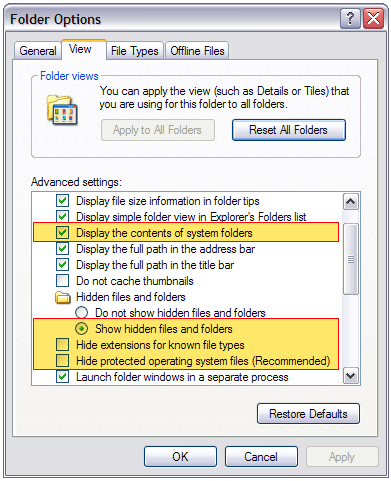
PC Only: To ensure all required files and folders are visible and copied correctly, do the following:
- Open the 'Start' menu
- Select 'Control Panel'
- Open 'Folder Options'
- Duplicate these settings under the 'View' tab
BaseCamp for PC
1. Install BaseCamp on your PC
2. Connect the Garmin GPSr via USB inle Mass Storage Mode
3. Create \Program Files\Garmin\BaseCamp\ directory on the microSD Card
4. Locate the BaseCamp shortcut icon on your PC
---
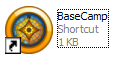
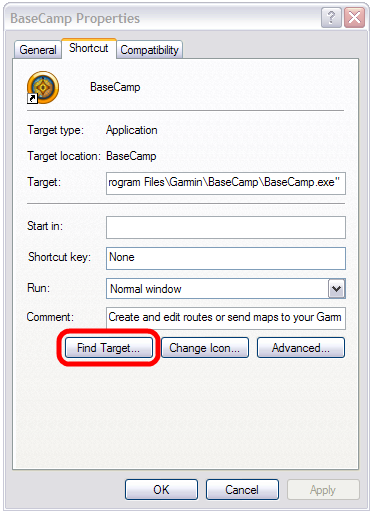
5. Right Click the BaseCamp shortcut and select "Properties"
---

6. Select "Find Target"
---
7. The BaseCamp program directory will be displayed
---
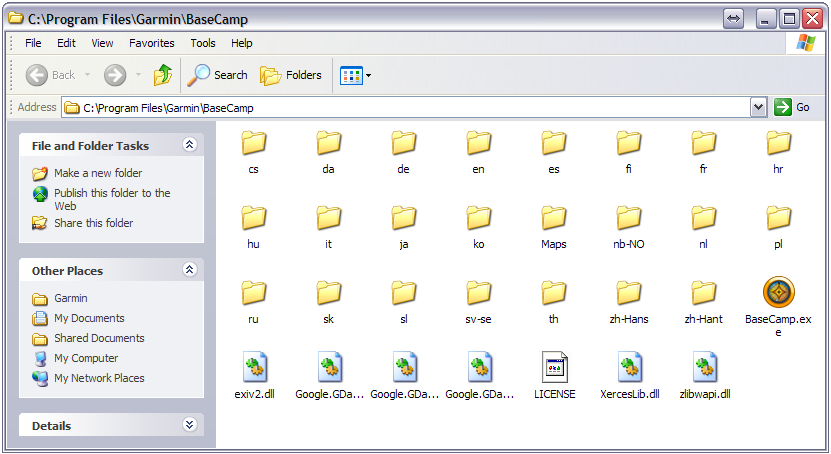
8. Copy the contents of this folder to the BaseCamp directory you created on the microSD Card
- NOTE: Copy only the Global Application Basemap from the \Maps\ directory

9. To run BaseCamp on a host PC, Connect the GPSr via USB in Mass Storage Mode and run BaseCamp.exe
BaseCamp for MAC
1. Download and install BaseCamp for Mac

2. Connect the GPSr via USB in Mass Storage Mode
3. Create \Program Files\Garmin\BaseCamp\ directory on the microSD Card
4. Copy BaseCamp application to microSD card
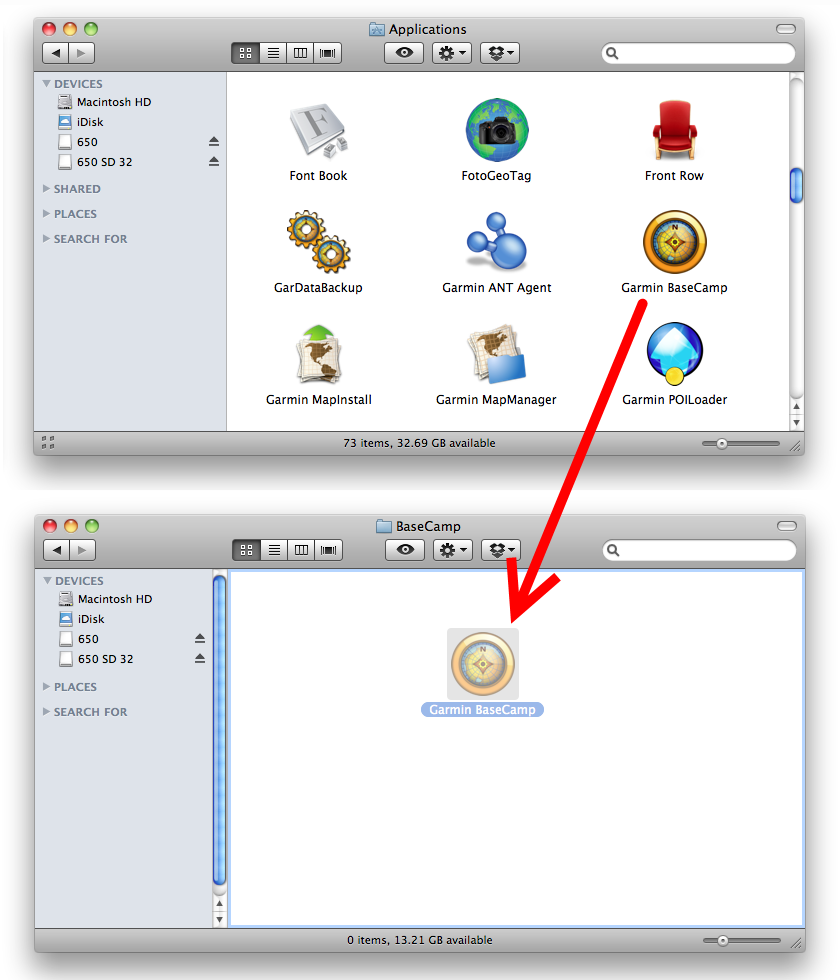
- Open 'Applications' folder on Macintosh HD
- Open [microSD]\Program Files\Garmin\BaseCamp\ directory
-
Drag "Garmin BaseCamp" from 'Applications' folder to 'BaseCamp' folder
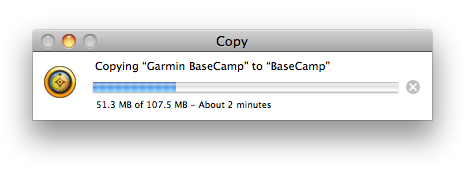
5. Allow copy of "Garmin BaseCamp" application to proceed
6. To run Garmin BaseCamp, Connect GPSr via USB in Mass Storage Mode and open "Garmin BaseCamp"

JDM for PC
1. Install JaVaWa Device Manager (JDM) on your PC
2. Connect the GPSr via USB in Mass Storage Mode
3. Create \Program Files\JaVaWa\JDM\ directory on the microSD Card
4. Locate the JDM shortcut icon on your PC
---
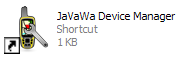
5. Right Click the JDM shortcut and select "Properties"
---

6. Select "Find Target"
---
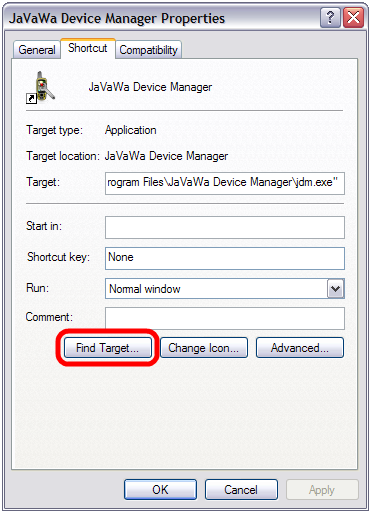
7. The JDM program directory will be displayed
---
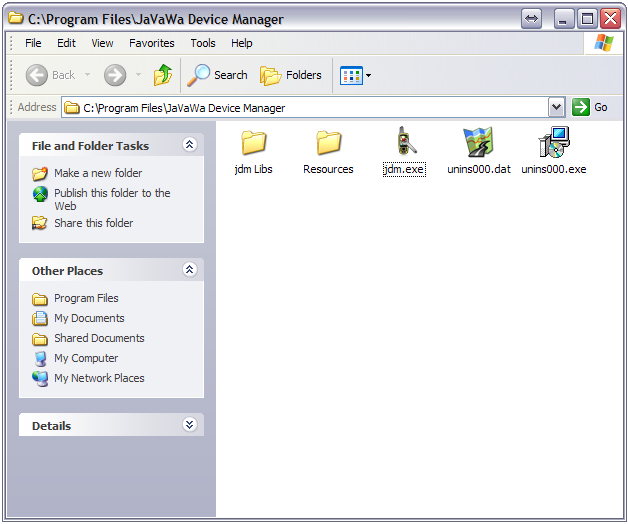
8. Copy the contents of this folder to the JDM directory you created on the microSD Card
---

9. To run JDM on a host PC, Connect the GPSr via USB in Mass Storage Mode and run jdm.exe
JDM for MAC
1. Download and install JaVaWa Device Manager (JDM) for Mac

2. Connect the GPSr via USB in Mass Storage Mode
3. Create \Program Files\JaVaWa\JDM\ directory on the microSD Card
4. Copy JaVaWa Device Manager application to microSD card
- Open 'Applications' folder on Macintosh HD
- Open [microSD]\Program Files\JaVaWa\JDM\ directory
- Drag "JaVaWa Device Manager" from 'Applications' folder to 'JDM' folder
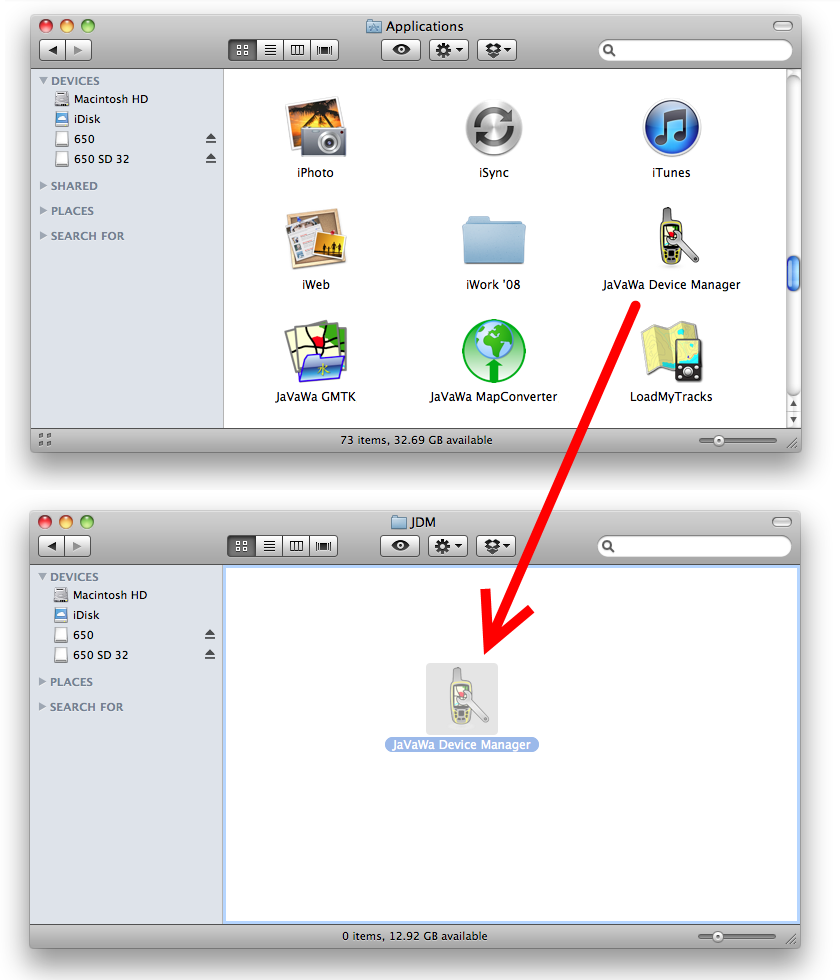
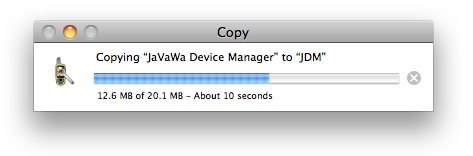
5. Allow copy of "JaVaWa Device Manager" application to proceed
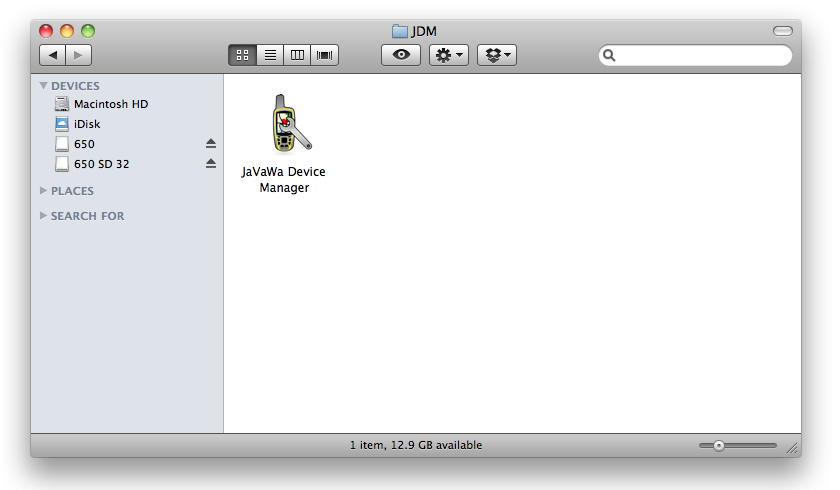
6. To run JaVaWa Device Manager, Connect GPSr via USB in Mass Storage Mode and open "JaVaWa Device Manager"
GPX Editor for PC
1. Download GPX Editor to your PC
---
2. Connect the GPSr via USB in Mass Storage Mode
3. Create \Program Files\GPX Editor\ directory on the microSD Card
4. Right Click the GPX Editor.zip archive and select "Extract All..."
---

5. When the Zip Wizard prompts, select "Next"
---

6. Keep the default extraction directory and select "Next"
---

7. Select "Show extracted files" and "Finish"
---

8. Copy the GPX_Editor.exe file to the GPX Editor directory you created on the microSD Card
---

9. To run GPX Editor on a host PC, Connect the GPSr via USB in Mass Storage Mode and run GPX_Editor.exe
LiberKey
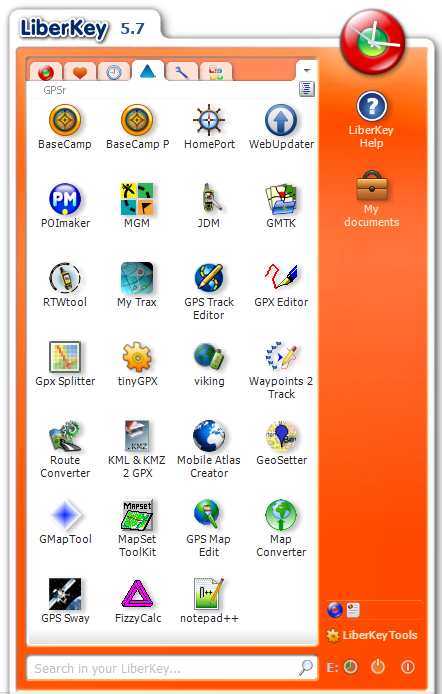
Now that you have all your favorite software applications installed on your Garmin GPSr microSD card, you may find it moderately cumbersome navigating all those folders and directories each time you want to use them. Installing LiberKey will allow you to create and organize custom menu shortcuts for each application, making them a snap to access on the go!
Enjoy!
