
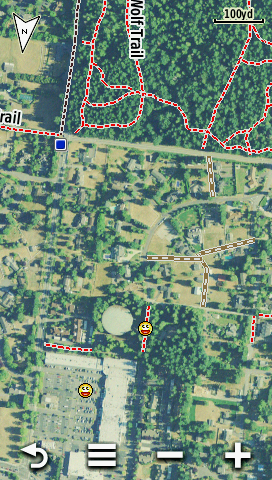
Garmin BirdsEye maps supplement the comprehensive topographic and/or detailed street maps on your Garmin
Montana with brilliant high-resolution satellite images or highly-detailed raster maps.
Transferring BirdsEye high-resolution imagery to a Montana
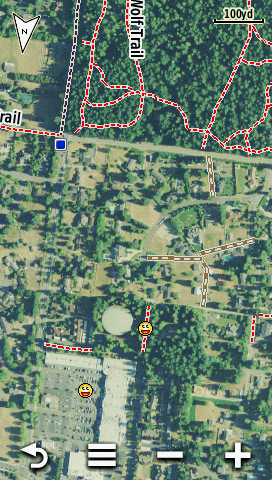
provides real-life views of roads, buildings and terrain, giving you a true representation of your surroundings. These images can be layered with existing Garmin and third-party vector maps installed on your
Garmin GPSr.
See the
Garmin BirdsEye Tutorial
to learn about creating and transferring Birdseye maps to your Montana GPSr!
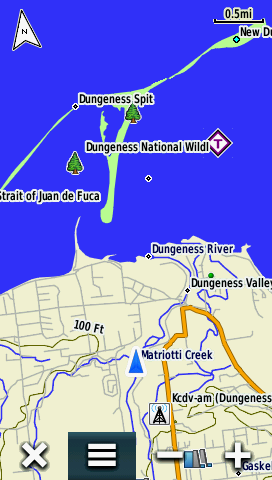
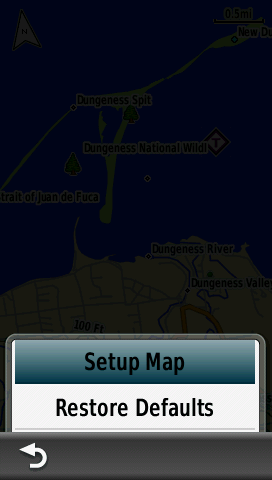
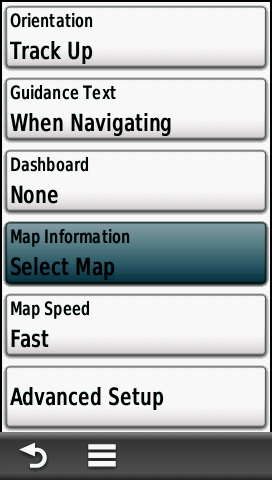
Map Information Menu
| via Map Application |
||||||
|---|---|---|---|---|---|---|
 |
==== |
 |
==== |
 |
||
| Select [Menu] |
Select [Setup Map] |
Select [Map Information] |
||||
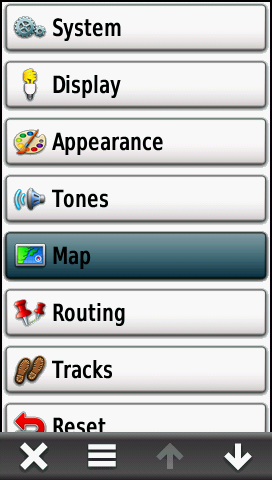
| via Setup Menu |
||||||
 |
 |
|
||||
| Select [Setup] |
Select [Map] |
Select [Map Information] |
Enable BirdsEye Maps
 |
==== |
 |
==== |
 |
||
|---|---|---|---|---|---|---|
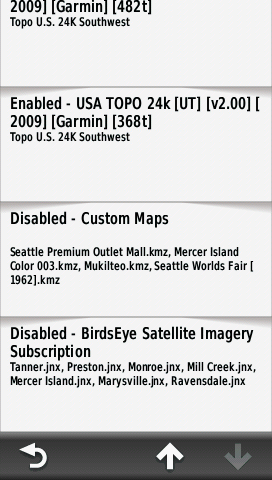
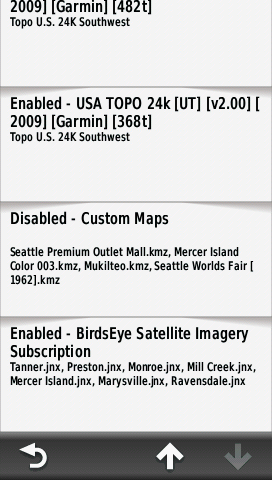
| Access
Map Information Menu and scroll to [BirdsEye] |
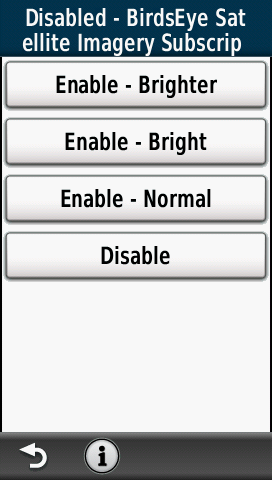
Select [BirdsEye] |
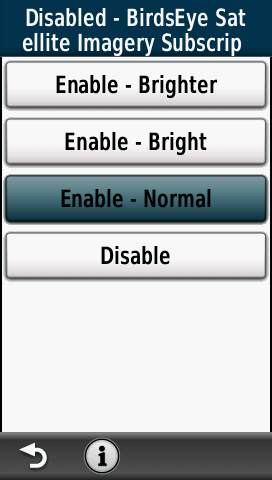
BirdEye Menu Options |
||||
 |
 |
 |
||||
| Select [Enable - Normal] |
Select [Enable - Bright] |
Select [Enable - Brighter] |
||||
 |
 |
 |
Disable BirdsEye Maps
 |
==== |
 |
==== |
 |
||
|---|---|---|---|---|---|---|
| Access
Map Information Menu and scroll to [BirdsEye] |
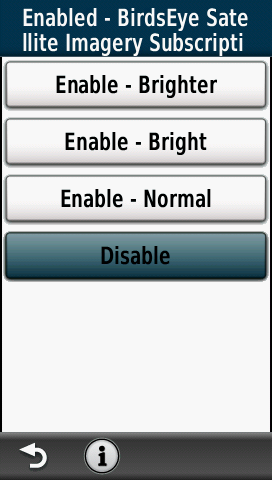
Select [BirdsEye] |
Select [Disable] |
