|
|
|
|
 |
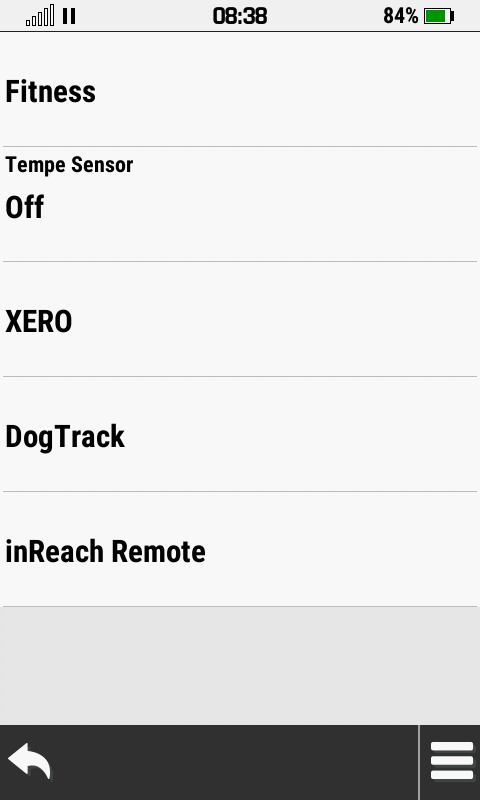
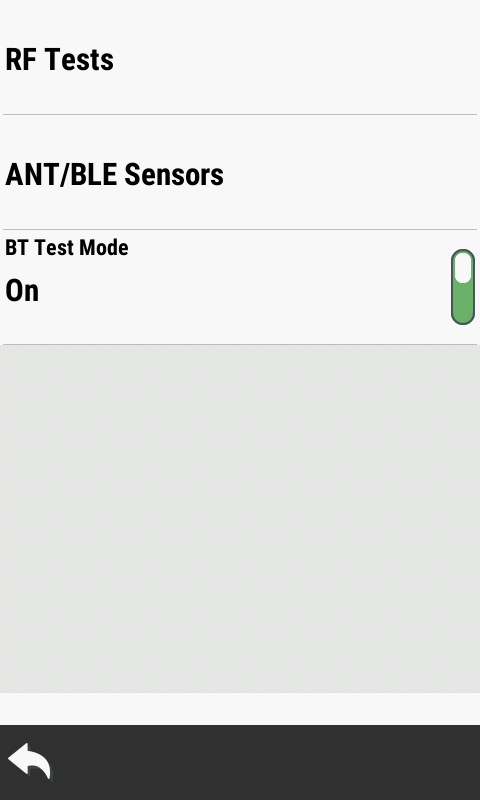
- Configure and perform RF Tests.
- View ANT/BLE Sensor status.
- Enable or disable BT Test Mode.
- Short press the power button to exit ANT/BLE/BT Tests.
|
 |
 |
 |
 |
|
BT Test Mode Disabled |
RF Test Menu |
ANT/BLE Sensor Menu |
BT Test Mode Enabled |
|
|
|
|
|
|
|
|
|
 |
- Opens shutter and displays live camera image.
- Short press the power button to take a photo.
- Long press the power button to exit Camera Tests.
|
 |
 |
 |
 |
 |
 |
|
|
|
|
|
|
|
|
|
|
|
 |
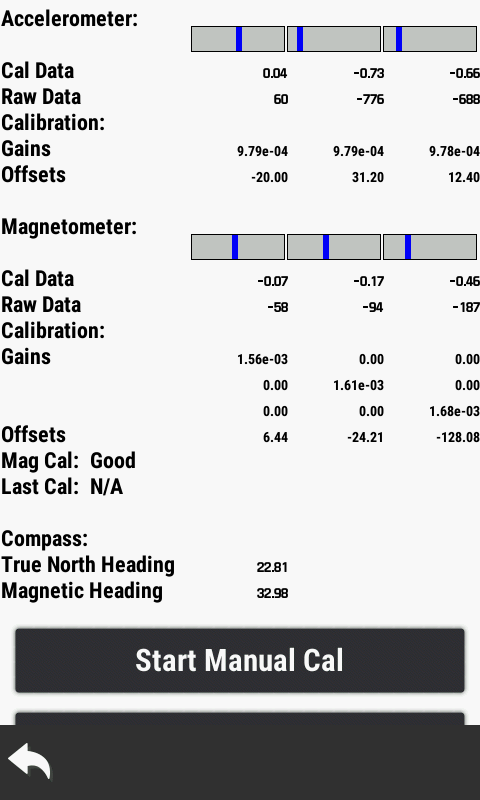
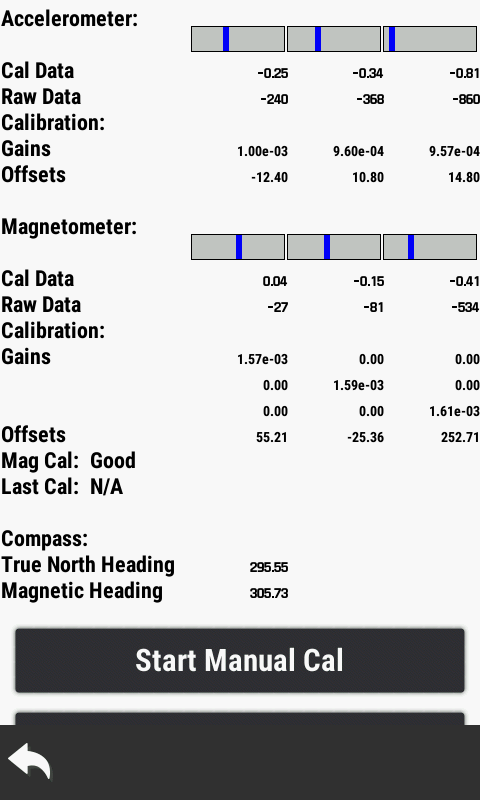
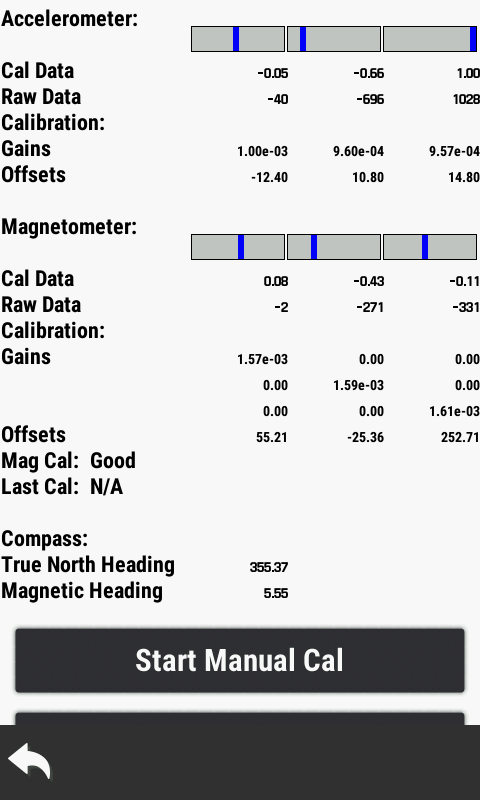
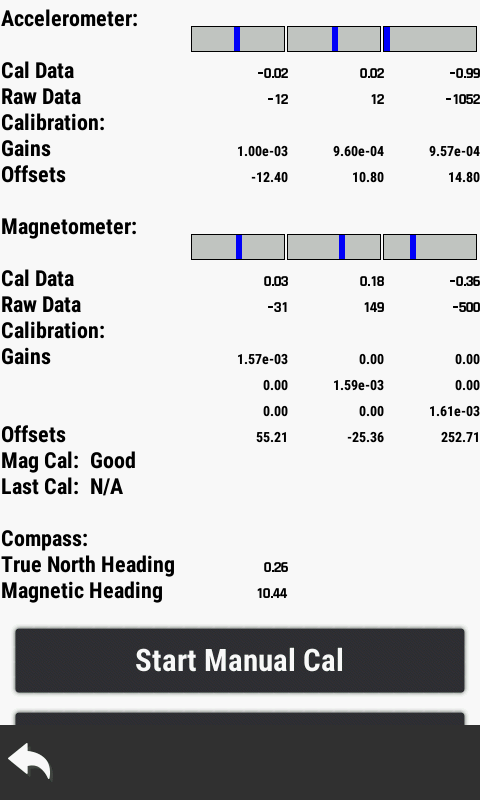
- View accelerometer and magnetometer values in real time.
- View compass true north and magnetic heading values.
- Long press the power button to exit Compass Tests.
|
 |
 |
 |
 |
|
|
|
|
|
|
|
|
|
|
|
|
|
|
 |
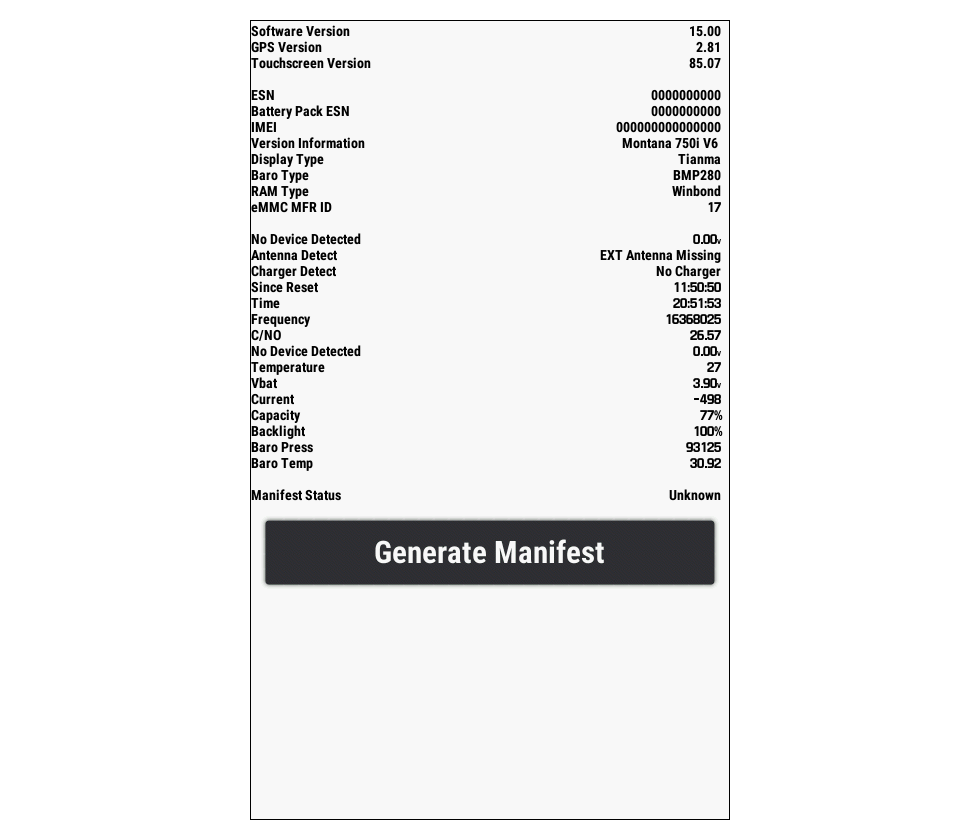
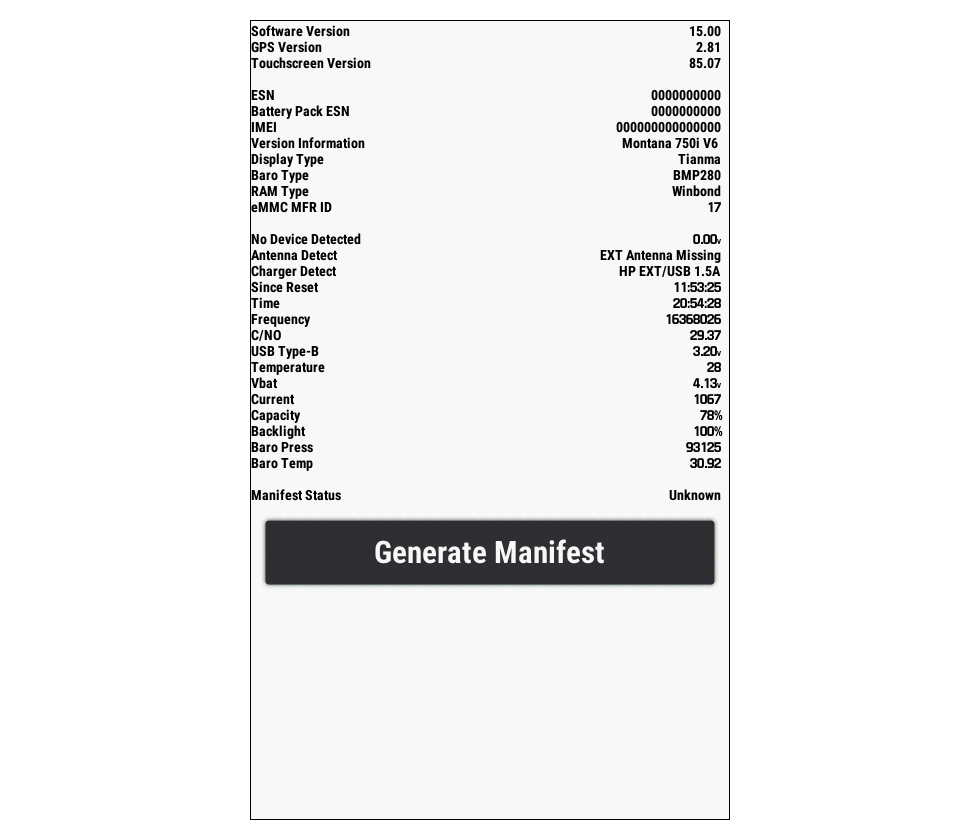
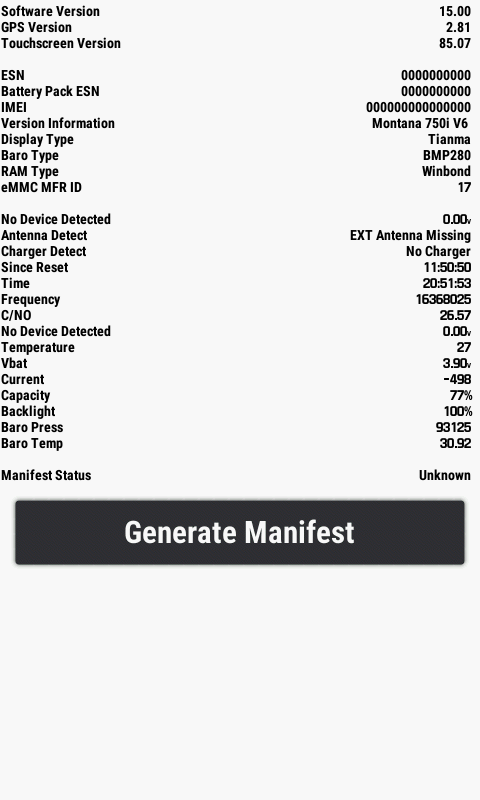
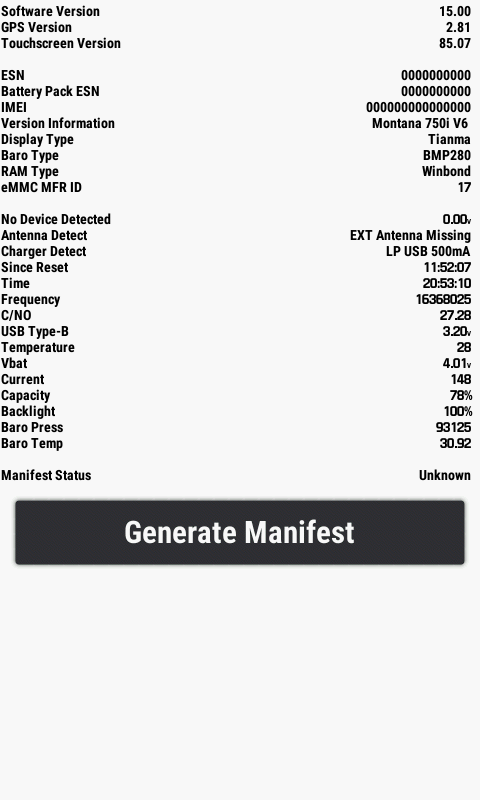
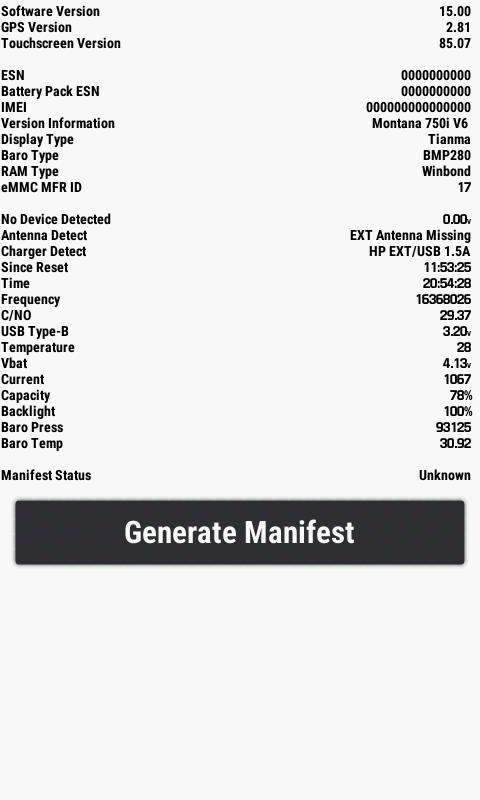
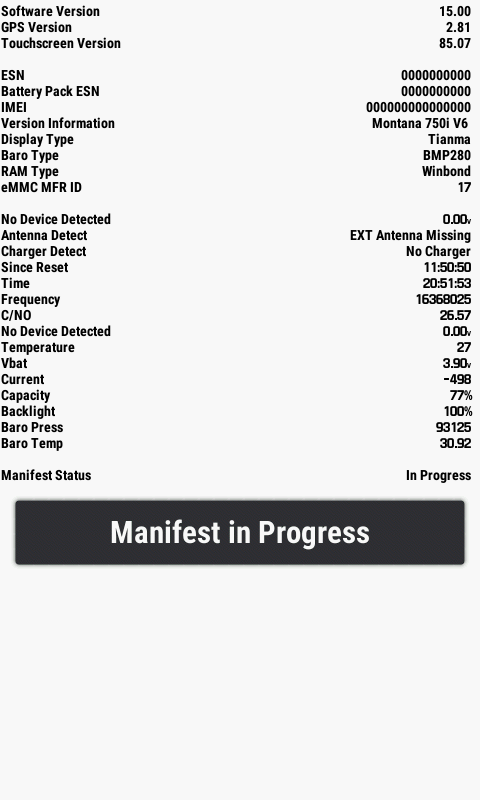
- View Device Hardware, Firmware, GPS Software and
Touchscreen versions.
- View ESN, IMEI as well as Display, Baro and RAM types.
- View antenna and charger connection status as well as
backlight level and barometric pressure/temperature.
- View battery capacity, voltage, temperature, and current
flow.
- View current time, time since reset, USB connection type
and manifest status.
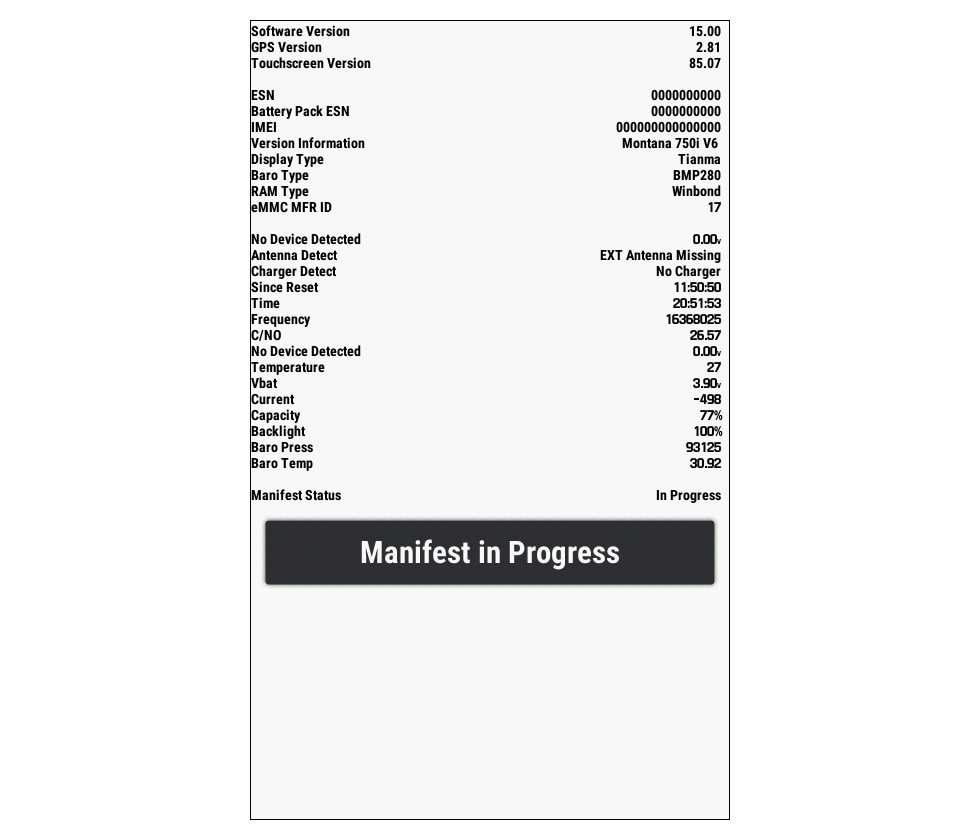
- Select 'Generate Manifest' to create
\Garmin\manifest.txt
file.
- Short press the power button to cycle backlight
brightness.
- Long press the power button to exit Device Info.
- Select images below to view full size.
|
 |
 |
 |
 |
|
No External Power Connected |
Low Power USB Charging |
High Power USB Charging |
Manifest in Progress |
|
|
|
|
|
|
|
|
|
 |
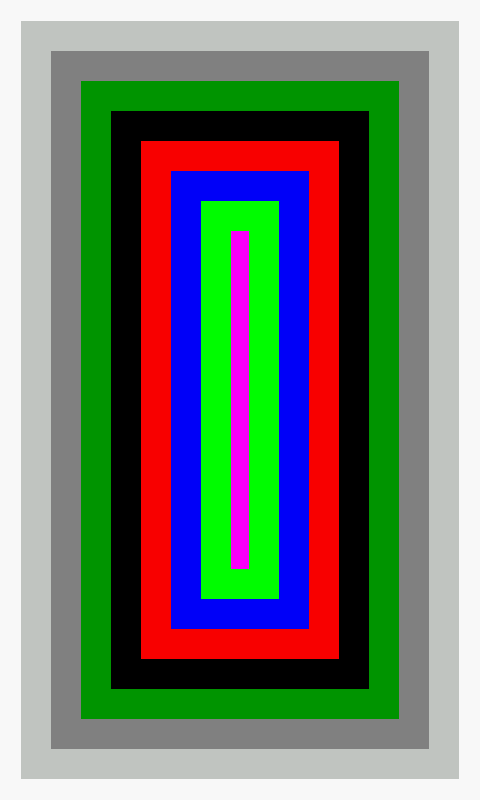
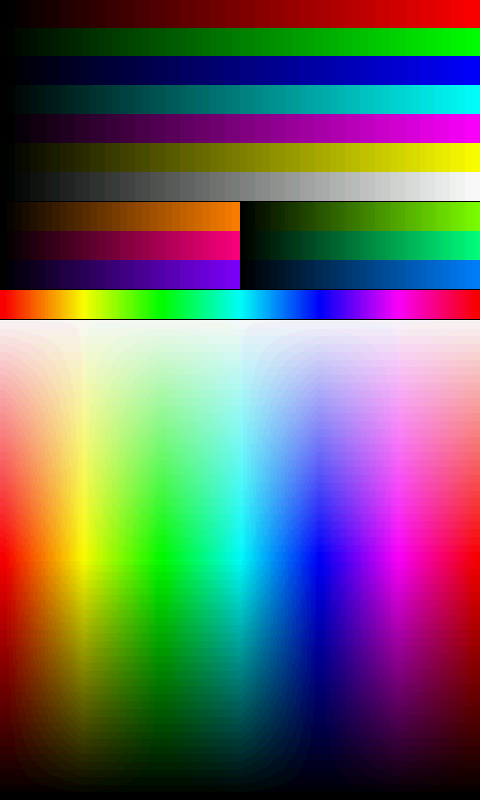
- Short press the power button to cycle through available
display tests.
- Long press the power button to exit Display Tests.
|
 |
 |
 |
 |
|
|
|
|
|
|
|
|
|
|
|
|
|
|
 |
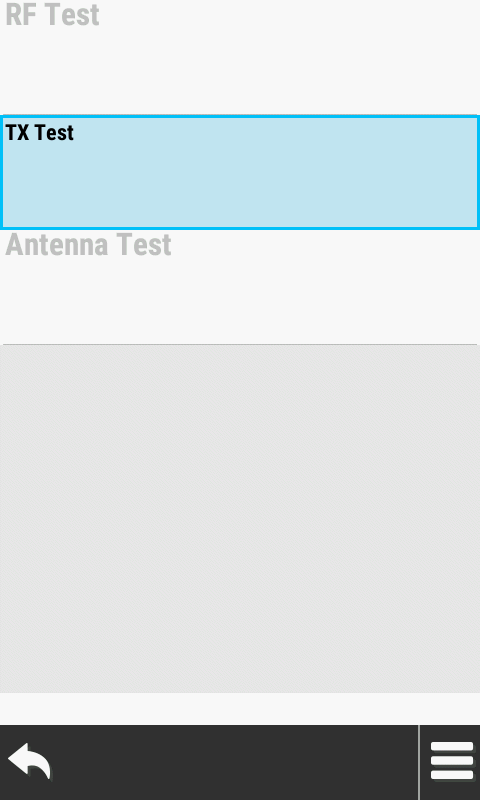
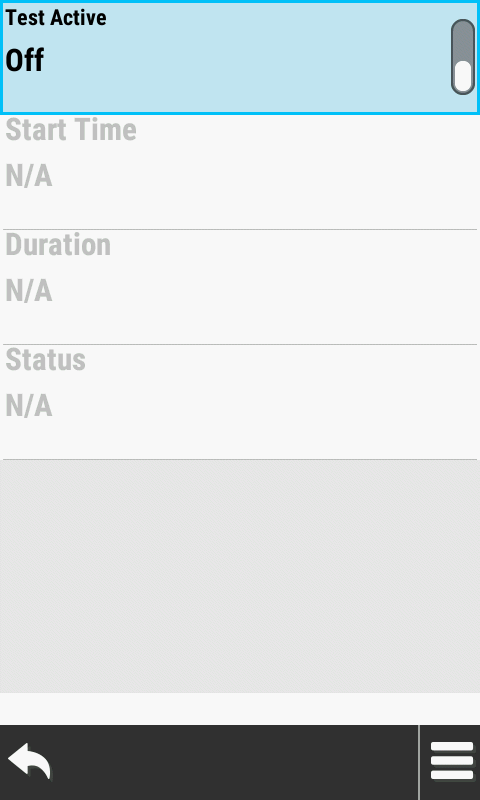
- Select from available Iridium tests.
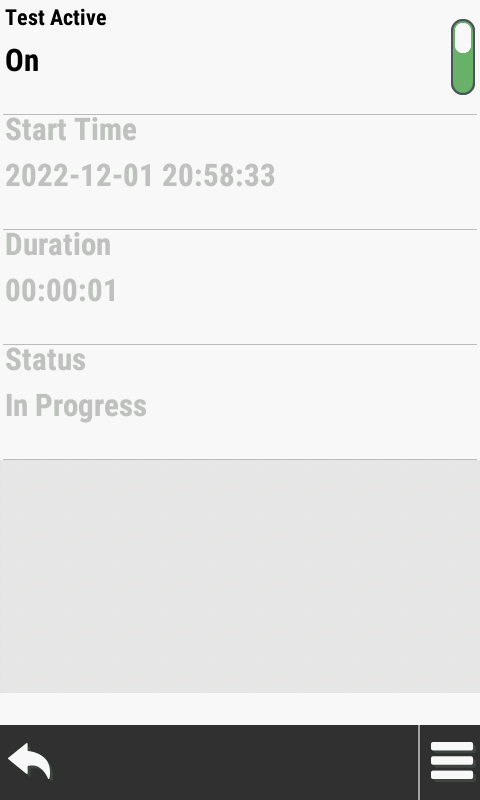
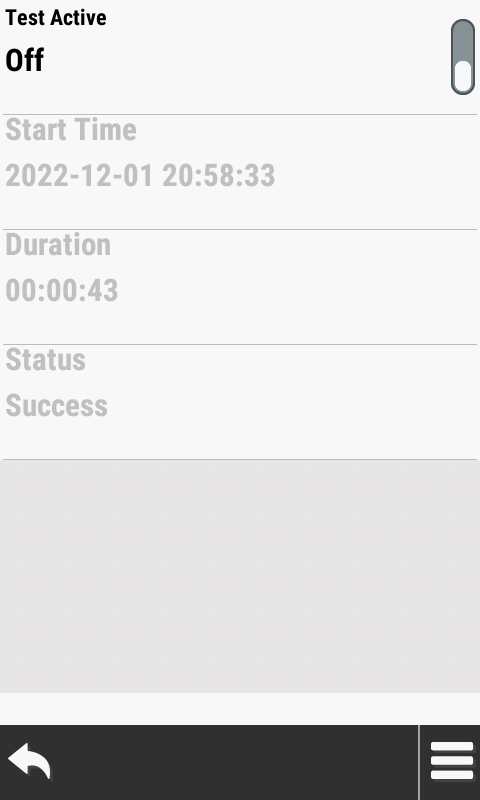
- Activate selected test and view results.
- Short press the power button to exit Iridium Tests.
|
 |
 |
 |
 |
|
Select [TX Test] |
Select [Test Active] Toggle |
Test is Activated |
Observe Test Result |
|
|
|
|
|
|
|
|
|
 |
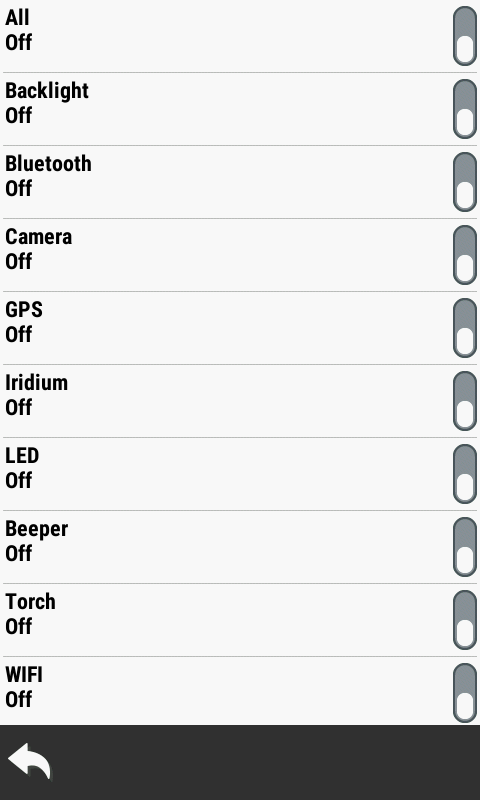
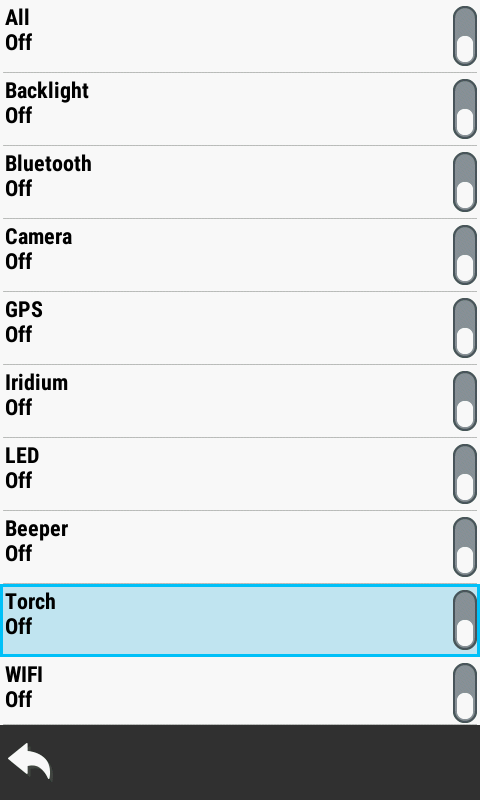
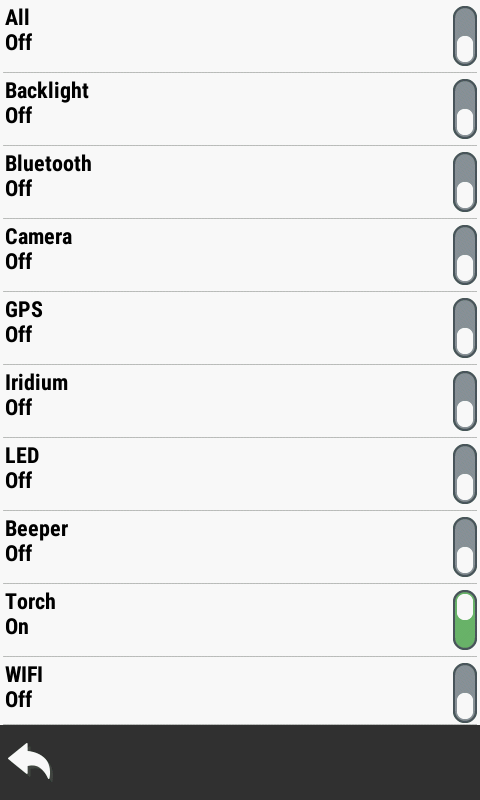
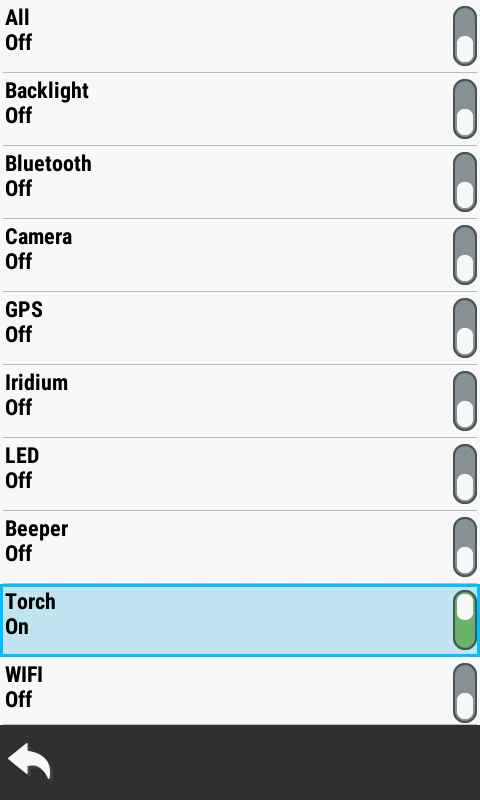
- Select desired option to toggle on/off.
- Short press power button to exit Safety Tests.
|
 |
 |
 |
 |
|
Option Disabled |
Select Toggle to Enable |
Option Enabled |
Select Toggle to Disable |
|
|
|
|
|
|
|
|
|
 |
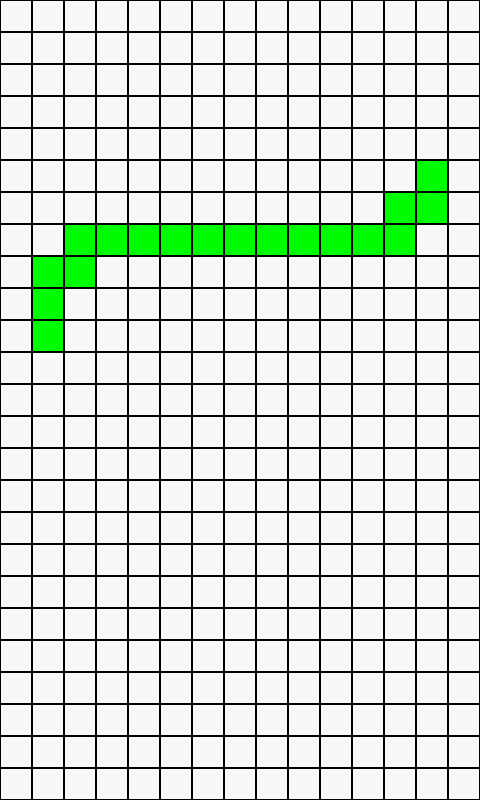
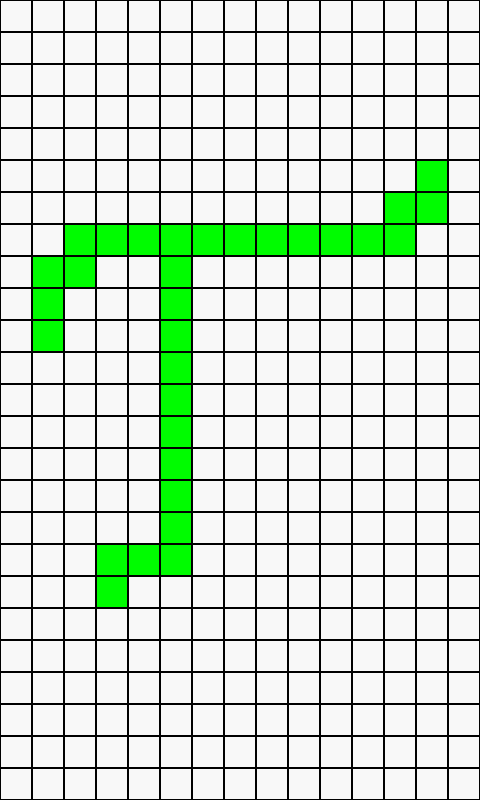
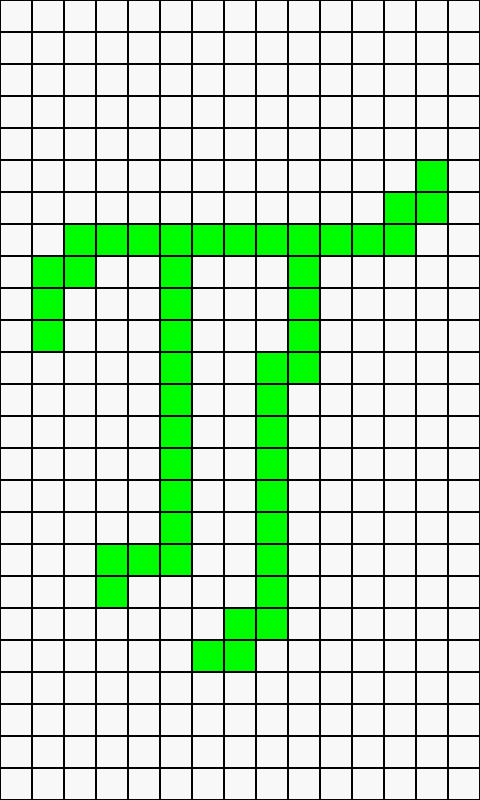
- Touch display to activate squares.
- Short press the power button to view test results.
- Long press the power button to exit TST BIST.
|
 |
 |
 |
 |
|
|
|
|
|
|
|
|
|
|
|
|
|
|
 |
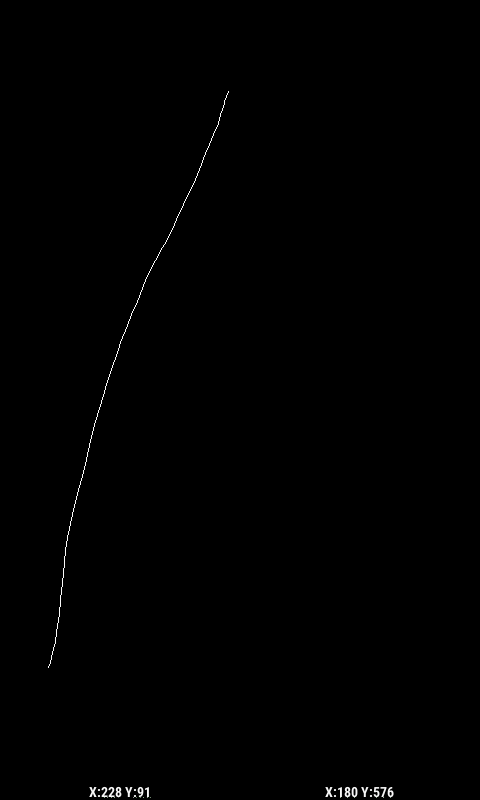
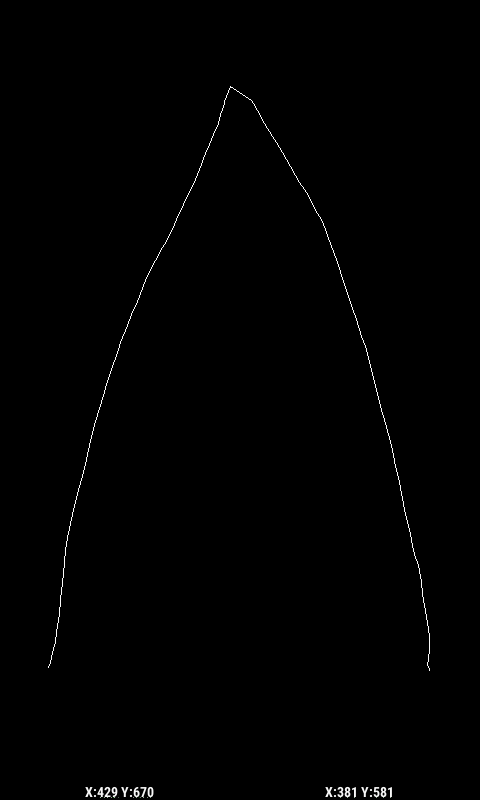
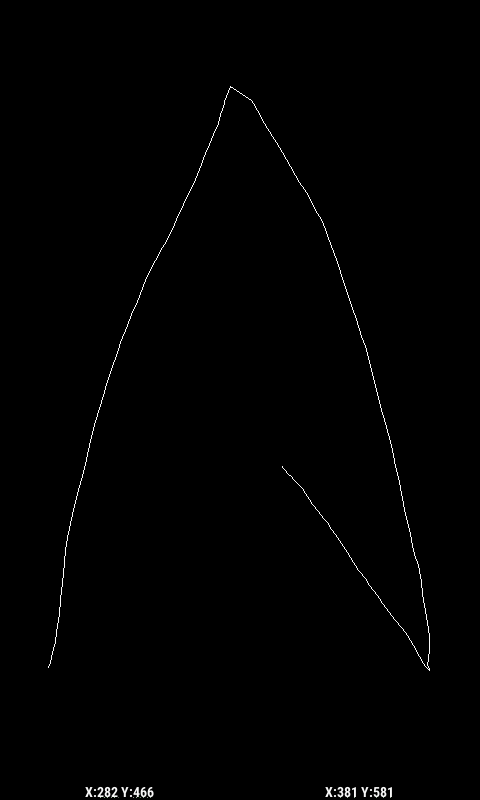
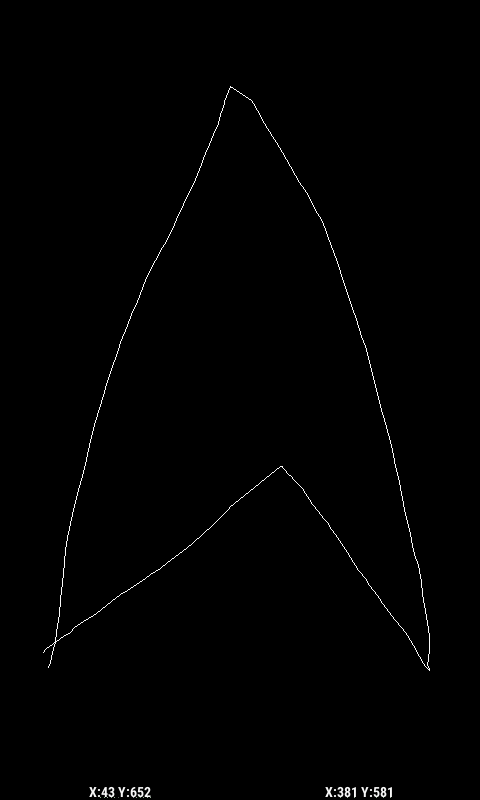
- Touch display to draw desired pattern.
- Short press the power button to clear display.
- Long press the power button to exit TSC Draw.
|
 |
 |
 |
 |
|
|
|
|
|
|
|
|
|
|
|
|
|
|
 |
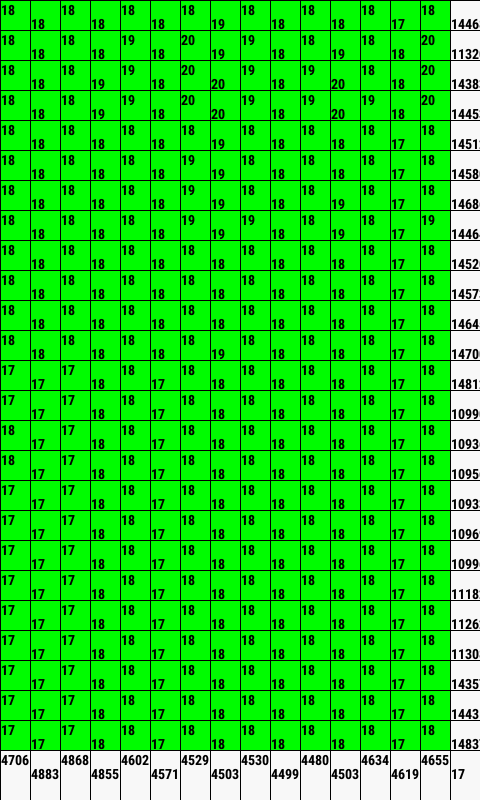
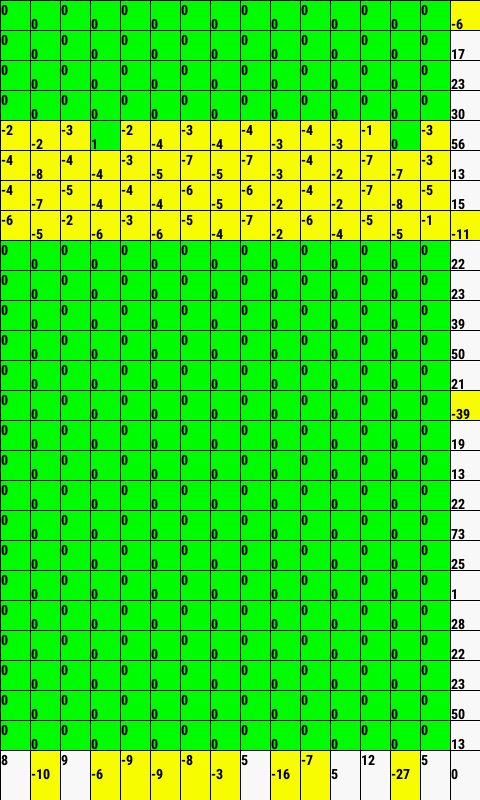
- Short press the power button to cycle through available
tests.
- Long press the power button to exit TSC Grid.
|
 |
 |
 |
 |
|
|
|
|
|
|
|
|
|
|
|
|
|
|
 |
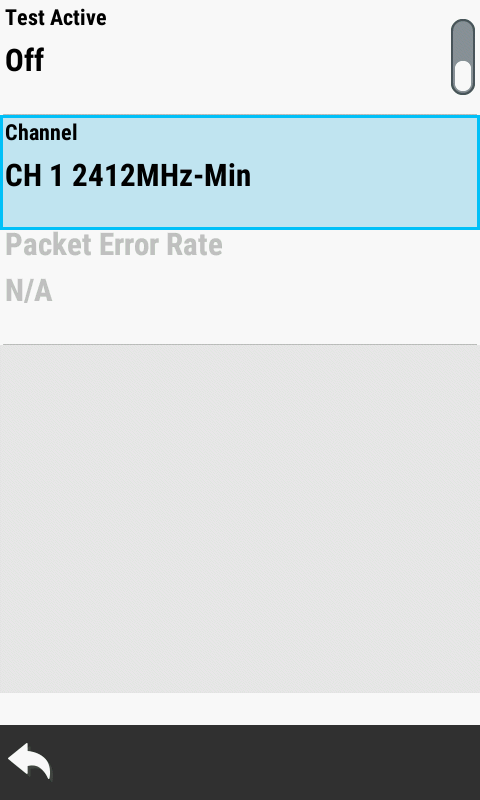
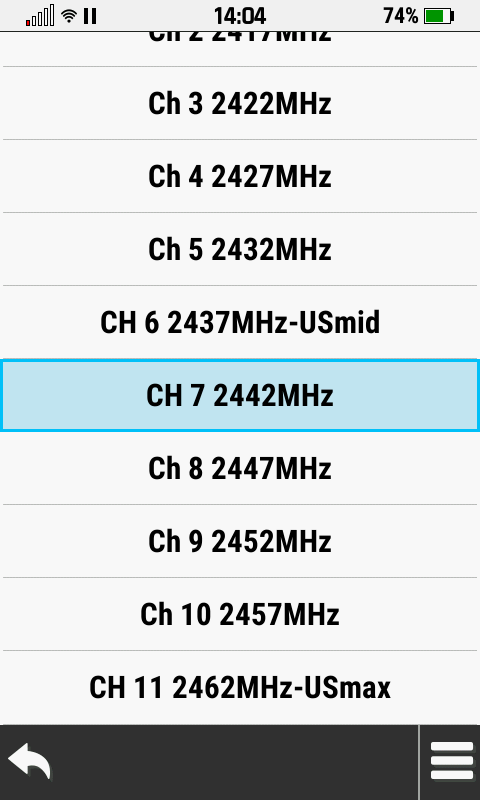
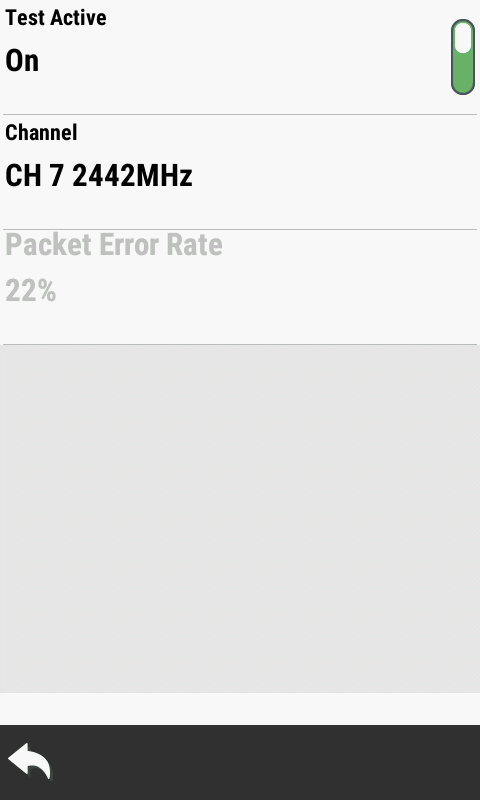
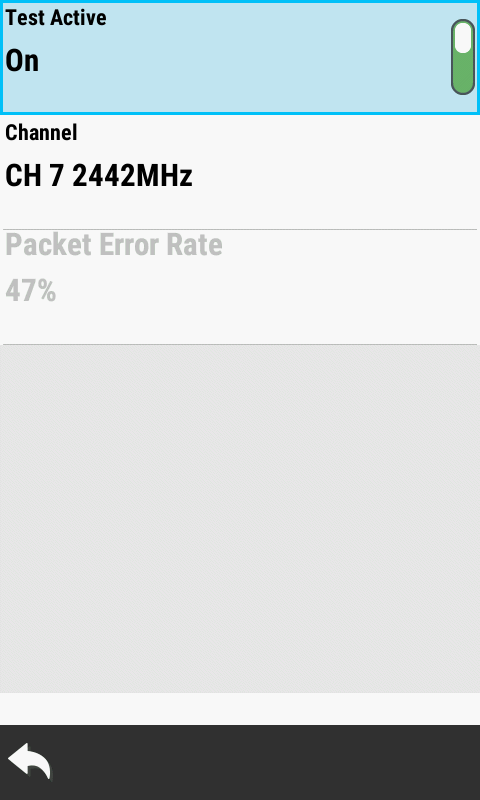
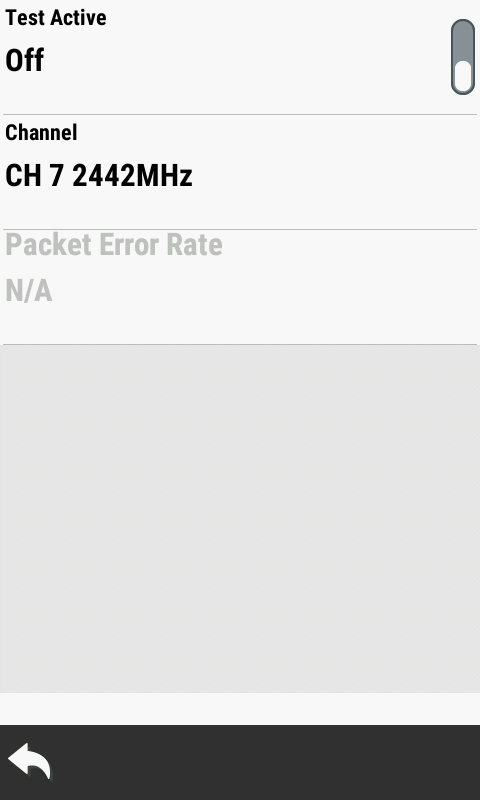
- Select desired Wi-Fi Channel.
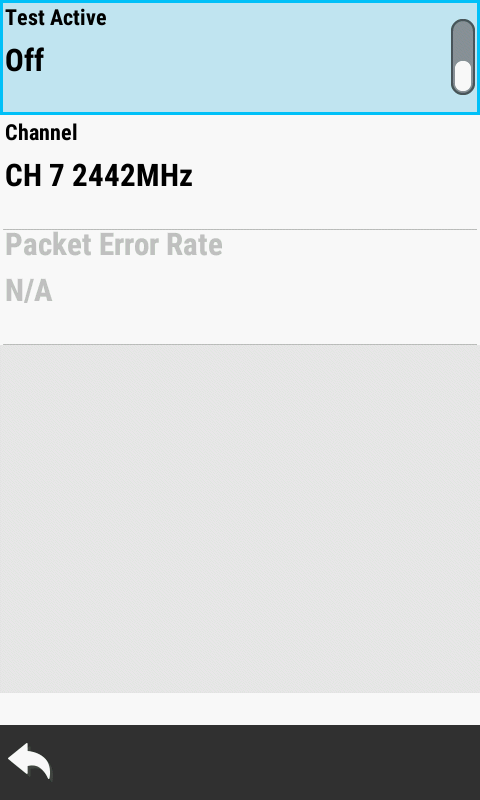
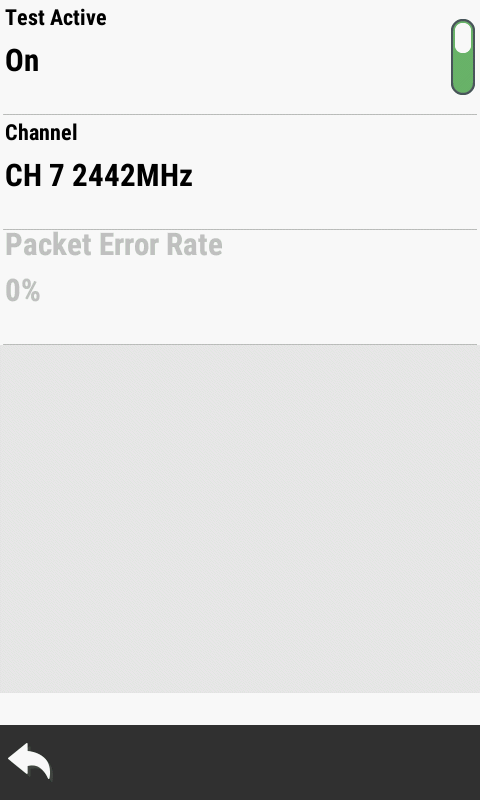
- Activate and deactivte test as desired to view live
packet error rate.
- Short press the power button to exit Wi-Fi RX.
|
 |
 |
 |
 |
|
Select [Channel] |
Select Desired Channel |
Select [Test Active] Toggle |
Test is Activated |
|
|
|
|
|
|
|
 |
 |
 |
|
|
Observe Packet Error Rate |
Select [Test Active] Toggle |
Test is Deactivated |
|
|
|
|
|
|
|
|
|
|
 |
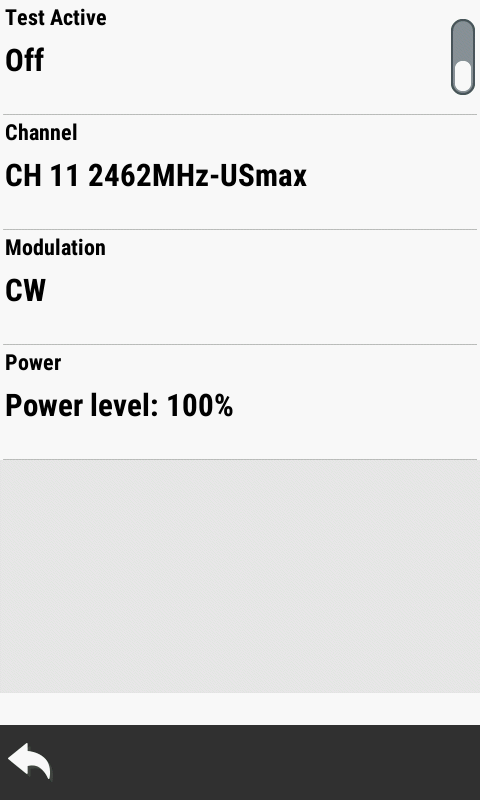
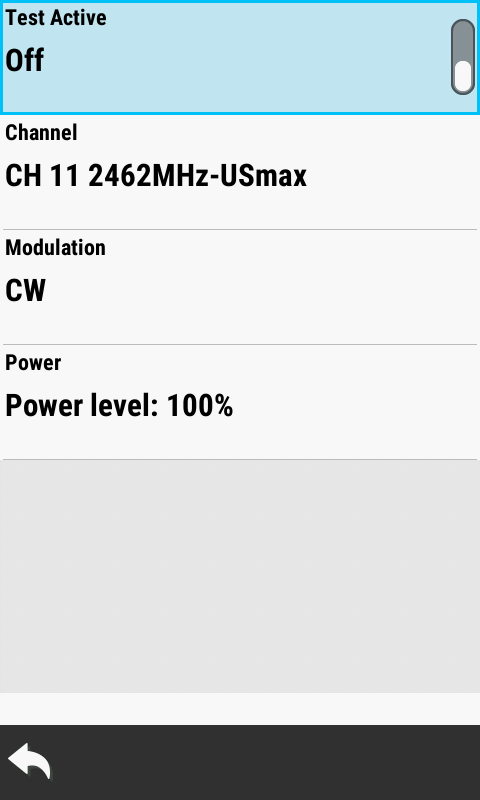
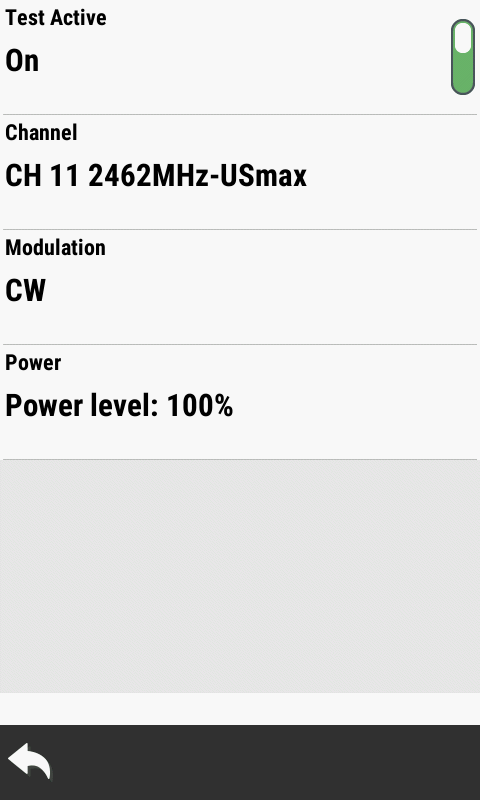
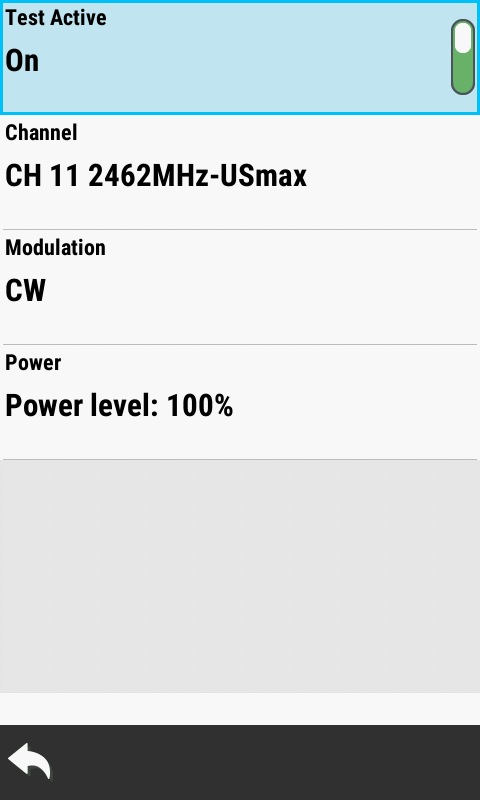
- Select desired Wi-Fi Channel, Modulation, and Power.
- Activate and deactivate test as desired.
- Short press the power button to exit Wi-Fi TX.
|
 |
 |
 |
 |
|
|
|
|
|
|
|
|
|
|
|
|
|
|
 |
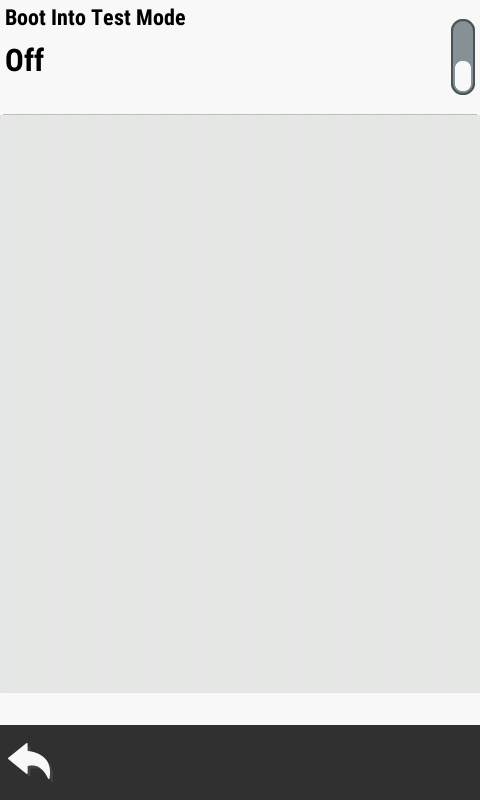
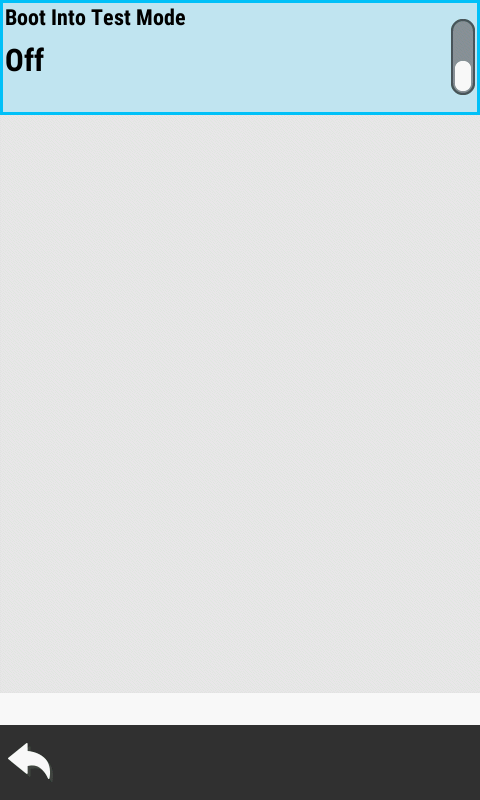
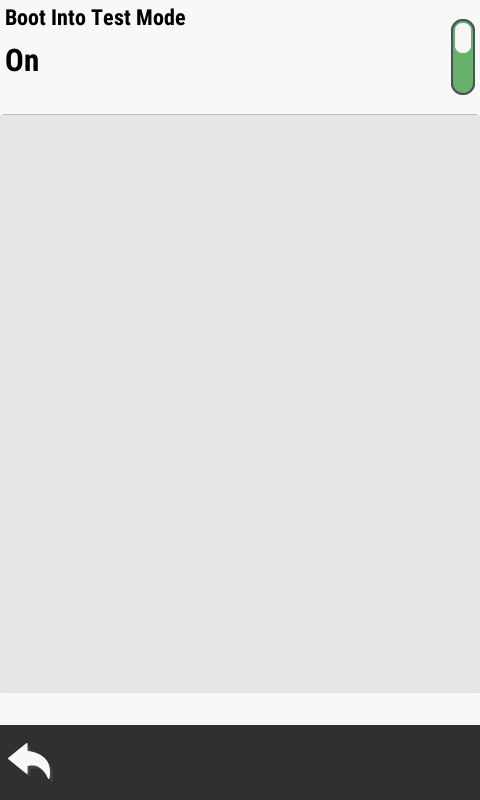
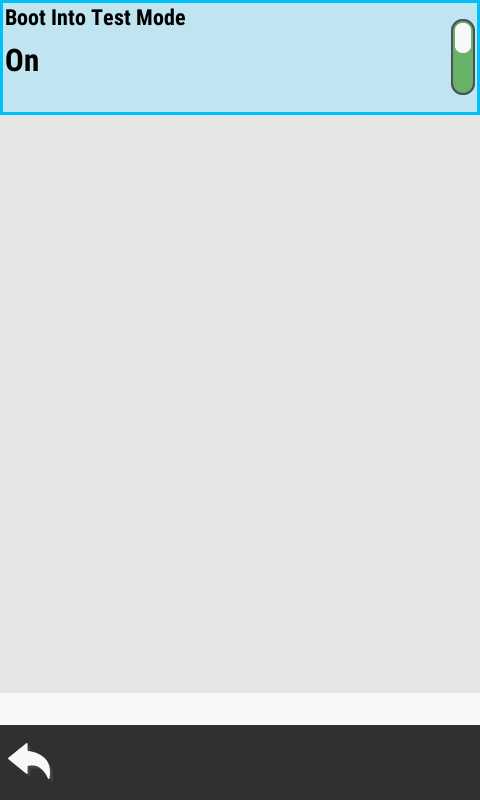
- Configure 'Boot Into Test Mode' as desired.
- Short press the power button to exit Boot Setup.
|
 |
 |
 |
 |
|
Boot Into Test Mode Disabled |
Select Toggle |
Boot Into Test Mode Enabled |
Select Toggle |
|
|
|
|
|
|
|
|
|
|
|