Home Page
-
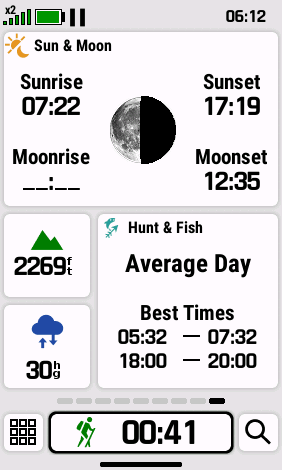
Press
 to view available Home Pages
- As many as 12 Home Pages
can be displayed for each
Activity
- Unpinned pages are displayed first,
followed by any Pinned pages
- Unpinned pages are displayed only
for the current activity
- Pinned pages are displayed for all
activities
- Each Home Page can display two to
seven Glances in one
of seven unique configurations
- Each Glance can be configured as
desired to display live data or App / Settings shortcuts
|
|
|
Home Page Configuration |
|
|
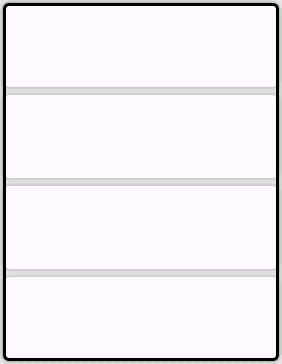
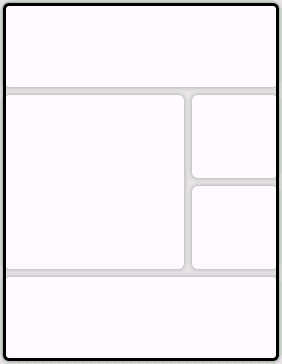
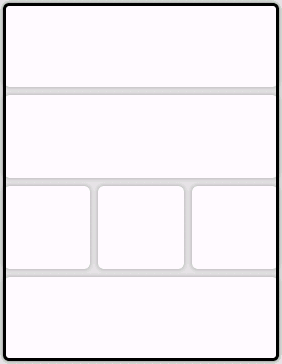
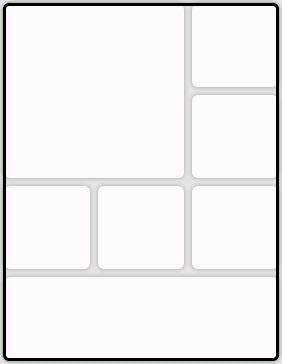
- Each Home Page can display
two to seven Glances in one
of seven unique configurations
|
 |
 |
 |
 |
| 2 Glances |
3 Glances |
4 Glances |
4 Glances |
| |
|
|
|
 |
 |
 |
|
| 5 Glances |
6 Glances |
7 Glances |
|
| |
|
|
|
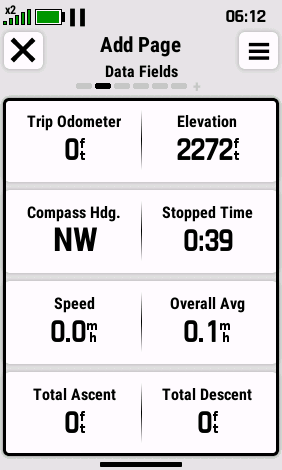
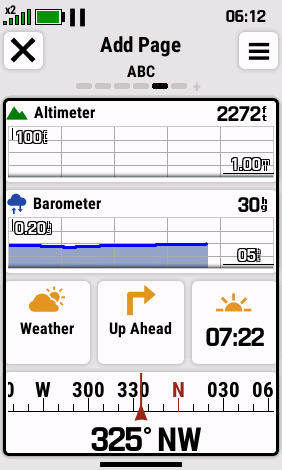
Add
New Home Page |
|
|
-
As many as 12 Home Pages
can be displayed for each
Activity
- Clone an existing page or create your own
|
 |
 |
 |
 |
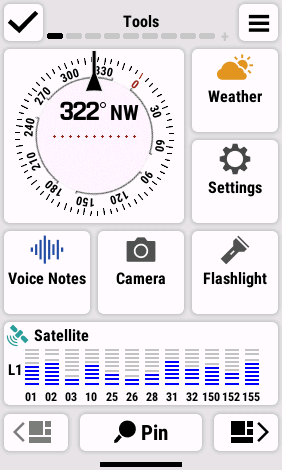
| Touch and Hold, or |
Select 'Edit Home
Screen' |

|
Touch or Press Enter to |
| Press Menu Button |
|
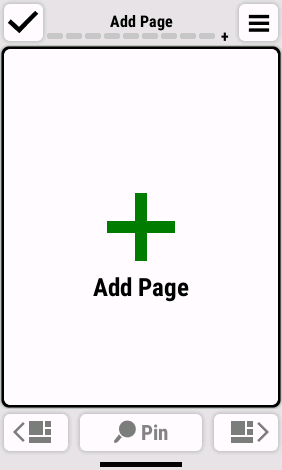
Scroll Right to the end |
'Add Page' |
| |
|
|
|
 |
 |
 |
 |

|
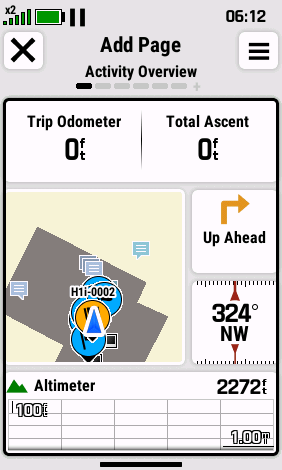
Touch or Press Enter to |
|
Touch or Press Enter to |
| Scroll Available Pages |
Add Current Page, or |
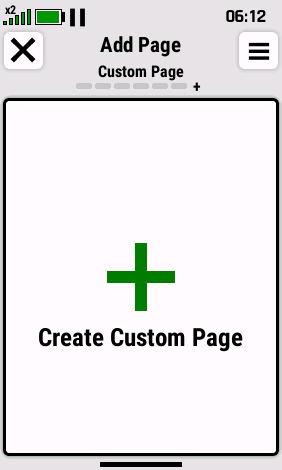
Scroll Right to the end |
'Create Custom
Page' |
| |
|
|
|
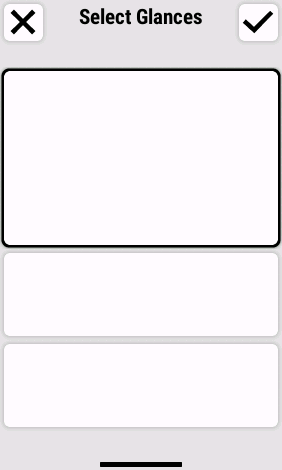
Create Custom Page |
|
|
- Create a custom page from scratch
- Choose a page layout, then assign glances, data fields,
and shortcuts as desired
|
 |
 |
 |
 |
| Select 'Create Custom
Page' |
|
Touch or Press Enter to |
Touch or Press Enter to |
|
Scroll Available Pages |
Select Desired
Configuration |
Select Empty Glance |
| |
|
|
|
 |
 |
 |
 |
|
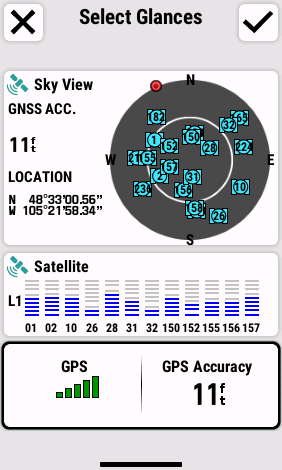
Choose Desired Glance |
Selected Glance is Added |
Touch or Press Enter to |
Choose Desired Glance |
|
to Home Page |
Select Empty Glance |
|
|
|
|
|
|
 |
 |
 |
 |
| Selected Glance is Added |
Touch or Press Enter to |
Choose Desired Glance |
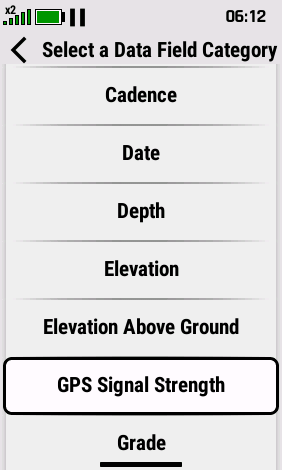
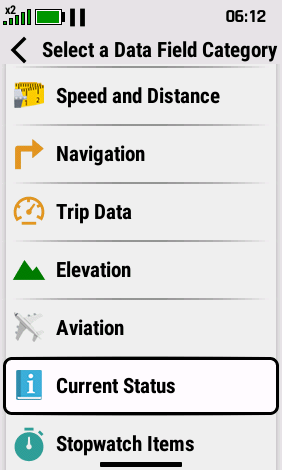
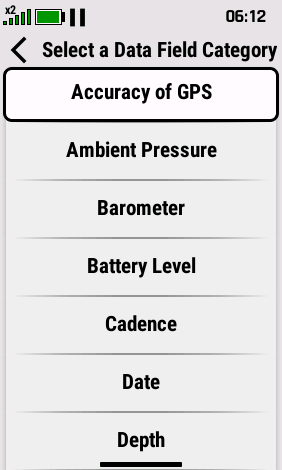
Select a Category |
| to Home Page |
Select Empty Glance |
|
for Left Data Field |
| |
|
|
|
 |
 |
 |
 |
|
Select Left Data Field |
Select a Category |
Select Right Data Field |
Selected Glance is Added |
|
for Right Data Field |
|
to Home Page |
|
|
|
|
|
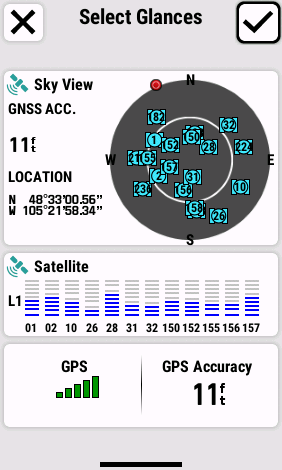 |
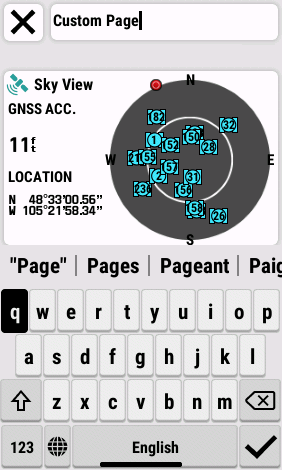 |
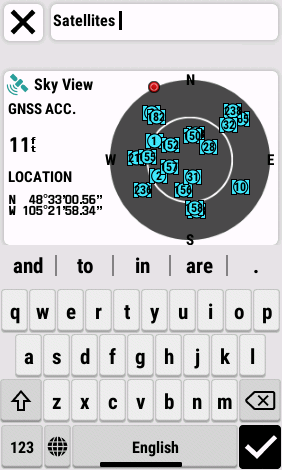 |
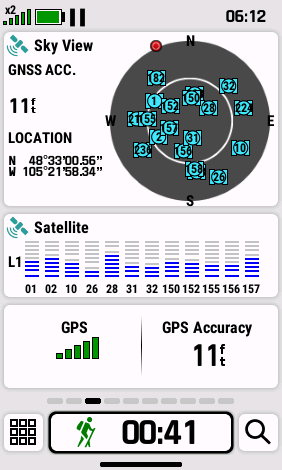 |
Select
 or Press Enter
 |

|
Enter Desired Text and |
Custom Home Page |
|
Delete Existing Text |
Select
or Press Enter |
is Completed |
| |
|
|
|
Pin Home Page |
|
|
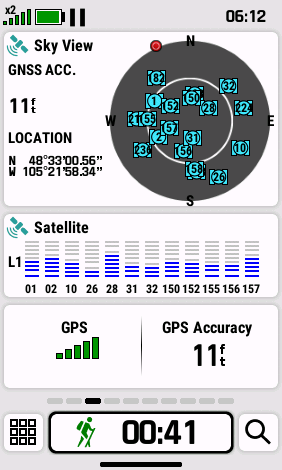
-
Pinned pages are displayed for all
activities
-
Pinned pages are displayed in sequence after any unpinned
pages
|
 |
 |
 |
 |
| Touch and Hold, or |
Select 'Edit Home
Screen' |
|
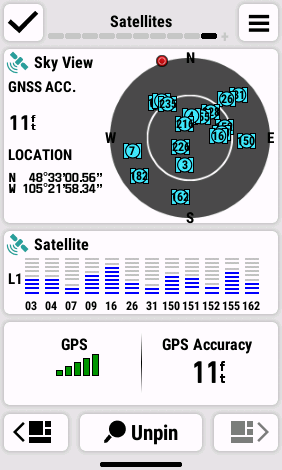
Select 'Pin' |
| Press Menu Button |
|
Scroll to Desired Page |
|
| |
|
|
|
 |
 |
 |
|
|
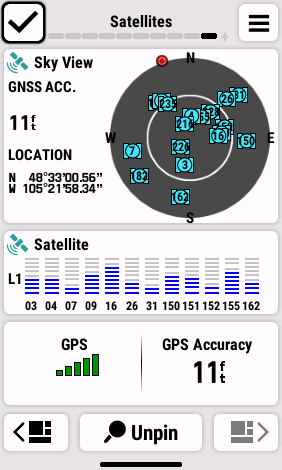
Page is Pinned |
Select
or Press Enter |
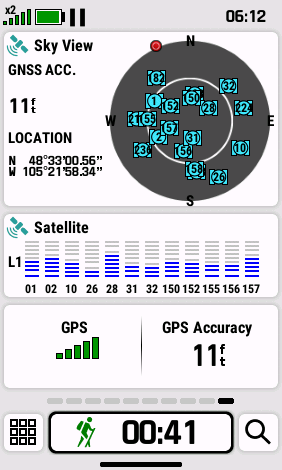
Page is Relocated to |
|
|
|
end of Pinned Pages |
|
| |
|
|
|
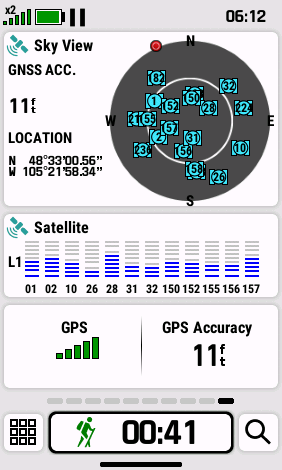
Unpin Home Page |
|
|
-
Unpinned pages are displayed only for the current activity
-
Unpinned pages are displayed in sequence before any pinned
pages
|
 |
 |
 |
 |
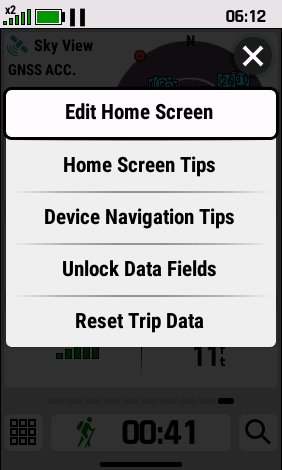
| Touch and Hold, or |
Select 'Edit Home
Screen' |
|
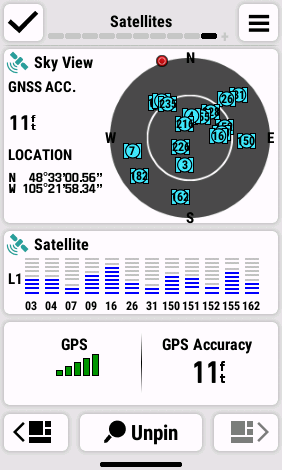
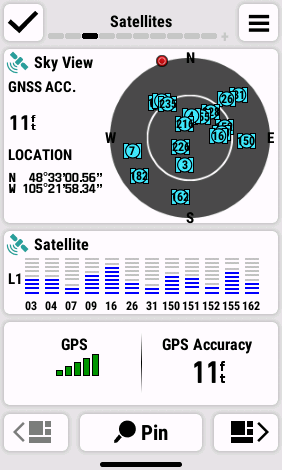
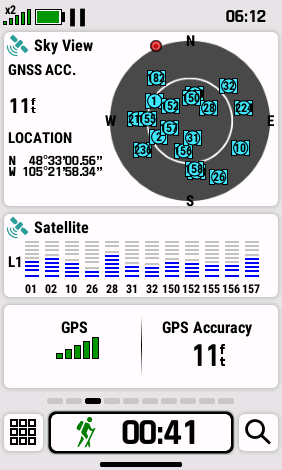
Select 'Unpin' |
| Press Menu Button |
|
Scroll to Desired Page |
|
| |
|
|
|
 |
 |
 |
|
|
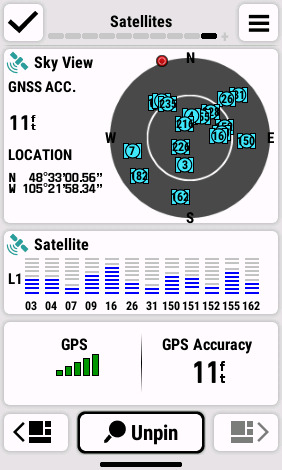
Page is Unpinned |
Select
or Press Enter |
Page is Relocated to |
|
|
|
end of Unpinned Pages |
|
| |
|
|
|
Move Home Page |
|
|
- Change the Home Page display sequence
- Pinned and unpinned pages can only be moved within their
respective groups
|
 |
 |
 |
 |
| Touch and Hold, or |
Select 'Edit Home
Screen' |
|

 |
| Press Menu Button |
|
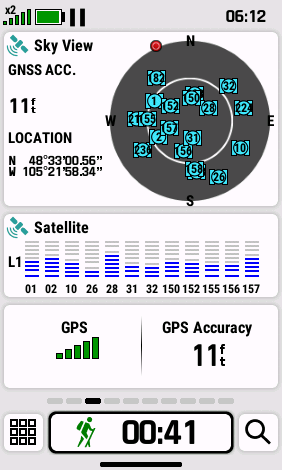
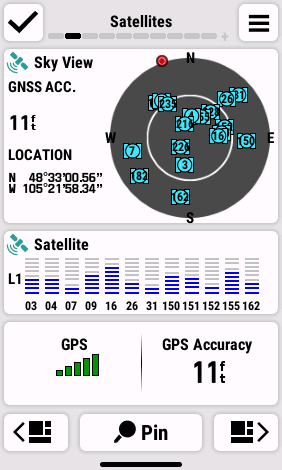
Scroll to Desired Page |
Move Page as Desired |
| |
|
|
|
 |
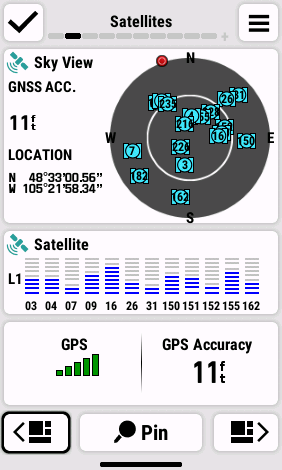 |
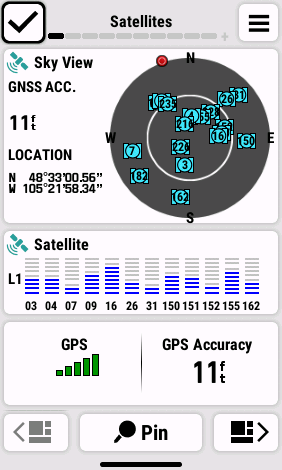 |
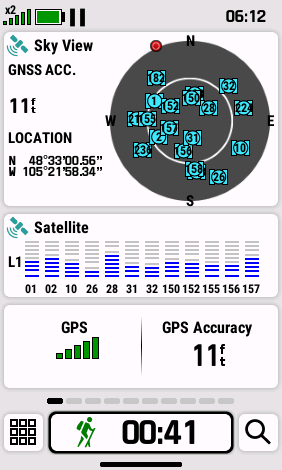 |
|
Page Location is Updated |
|
Select
or Press Enter |
Page is Relocated to |
|
Move Page as Desired |
When Finished |
Selected Location |
| |


