Hands on Garmin Oregon 650 Review
01MAY13
On being an early adopter
I am an early adopter. Having owned many Garmin GPS receivers in the past, I find myself eager to experience the new features and functions included with each new hardware release. As many Garmin users are aware, this can mean months of buggy operation while software engineers continue to work out all the kinks in an effort to provide the functionality advertised for each unit.
Usually, the software is stable and usable sometime within the first 12 months after release, and at some point much farther away the firmware will be as functional and refined as it will ever be. This is not necessarily a bad thing, as Garmin is very receptive to user input during this period, and I know of no other company that allows for direct user input while refining a product line.
In the past, this reputation has prevented many potential users from adopting Garmin’s newest devices until after they have sufficiently matured. Of course, these late adopters also miss out on being a part of post release development.
With the introduction of the Garmin Oregon 6x0, everything has changed.
A game changer
Garmin has produced several outdoor touch screen GPS receivers. The Oregon x00 series was first, followed by the Oregon x50, Dakota x0 series, and the Montana. Each new release built on the success of the last, offering new features and incremental improvements over previous models.
While Garmin’s newest Oregon 6x0 series continues to build on popular features available with past models, this GPSr is far from an incremental or evolutionary step forward. The Oregon 6x0 appears to be the first of (what I hope to be) a revolutionary new direction in product philosophy.
The Garmin Oregon 6x0 software is very refined and quite mature, right out of the box. The Oregon 6x0 is ready to perform, as is.
The Oregon 6x0 is a game changer.
The basics
Discussing each and every function of the Oregon 6x0 in detail would require more space than is available for this review. For this reason, this review will concentrate mostly on features and improvements new and exclusive to the Oregon 6x0. Detailed information is available through out the Garmin Oregon 6x0 wiki.
The Oregon 6x0 offers the same dual orientation display available with the larger Montana, but lacks the ability to use a powered dock and provide spoken directions. This alone means the Oregon 6x0 will not be a viable replacement for most Montana users.
Also carried over from the Montana, the Oregon 6x0 allows the user to create one touch shortcuts (macros) allowing quick and easy access to many GPSr features and functions.
Borrowed from the Montana as well is the dual power option, allowing use of standard AA batteries or Garmin’s rechargeable NiMH battery pack that charges inside the GPSr. This feature is standard for Oregon 650/650t, and optional for 600/600t. Only Garmin’s NiMH battery pack can be recharged inside the GPSr.
The Oregon 6x0 includes an additional User Button just below the Power Button that can be configured to initiate just about any function desired for single tap, double tap, and hold.
An improved Trip Computer now displays 33% more information on the screen with more data fields available on each page.
The Garmin Oregon 6x0 includes 20 additional data field options not available on the Montana.
The Map Applications allows for individual KMZ Custom Maps to be enabled and disabled as desired.
The Oregon 6x0 includes a 3-axis electronic compass with accelerometer tilt compensation that can be used in any orientation.
The Oregon 650/650t feature a modern 8MP camera that will take photos you won’t believe came from your GPSr. The included LED flash on these models also serves as a flashlight or emergency strobe beacon, and can be configured to repeatedly flash an S.O.S. signal.
GLONASS support
Originally introduced with the new eTrex series, the Garmin Oregon 6x0 can also use GLONASS satellites in addition to standard GPS satellites to achieve quicker position fix times and maintain your fix under heavy cover and in deep canyons. I have yet to test the deep canyon claim, but am very eager to do so later this year when I visit Havasupai, in the depths of the Grand Canyon.
 |
|
Satellite reception on various Garmin handhelds; Oregon 650 at far right |
Some debate exists about whether or not GLONASS improves accuracy. Having more satellites available certainly will improve position acquisition times and help maintain signal lock under heavy cover. My testing suggests the unit is no more accurate with GLONASS turned on than it is with GLONASS turned off. This may not hold true for all locations and environments, and having the option to tap into more satellites when necessary is certainly a benefit I appreciate.
Garmin Oregon 650 screen
Perhaps the most obvious, if not immediately apparent change to the Oregon 6x0 series is the new chemically strengthened glass multi-touch display. After using multi-touch smart phones for many years, I found previous Garmin touch screen GPSr units were not exactly intuitive to use. They worked, but never were as precise, or as fluid as I wanted them to be.
The new Oregon 6x0 screen looks and behaves much like my iPhone screen. Scrolling menus, making selections, and panning the map screen all function as I expected. I have limited time testing the screen in the wet and with gloves, and have experienced no issues with either.
 |
|
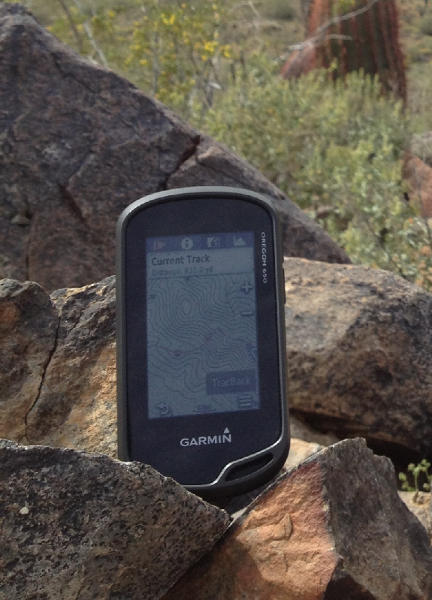
The Garmin Oregon 650 in its natural habitat |
The display is very bright, and is as easy to see in direct sunlight as any smart phone. I have absolutely no complaints, and believe this to be the best display Garmin has produced for their outdoor line of GPSr. You will simply have to see the screen for yourself before you can decide.
UPDATE: Here’s a cool screen hardness test!
Wireless capabilities
ANT+ has been carried over from previous designs, while Bluetooth has been added to improve data sharing capabilities. Larger files, including KMZ custom maps, photographs, and Adventures can be shared between compatible devices quickly and effortlessly.
 |
|
Garmin’s BaseCamp Mobile iOS app |
iOS users can use BaseCamp Mobile to edit and transfer data between their Oregon 6x0, iOS device, and Garmin cloud storage. I spent some time playing with BaseCamp Mobile, and it functioned reasonably well, but still has plenty of room for improvement. I suspect future improvements and refinements will be coming, and have requested an Android version as well. My iPhone is due for replacement soon, and this time I will not be replacing it with another iOS device.
Current track
Debuting on the Oregon 6x0 series, the new ‘Current Track’ application greatly improves track log management and workflow.
Gone are the days of having to exit the current application, opening the setup menu, and working through multiple nested option screens to manage your current track log recording options.
Including the ability to create shortcuts (macros) for some common functions on the Montana was a step in the right direction, but many operations still required navigating between applications to view and use all the information available. The Oregon 6x0 provides complete track log access and control from one application.
The Current Track application icon (see image below) provides some basic information directly from the main menu screen, before you even open the application. This dynamic icon changes appearance in response to track recording status, displaying a green arrow while track recording is active, and a yellow arrow while paused. The border color of the icon indicates the current track color.
 |
|
Garmin Oregon 6x0 series track icons |
The primary interface is divided into four screens, each easily accessed by selecting the appropriate tab along the top of the screen.
The Track Control (shown below at left) screen displays current track color, total time, and total distance. From this screen you can start and pause track recording, delete the current track, and save the current track, in whole or selected portions.
 |
|
Track control screen shown at left; track information tab shown at right |
Select the Track Information tab (shown above at right) to view detailed summary information for the current track, as well as controls to change the current track color, and show or hide the current track on the map screen.
The Map View tab (shown below at left) displays the complete current track on the map screen, providing direct access to a detailed track summary and map screen controls, and the TracBack functions to swap the start/finish points and guide you back the way you came.
 |
|
Track map view (left) and elevation (right) tabs |
A fourth tab will open the interactive Elevation Plot interface (shown above at right), displaying minimum and maximum elevation information, and allowing the user to view and select any portion of the graph to view specific details. Here you can also see the ‘Future Plot’, an estimate of the track elevation ahead based on installed mapping data. The current track is always displayed in green, and the future plot in blue.
 |
|
New track control dashboard |
A new Track Control dashboard is also provided, allowing essential track log recording control from any application or main menu screen.
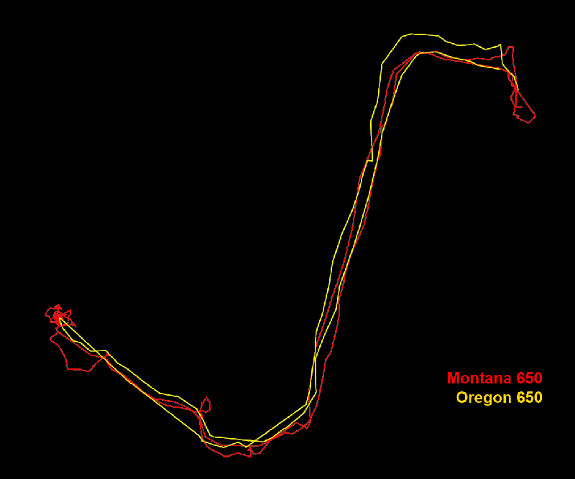
Additionally, Garmin has included two new Track Log recording functions: Auto Start, and Auto Pause. Auto Start will initiate Track Log recording each time the Oregon 6x0 is powered on and the unit has a satellite lock. Auto Pause will temporarily stop track log recording when you stop moving, and start again when you do. The purpose of this feature is to remove the clutter that occurs in all track recordings each time you stop along the way for any period of time, such as when you stop along a hike to eat lunch.
Here is an example of a short hike with a Montana 650, and an Oregon 650 (with Auto Pause enabled):
 |
|
Montana 650 track vs Oregon 650 track with auto pause enabled |
Having used the new Current Track interface for the past few weeks, I can’t imagine how Garmin could make track log recording management any more efficient, and I wouldn’t want it any other way.
Track manager
The Track Manager application has also been polished and refined, offering more information and streamlined controls for all tracks saved to the Oregon 6x0.
The track selection menu not only provides direct access to all tracks on the device, but also provides track color information for tracks that are currently set to ‘show on map’.
Tracks are displayed based on proximity by default, and can also be sorted alphabetically or by creation date.
 |
|
Garmin Oregon 650 track selection menu |
A ‘Spell Search’ function is also provided to help users quickly locate a desired track.
Once a track is selected, the user is greeted with a tabbed user interface allowing access to more information and more controls directly from the Track Manager screen.
The Track Information tab (below left) displays statistical data for the selected track, as well as providing controls to edit the track name, change track color, set track visibility on the map, and move the track between favorites and archived status.
The Map View tab (below center) displays the selected track with currently enabled maps, and provides direct access to a Track Summary information page, map controls, and a ‘Go’ button to begin navigating to the selected track.
 |
|
Track info, map and elevation tabs |
An Elevation Plot tab (above right) provides detailed elevation information for the selected track. Select any position along the elevation plot, select the menu button, and ‘View on Map’ to view the selected position along the track on the map screen.
The Waypoint Manager application includes similar refinements, offering streamlined editing capabilities not previously available.
Geocaching
With all the other added features and refined functionality combined, the Oregon 6x0 is already quite desirable, if not impossible to resist. If you are not a geocacher, the Oregon 6x0 offers sufficient improvements to merit serious consideration. If you are a geocacher, the Oregon 6x0 is the Holy Grail.
For the Oregon 6x0, Garmin has pulled out all the stops and put much effort into building the ultimate caching machine.
No limits. Unlimited. Limitless. These words are fair to use when describing the geocaching capabilities of the Oregon 6x0. Great improvements have been made to both the back end and front end of this device.
Previous paperless geocaching GPSr units were limited by the number of geocaches they could actively index. 2000 for the Colorado, Dakota, and Oregon x00. The Oregon 450/550 series is limited to 5000 caches, and with a 12,000 geocache capacity, the Montana was the best in class. The Oregon 6x0 is capable of indexing as many as 4 million geocaches. That is nearly twice the number of geocaches currently available. On the entire planet.
Garmin created a new geocache storage format, GGZ, to help accomplish this, and is making it freely available to any who wish to use it. However, GGZ files are not required to enjoy the virtually unlimited storage capabilities of the Oregon 6x0. You can still load all your PQ’s and GSAK databases to the Oregon 6x0 in GPX format, and have all the information for every single geocache available from the new and improved GeoCaching User Interface. Not as POI’s, but as complete geocaches with full descriptions, hints, photos, logs, etc. Every geocache.
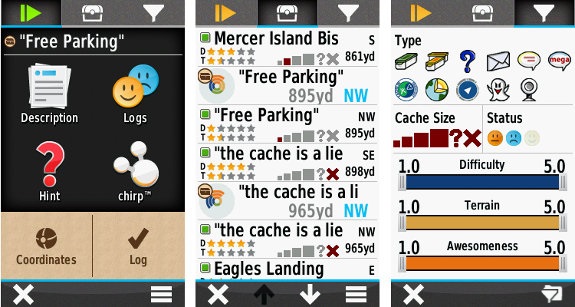
The completely re-imagined GCUI also makes use of a now familiar tabbed menu interface with three tabs; Active Geocache, Geocache List, and Geocache Filters.
The Active Geocache menu (below left) provides quick access to the geocache description, photos, logs, hint, chirp details, next stage dialogue, and the geocache logging interface to log your finds.
The Geocache List (below center) displays available geocaches based on your location and enabled filters. Geocaches can be sorted by name and location directly from this screen.
 |
|
Garmin Oregon 6x0 series geocaching screens |
The Geocache Filters interface (above right) provides quick and easy filtering controls to decide which geocaches are displayed in the Geocache List as well as on the Map screen. Filter selections are dynamic and applied immediately. Custom filters can be created, saved, and applied instantly as well.
I have been using the new GCUI for several weeks now with more than 50,000 complete geocaches loaded on my Oregon 650, all in GPX format. The Oregon 6x0 is still very quick and responsive, even more so than my Montana with only 10,000 geocaches loaded.
Conclusion
After using the new Oregon 650 for nearly eight weeks, I have found the device to be a very capable unit worthy of serious consideration. The Oregon 650 has surpassed nearly all of my expectations, and provided additional features and benefits I wasn’t aware I wanted, and now do not want to be without.
A word of caution, however. Regardless of intended use for this GPSr, be it hiking, riding, geocaching, or whatever, once you’ve used the new features available with the Oregon 6x0, you may just find your other GPSr units collecting dust. A lot of dust.
You will not be disappointed.
end
